Managing Your Profile & Settings
Learn how to manage your Drivable profile as a renter. We walk through every section: personal details, payment methods, login and security, and your notifications — so you always stay in control of your account.
Your profile is the central place for everything related to your Drivable account. Here you can save your personal details, add a credit card, change your password, and choose what we can notify you about. In this article, we walk through each section step by step so you know exactly where to find everything.
- Where to find your Profile tab and what to expect there
- How to view and edit your personal details
- How to add a credit card and other payment methods
- How to change your password or delete your account
- How to manage your push, email, and WhatsApp notifications
1
Opening the Profile Tab and Understanding the Overview
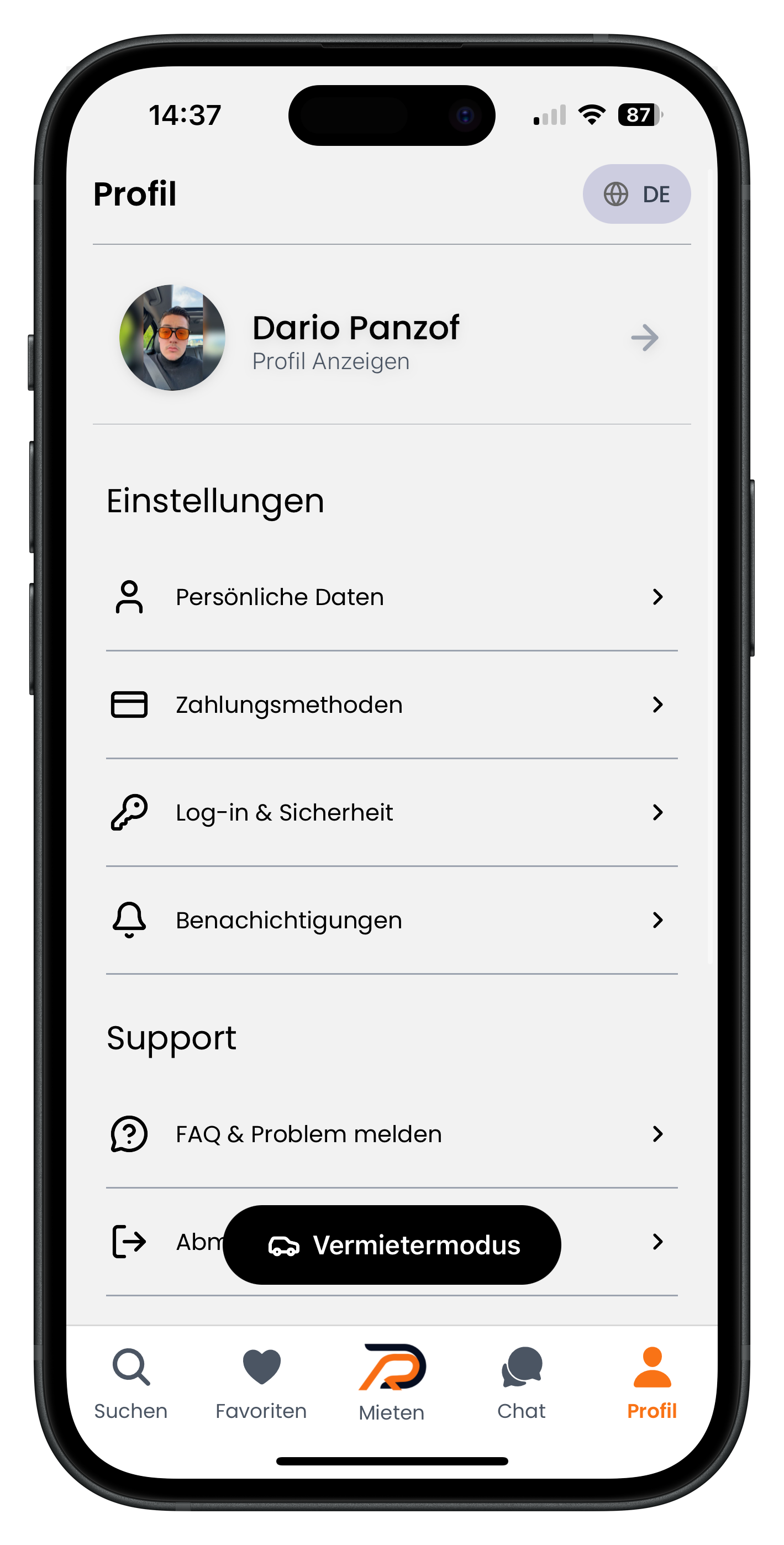
Tap Profile on the far right of the bottom navigation bar. The icon turns orange when you're in this section. At the top you'll see your profile card with your name and a View Profile link; in the top-right corner you can switch the app language using the DE button. Below that is the Settings block, with four items: Personal Details, Payment Methods, Log-in & Security, and Notifications. At the very bottom, the Support block contains FAQ & Report a Problem and the sign-out button.
- The Profile tab is always the last icon on the bottom right of the navigation bar
- Use the DE button in the top right to change the app language
- The black Host Mode button is only relevant for hosts — as a renter you can ignore it
2
Viewing and Editing Your Personal Details
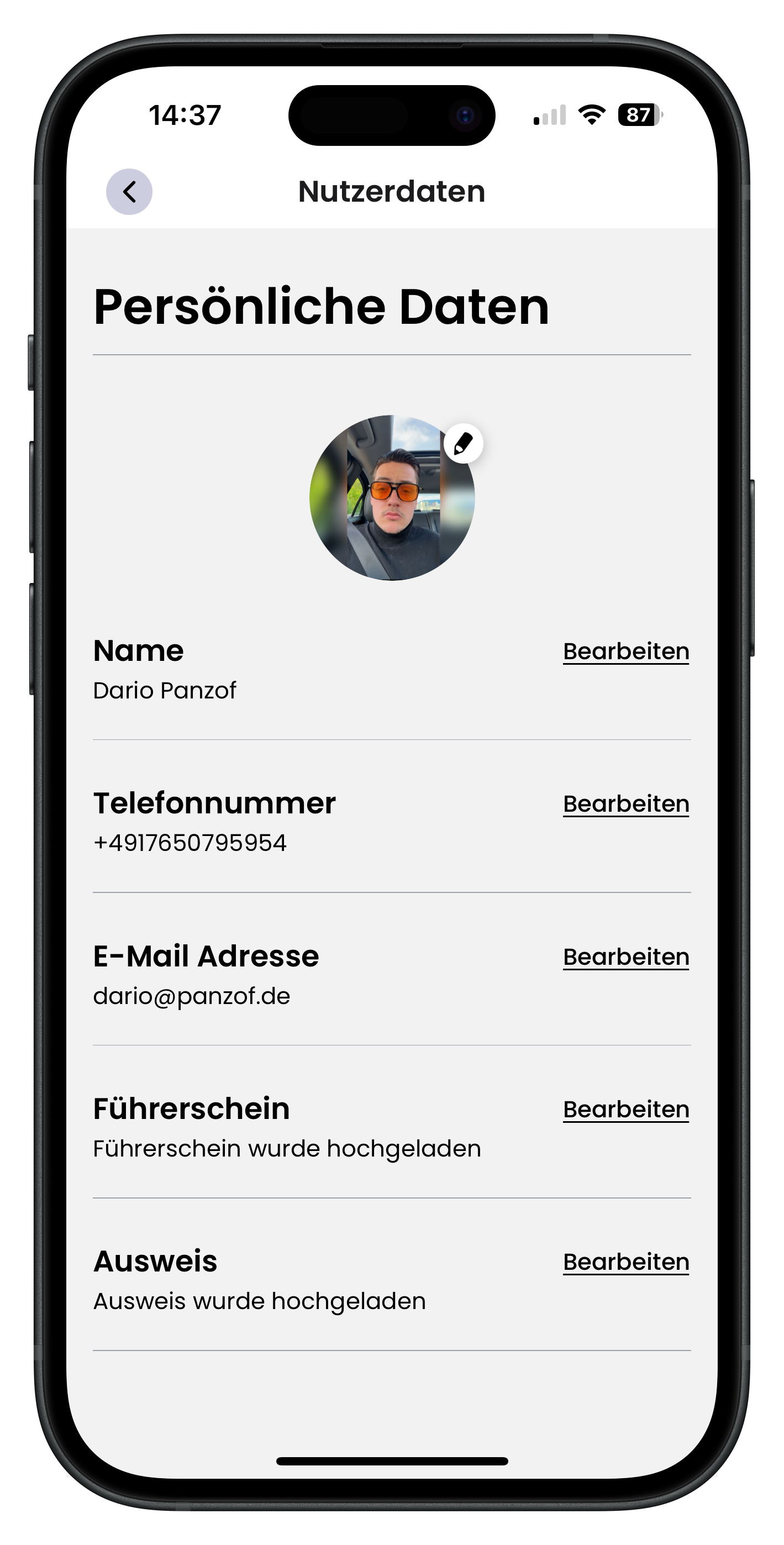
Tap Personal Details in the overview to open the Account Details page. At the top you'll see your profile photo with a small pencil icon for changing it. Below that are your saved details: Name, Phone Number, Email Address, Driving Licence, and ID. For your driving licence and ID, the status shows whether the document has already been uploaded. Next to each field you'll find an Edit link to update that entry.
- Tap the pencil icon on your profile photo to change it
- Your driving licence and ID are required for verification before a booking
- Keep your email and phone number up to date so you don't miss any messages
Your uploaded documents — such as your driving licence and ID — are used for in-app verification. Payment only becomes possible once a host has accepted your request and the check is complete. You don't need to upload your documents again each time.
3
Adding Payment Methods and a Credit Card
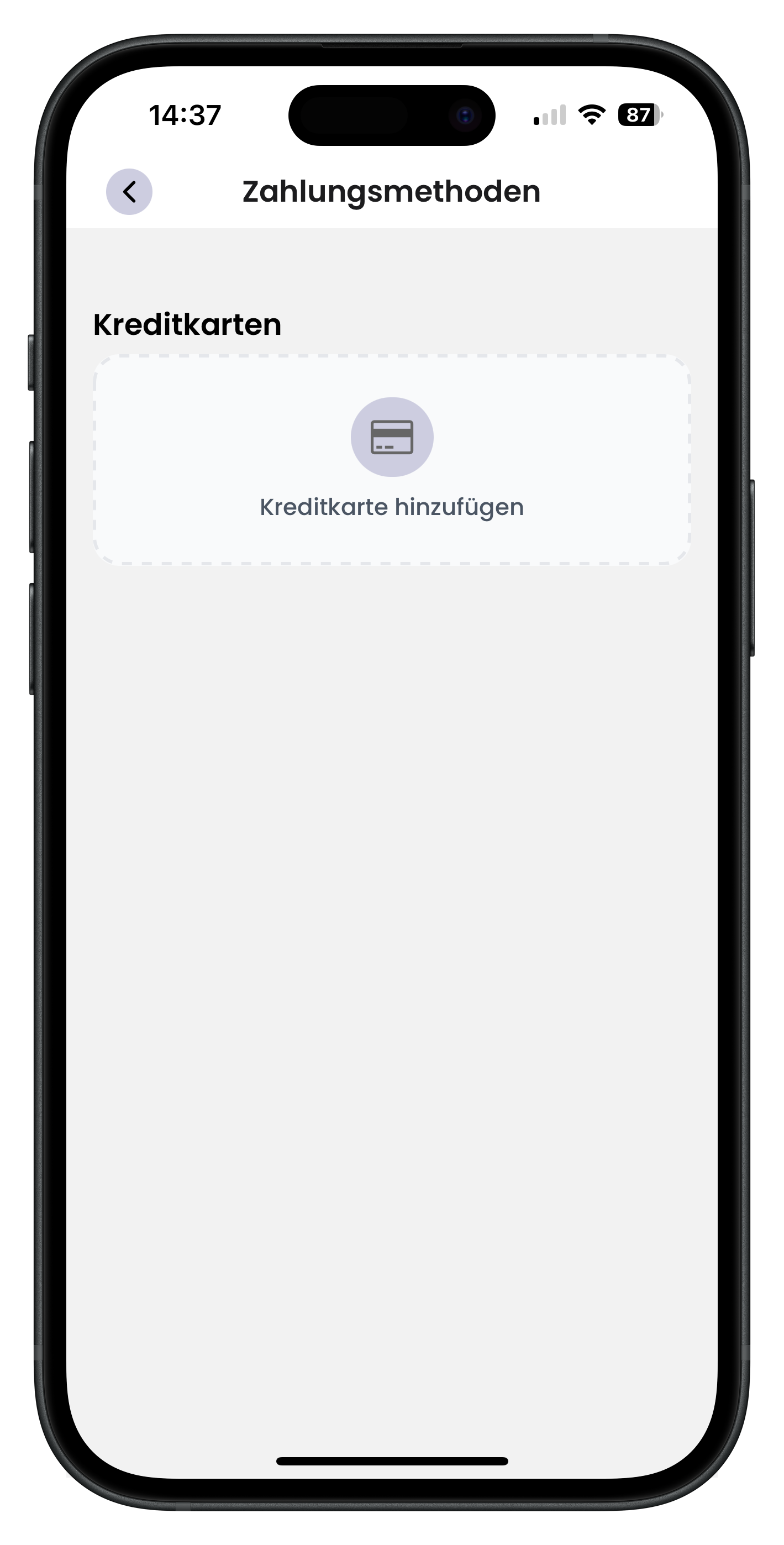
Select Payment Methods in the overview to open the Credit Cards page. In the centre you'll see a dashed box with a card icon and the label Add Credit Card. Tap it and enter your card details to save a card. The saved method is then used to pay for your booking once the host has accepted your request.
- You can pay for your booking with all major credit cards, Apple Pay, Google Pay, and Klarna
- Klarna also lets you pay in instalments
- You're only charged once the host has accepted your request — nothing is taken beforehand
Saving a payment method saves you time later. Once your chosen car is confirmed, you can pay straight away without re-entering your card details. You can find out more in the article Pay for Your Booking and Confirm.
4
Changing Your Password and Deleting Your Account under Login & Security
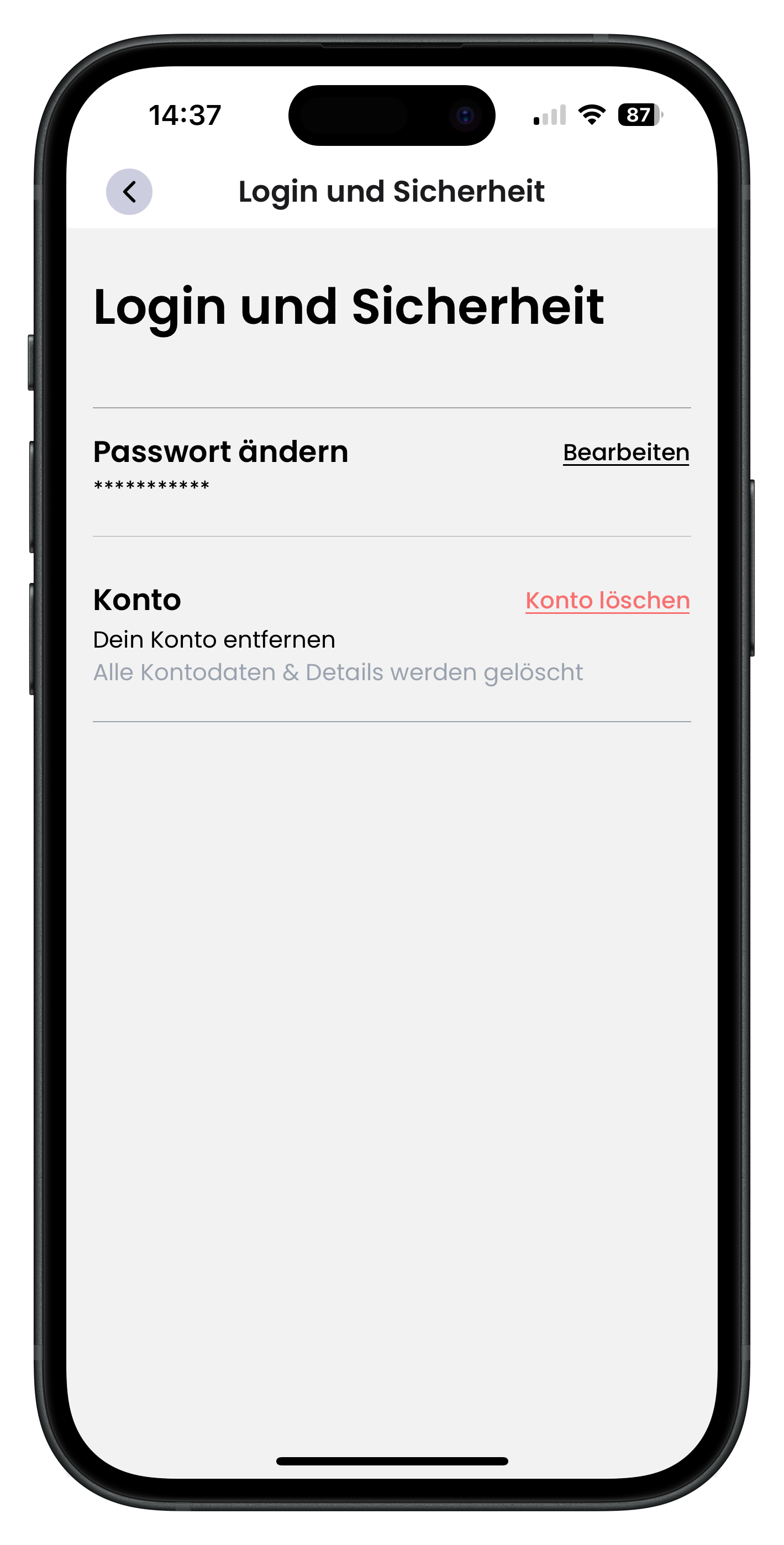
Tap Log-in & Security in the overview to open the Login and Security page. At the top you'll see Change Password with asterisks as a placeholder, and an Edit link on the right to set a new password. Further down is the Account section with a red Delete Account link. Below it is the label Remove Your Account and, in grey text, a note that all your account data and details will be deleted.
- The Delete Account link is red so you can't accidentally confuse it with other options
- Deletion removes all your account data and details permanently — this cannot be undone
- Choose a strong password that you don't use anywhere else
Deleting your account permanently removes all your data, including your booking history. Think it through carefully. If you're just dealing with a problem or have a question, check the Support section first — you'll often find a solution more quickly there.
5
Managing Notifications and Never Missing a Thing
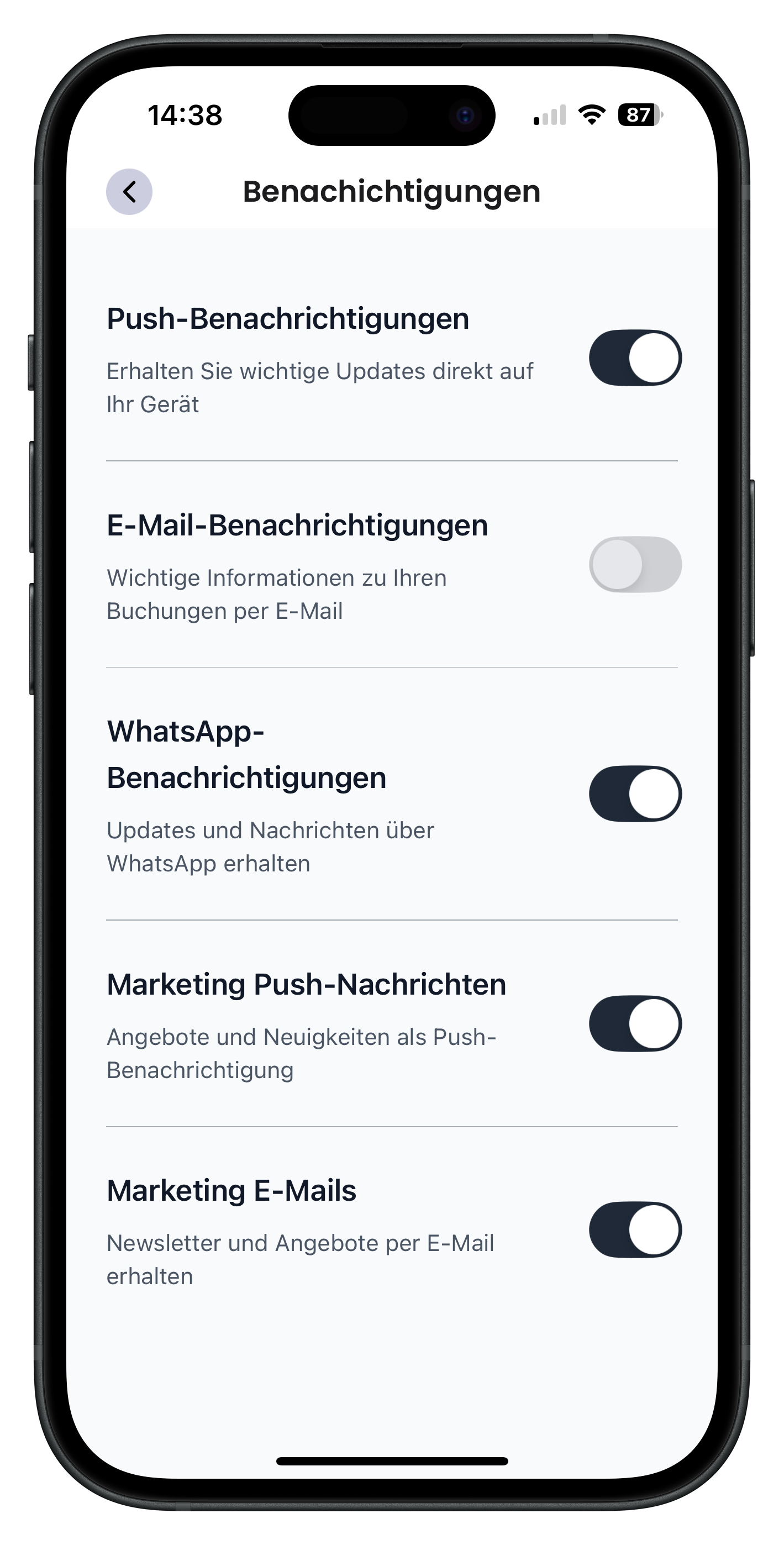
Tap Notifications in the overview to open the Notifications page, where you'll find several toggles. You can switch Push Notifications, Email Notifications, WhatsApp Notifications, Marketing Push Messages, and Marketing Emails on or off individually. Each toggle has a short description below it — for example, that push notifications send important updates directly to your device. Just tap a toggle to enable or disable that notification type.
- Push notifications deliver important updates directly to your device
- WhatsApp notifications keep you updated with messages about your bookings
- Marketing push messages and marketing emails keep you informed about offers, news, and discounts
- Each toggle takes effect immediately — no need to save separately
We recommend keeping notifications switched on. That way you won't miss any updates about your bookings or any great deals. We'll also let you know when cars near you or on your wishlist become available or go on offer.
Next Steps
Your profile is now set up and you know where to find everything. If something doesn't work or you have a question, you can reach support directly from the app. We explain how in the article Report a Problem and Contact Support. If your next step is to book a car, the article Pay for Your Booking and Confirm will help you along.
Frequently asked questions

Drivable Team
Help & Support
Das Drivable Team erklärt dir Schritt für Schritt, wie du die Plattform und App nutzen kannst.
21. Juni 2026
War dieser Artikel hilfreich?