Pay for your booking – How to confirm your rental
Once the host has accepted your request, you go straight to payment. Here's how to choose between paying in full or making a deposit, which payment methods are available, and why your booking isn't confirmed until you pay.
Your host has accepted your request? Great. Now comes the final step: payment. The car is only reserved for your dates — and your booking only confirmed — once you've paid. You can't pay before that point; on Drivable, payment is always only possible after the host has said yes. In this article we'll walk you through everything that happens on the way to a confirmed booking.
- How you're taken straight to the payment screen after acceptance
- What to check in the booking summary
- The difference between paying in full and making a deposit with the remainder on collection
- Which payment methods are available
- What happens after payment
You can only pay AFTER the host has accepted your rental request. Payment isn't possible before that. To find out how to send a request, see the article Request a vehicle.
1
Going straight to the booking confirmation screen
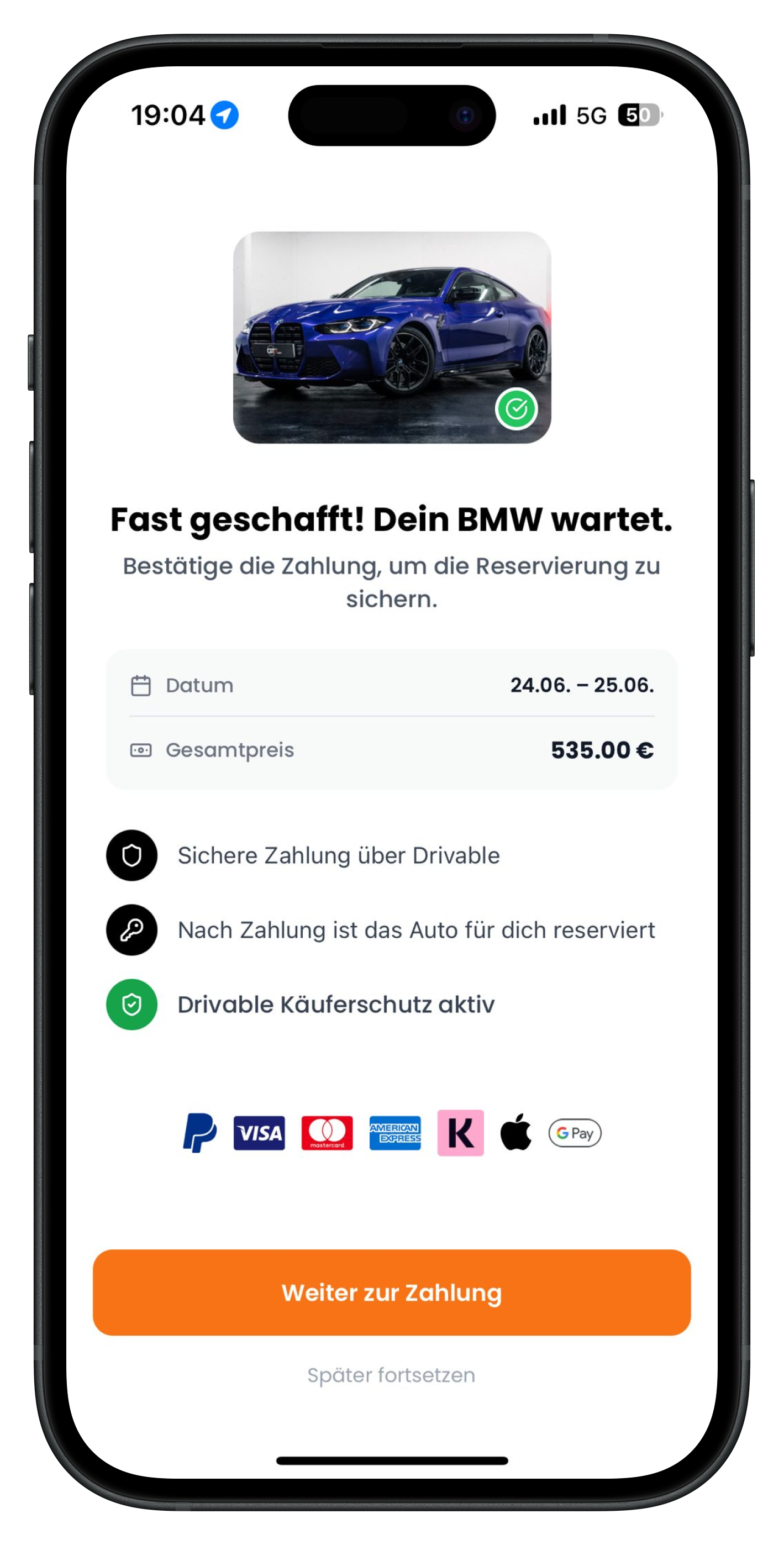
Once the host has accepted your request, opening the app takes you straight to this screen. At the top you'll see a photo of your car with a green tick, and below it in large text: "Almost there! Your BMW is waiting." The grey box shows your key details again: the dates (here 24.06. to 25.06.) and the total price (here 535,00 €). Below that, you'll see a note confirming that payment runs securely through Drivable and that buyer protection is active. Tap the orange "Continue to payment" button at the bottom to finalise your booking.
- The green tick on the car means your request has been accepted
- Double-check the dates and total price before you continue
- No time right now? Tap "Continue later" to come back to this screen at any time
- The car is only firmly reserved for you once you've paid
2
Checking the booking summary and expanding the details
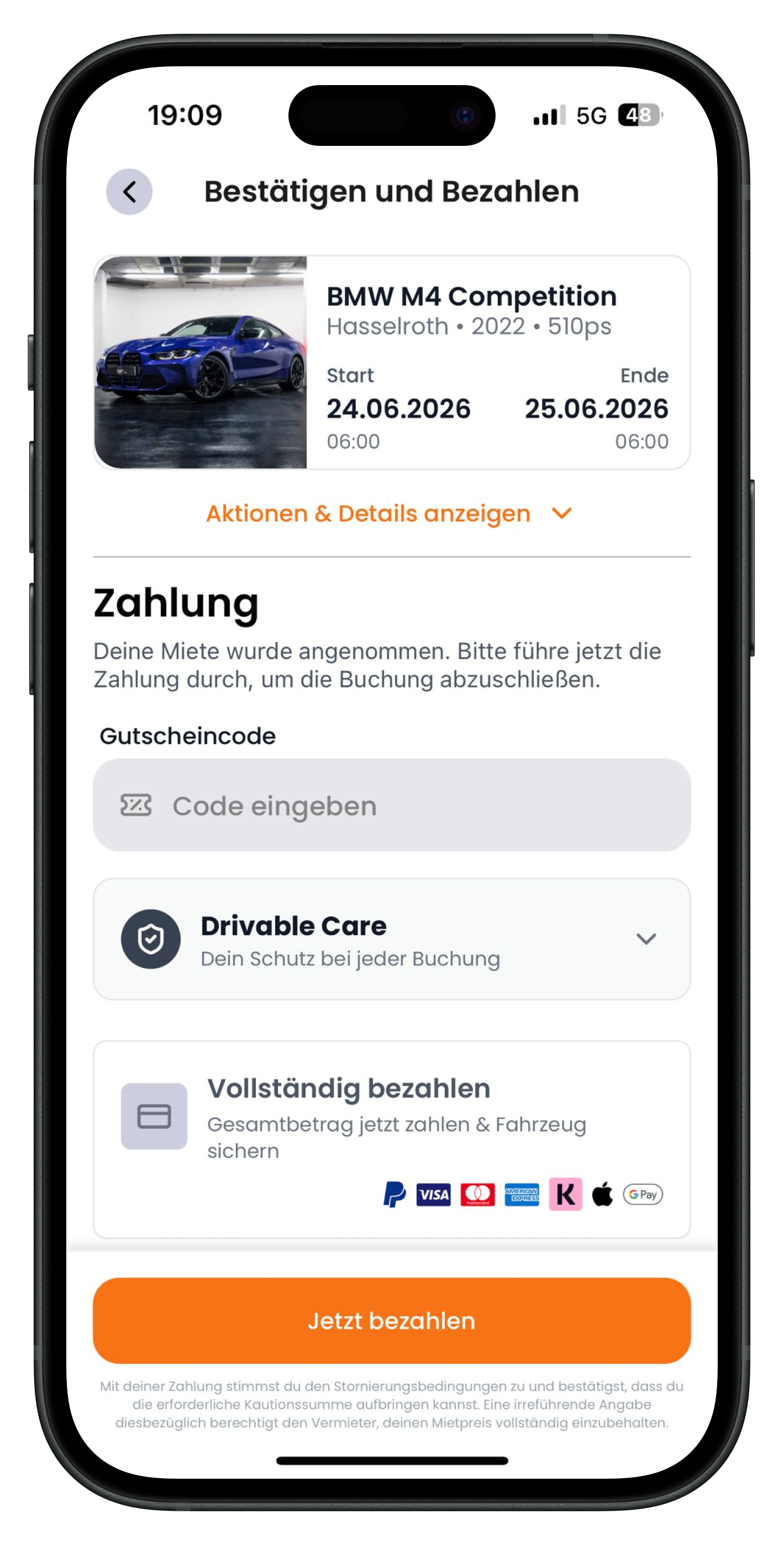
You're now on the "Confirm and Pay" screen. At the top you'll see a compact summary of your vehicle — here the BMW M4 Competition from Hasselroth, a 2022 model, 510 hp, with the start and end dates and times. Just below that, in orange, you'll see "Show actions & details" with a small arrow. Tap it to expand all the details: here you can withdraw your request and view information about the deposit, required ID, and the car's location. Under the Payment section you'll see a note confirming that your booking has been accepted and that you should now complete payment.
- Tap "Show actions & details" to access all the key information about your booking
- The deposit is not paid through the app — it's paid in person to the host at handover
- Got a voucher code? Enter it in the "Enter code" field at the top
- Changed your mind? You can withdraw your request via the actions menu
The deposit is not paid through Drivable. It's settled in person with the host at handover. Depending on the host, this can be done in cash, by card, or another way. The listing and booking details show you how much the deposit is and which forms of ID you need to bring.
3
Choosing your payment option: pay in full or deposit with the remainder on collection
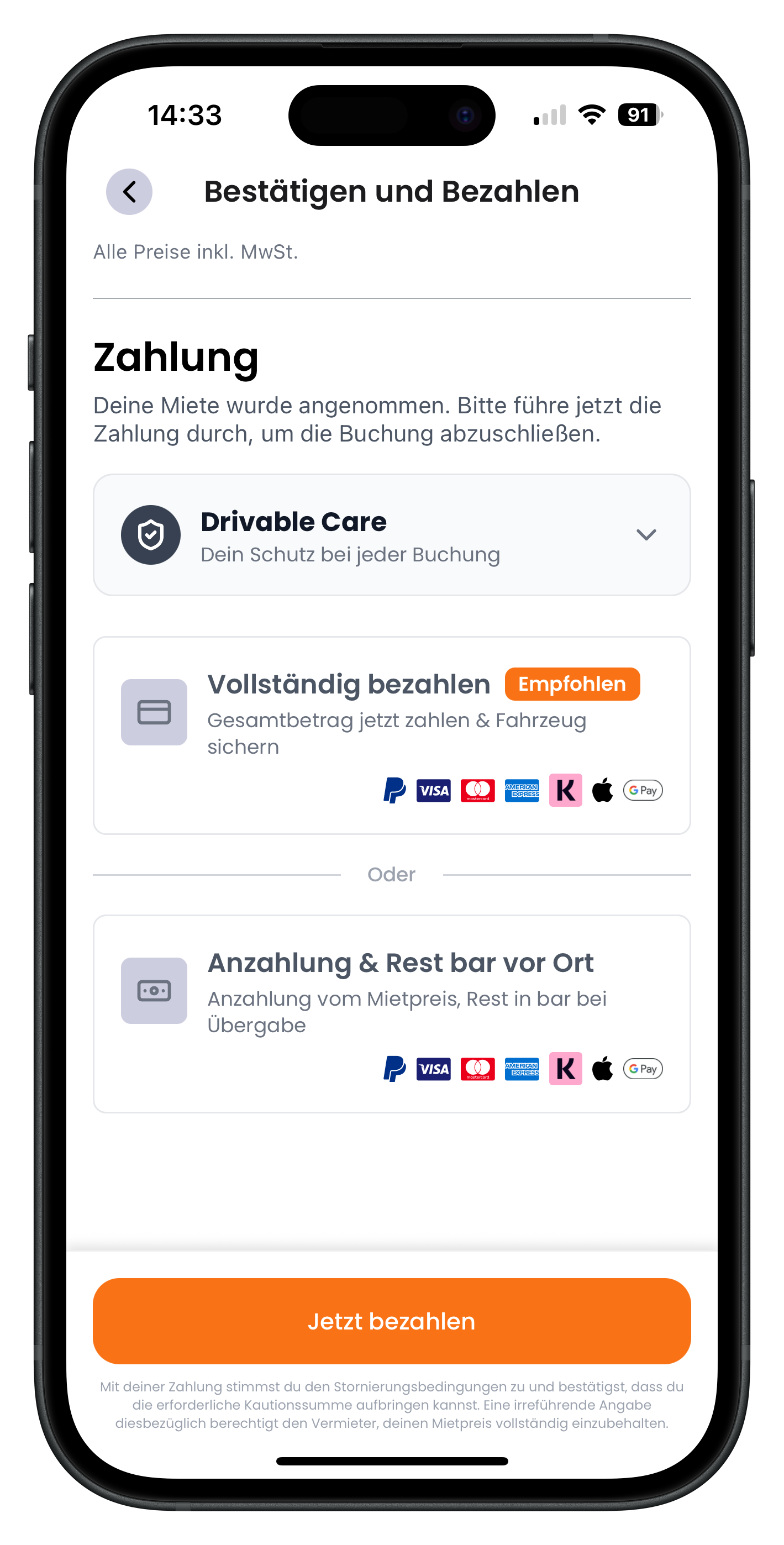
Scroll down and you'll have a choice between two payment options. "Pay in full" is marked with the Recommended label: you pay the total amount online right now and secure the vehicle immediately. Below that is "Or" and the second option, "Deposit & pay the rest in cash on collection": you pay only a deposit of the rental price online, and hand over the remainder in cash at handover. Simply tap the option you want, then tap "Pay now" at the bottom to continue.
- Pay in full: everything digital, you're protected against fraud through the platform
- Deposit & rest in cash on collection: reserve the booking with an online deposit and pay the balance in cash at handover
- The recommended option gets an orange border as soon as you select it
- By paying, you agree to the cancellation terms
If you pay in full online, the entire rental payment runs digitally through Drivable and you're protected against fraud through our platform. With the deposit option, you secure the booking with an online payment and hand over the balance in cash on collection. Both options are available — just choose whichever works best for you.
4
Choosing "Pay in full" — selecting your payment method
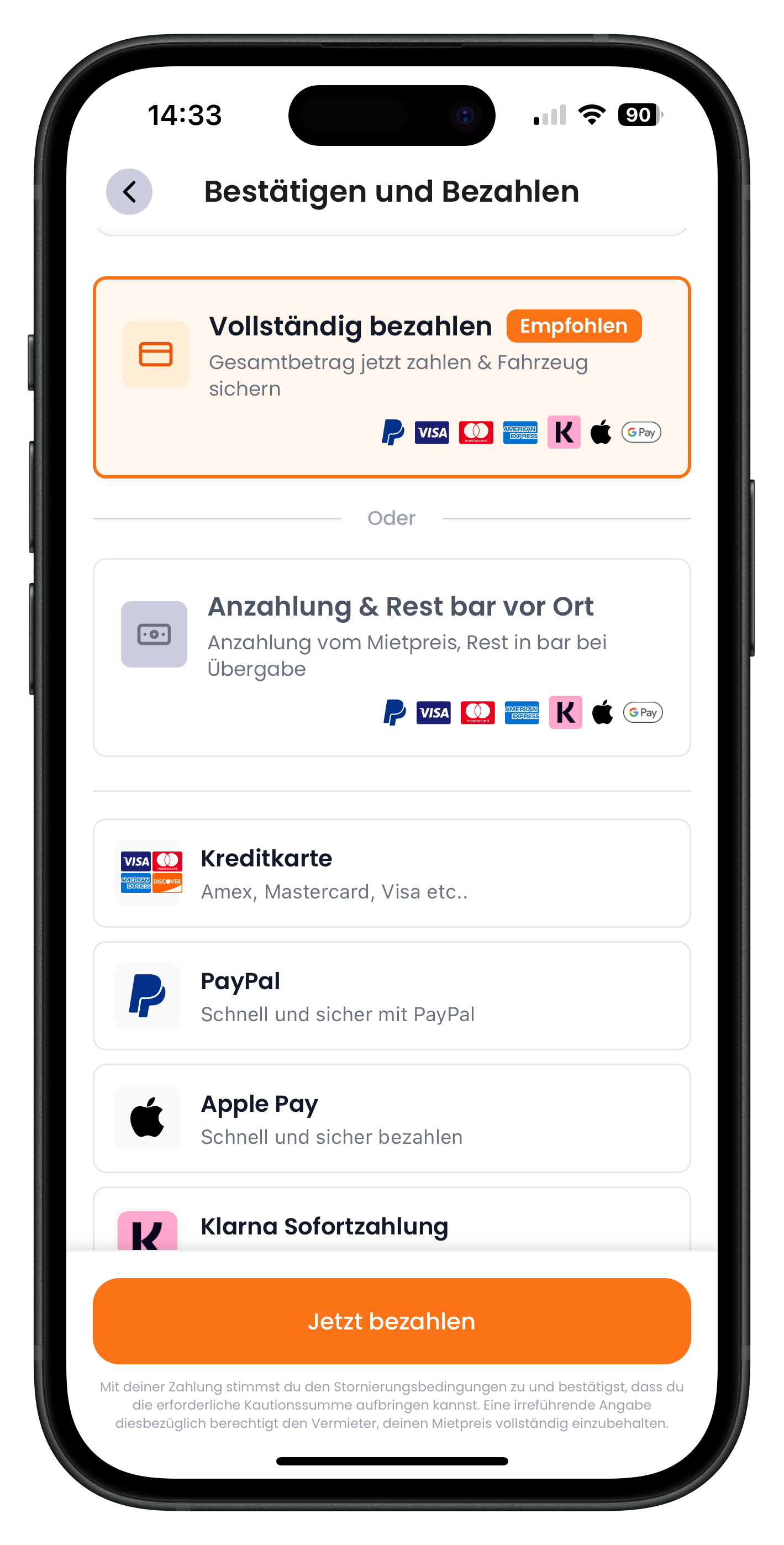
Once you've selected "Pay in full", the box gets an orange border and the available payment methods expand below it. You'll see options including credit card (Amex, Mastercard, Visa, etc.), Apple Pay, and the Klarna options. Choose the method you'd like to use to pay the full amount. The orange "Pay now" button stays fixed at the bottom of the screen.
- All major credit cards, Apple Pay, Google Pay, and Klarna are supported
- Klarna also allows you to pay in instalments
- Your selected option is highlighted in orange
- You pay the full total amount in one go
5
Choosing "Deposit & rest in cash on collection" — selecting your payment method
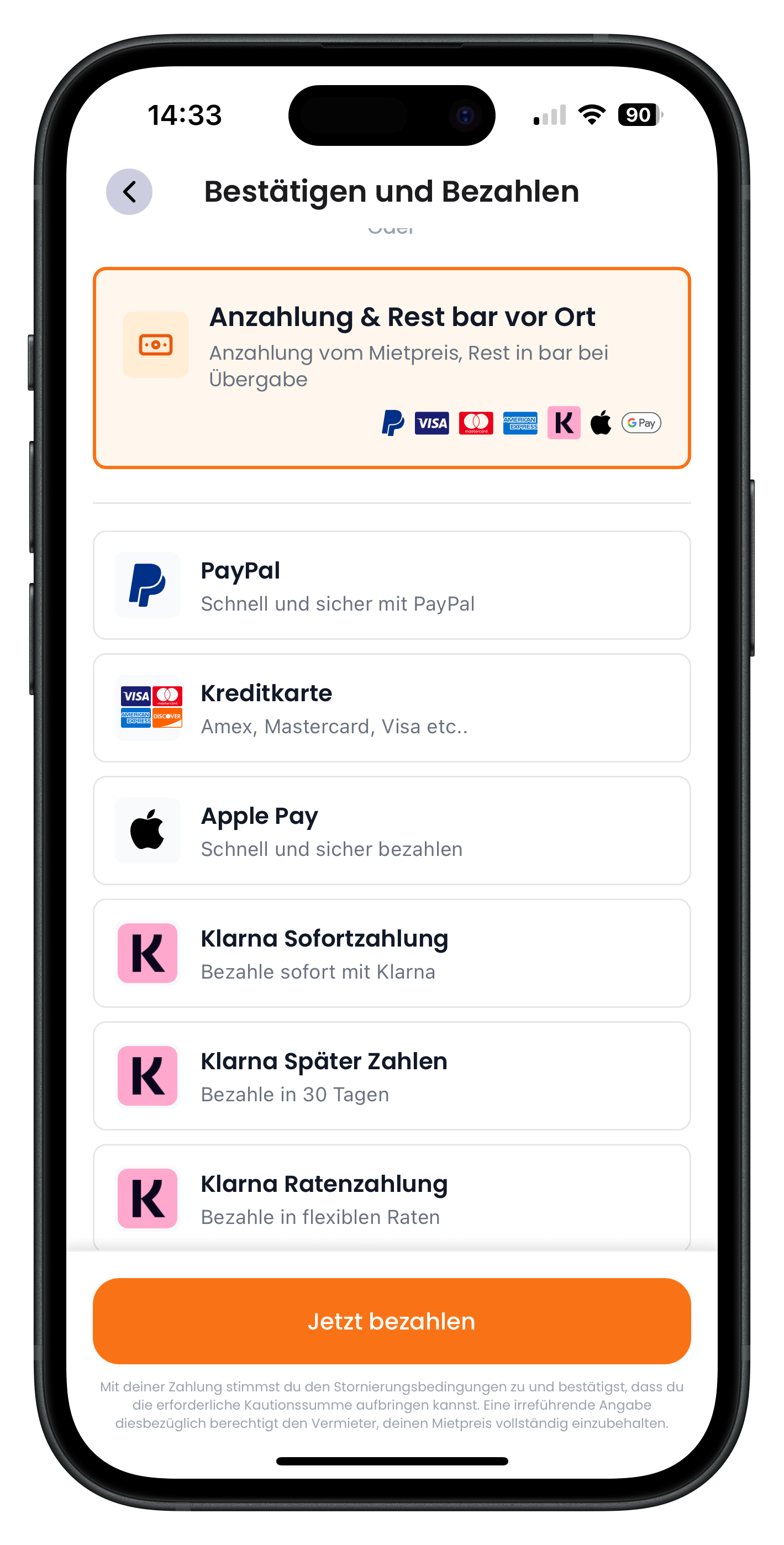
If you choose "Deposit & pay the rest in cash on collection" instead, that box gets an orange border and you'll also see the list of payment methods for your online deposit. Here too you have credit card, Apple Pay, and the Klarna options available. You only pay the deposit of the rental price online; bring the balance in cash to the handover. Once you've chosen your method, tap "Pay now" at the bottom.
- Only the deposit on the rental price is due online
- You pay the remaining balance in cash at vehicle handover
- The same payment methods are available here too
- If in doubt, ask the host in the chat how they handle the remaining payment
6
Select your payment method, enter your details, and pay
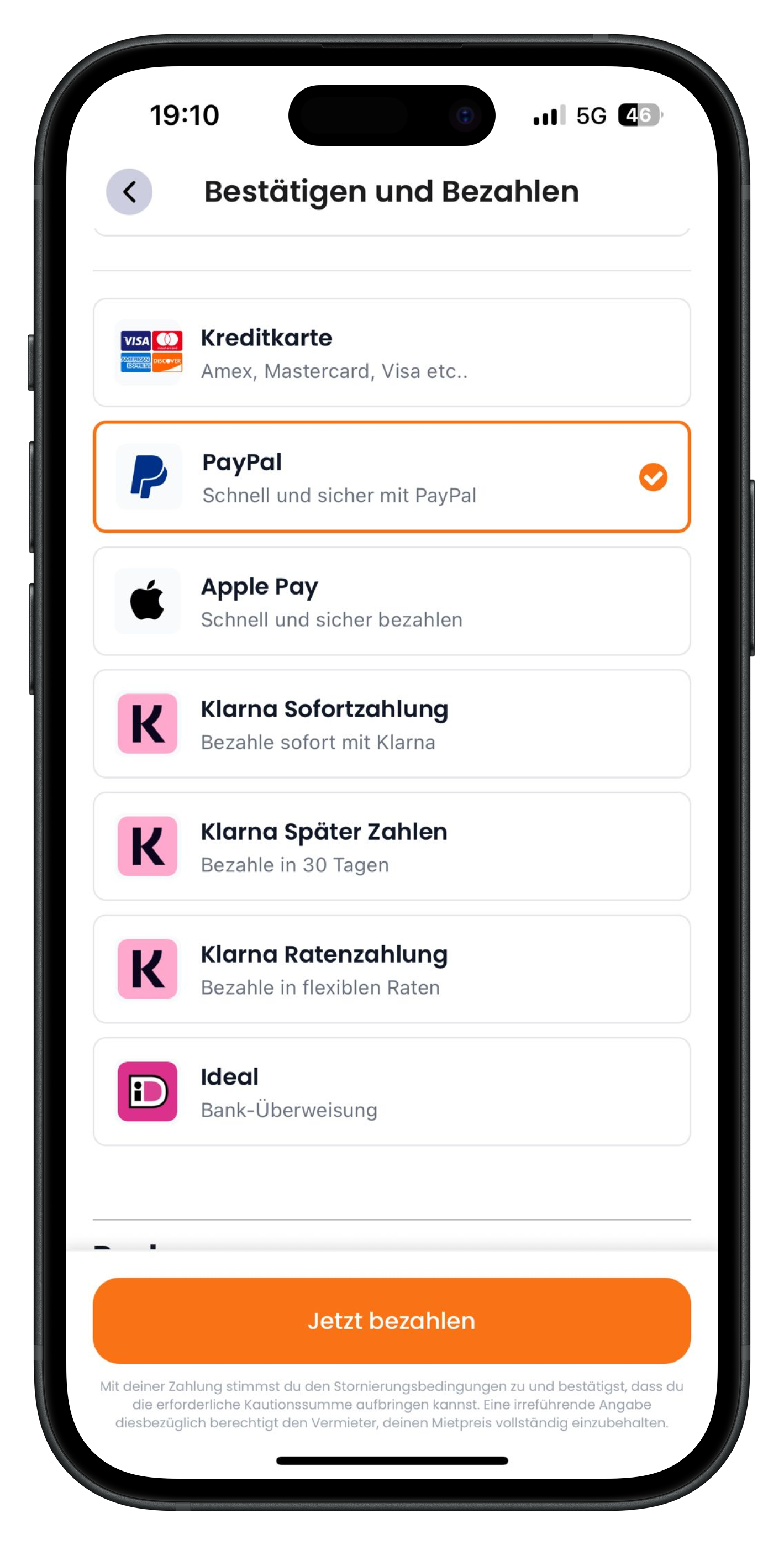
In the final step, scroll through the list of methods and tap the one you want to use. The selected method gets an orange tick on the right and an orange border, so you can instantly see which one is active. Then enter your details depending on the method. Finally, tap the large orange "Pay now" button at the bottom to complete the booking. By paying, you agree to the cancellation terms and confirm that you'll be able to provide the deposit in person.
- Choose your payment method and enter your details
- The active method is indicated by the orange tick
- Your booking only becomes binding when you tap "Pay now"
- After payment, you'll receive the exact address and the host's contact details
Once your payment has gone through, your booking is confirmed. Only now will you see the car's exact address and receive the host's contact details. Everything else — such as the handover time and any further details — is sorted between you in the chat.
Next steps
Congratulations — your booking is confirmed. Now it's time to coordinate with the host: sort out the handover time, exact meeting point, and any last questions in the chat. Find out how this works in the article Chat & rental offers. If anything changes, take a look at how to cancel or withdraw a request.
Frequently asked questions

Drivable Team
Help & Support
Das Drivable Team erklärt dir Schritt für Schritt, wie du die Plattform und App nutzen kannst.
21. Juni 2026
War dieser Artikel hilfreich?