Report a Problem & Contact Support
Got a question or an issue with a booking, a payment, or your account? Here's how to check the FAQ first and then report a problem to the Drivable support team in just a few steps. You'll land straight in a chat with our team and get a response quickly.
Something not working the way you expected? No worries. Drivable has a straightforward process for asking questions and reporting problems. Your first stop is always the FAQ — many answers are already there. If your question is still unanswered, you can report a problem in just a few steps and chat directly with the Drivable support team.
- How to search the FAQ for your answer
- Where to find the Problems & Support button
- How to report a new problem step by step
- How to upload photos and documents in the chat
- How to close a resolved problem
Check the FAQ first
1
Open the FAQ and search for your question
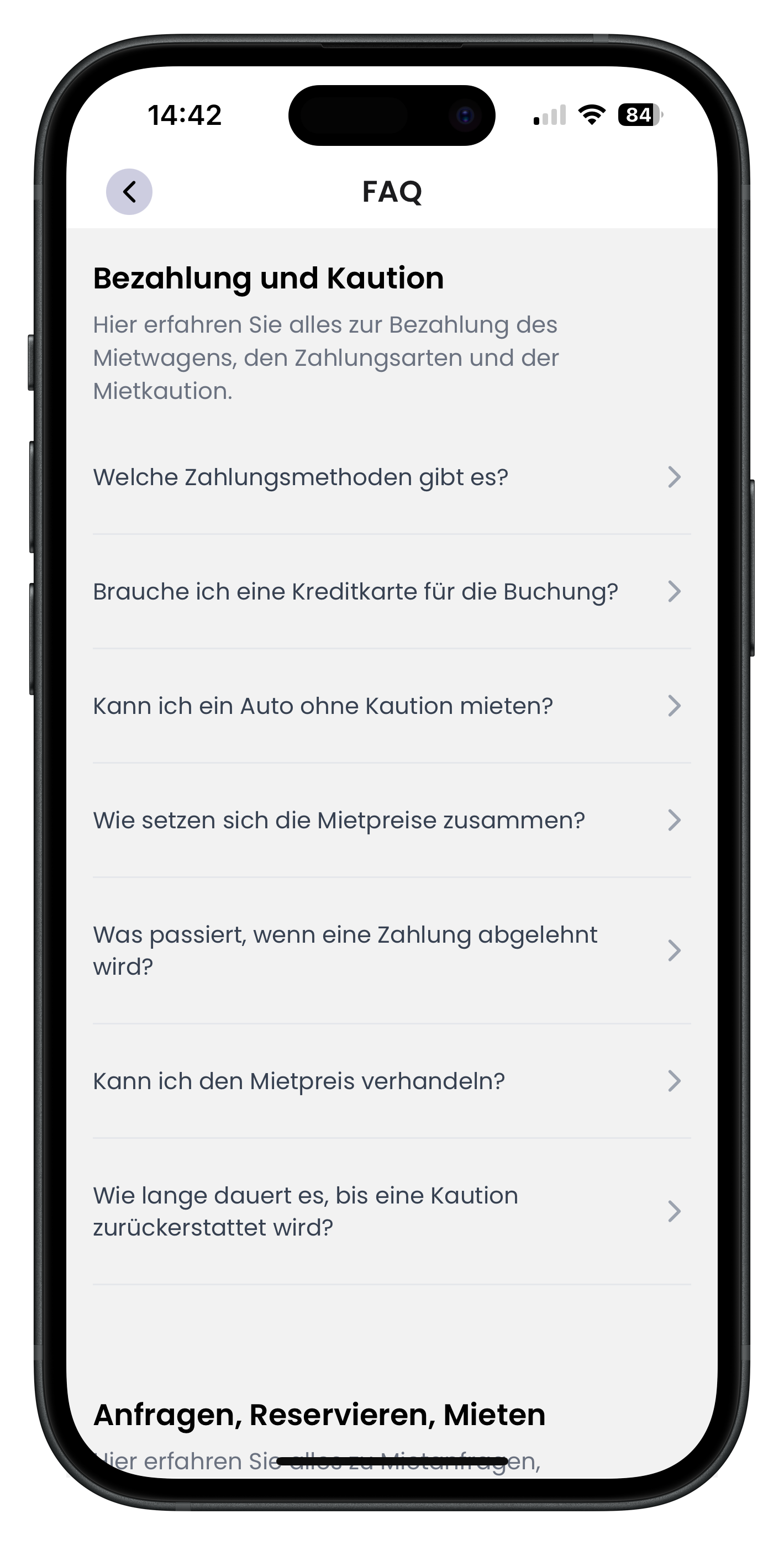
Before contacting support, it's worth taking a look at the FAQ. At the top you'll see the heading FAQ with a back arrow to the left. Questions are organised by topic — for example, Payment and deposit covers things like "Which payment methods are available?" or "Can I rent a car without a deposit?". Just tap the question that matches your situation and you'll get the answer.
- Questions are grouped into sections such as Payment, Deposit, and Bookings
- Tap the arrow on the right to expand an answer
- Many common questions are already fully answered here
If your question is about a specific payment, the article Pay for your booking is often helpful too. Check there before reporting a problem.
2
Scroll to the bottom and open Problems & Support
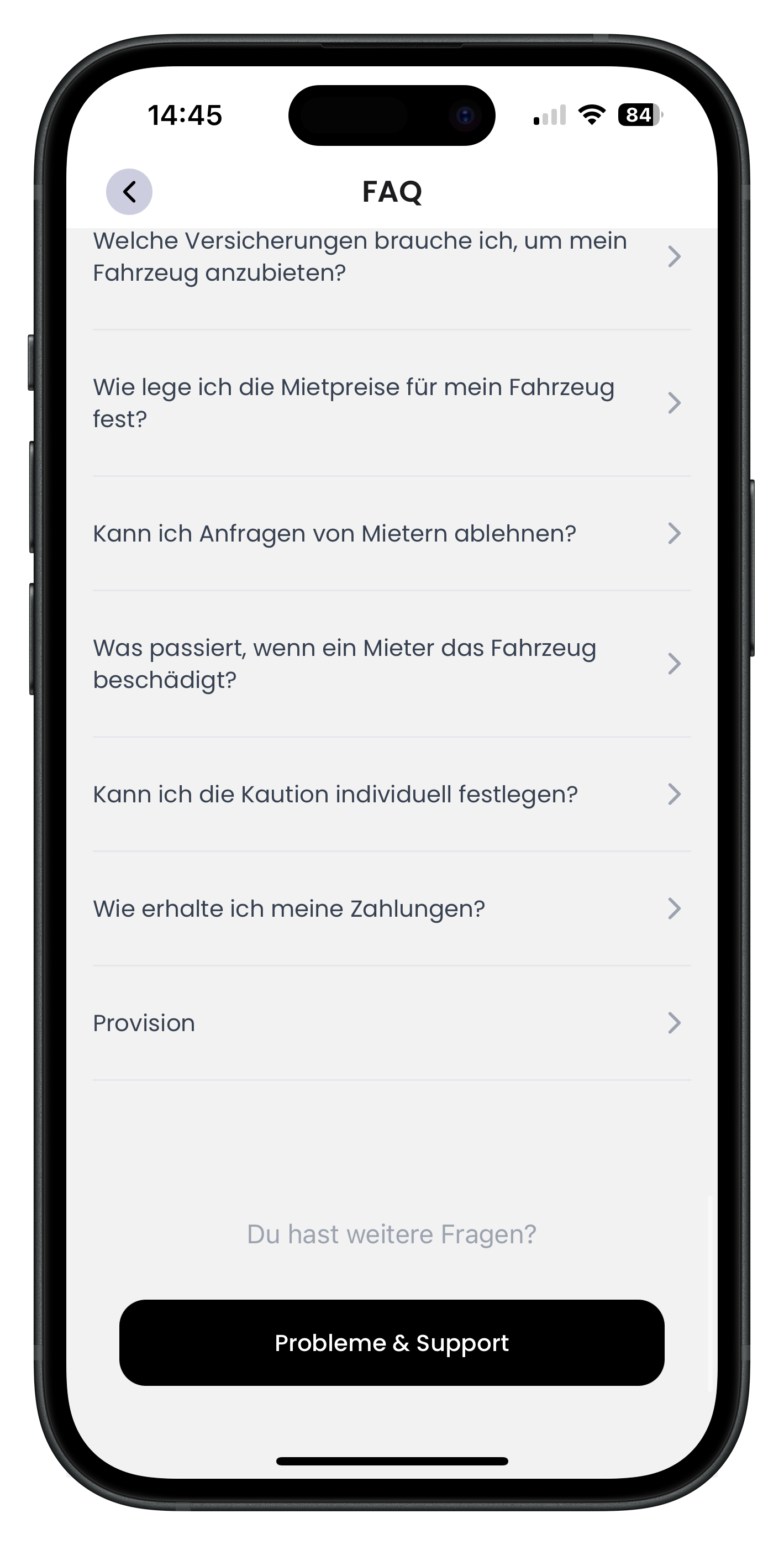
If your question isn't answered in the FAQ, scroll all the way to the bottom. There you'll see the text Still have questions? in grey, and just below it a black button labelled Problems & Support. Tap that button to go to your personal support area. This is where you start every problem report.
- The Problems & Support button is black and sits at the very bottom of the FAQ
- You can only reach it by scrolling all the way down
- All enquiries submitted this way go directly to the Drivable team
3
View your open problems and start a new one
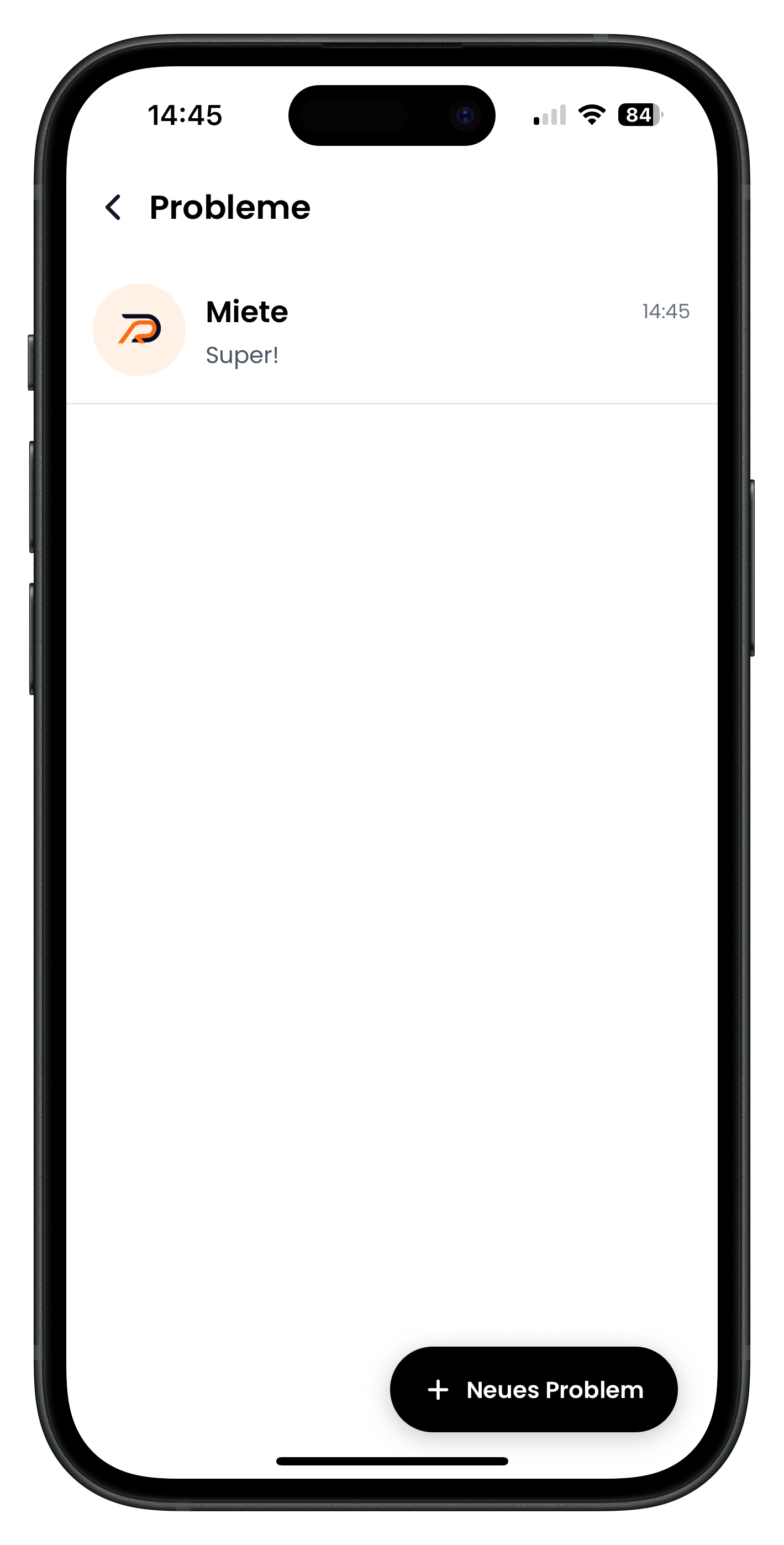
You're now on the Problems page. Here you can see all your open issues at a glance — for example, a problem titled Booking along with the latest message and the time. Tap an entry to respond to a reply from support. To report a new issue, tap the black button + New Problem in the bottom right.
- Open problems are shown with their title and the latest message
- Tap a problem to open the chat history and reply
- The + New Problem button in the bottom right starts a new report
If you don't have any open problems yet, tapping Problems & Support will take you straight to the next step automatically — you won't need to tap New Problem separately.
Report a new problem
4
One last check: browse the FAQ or ask for help
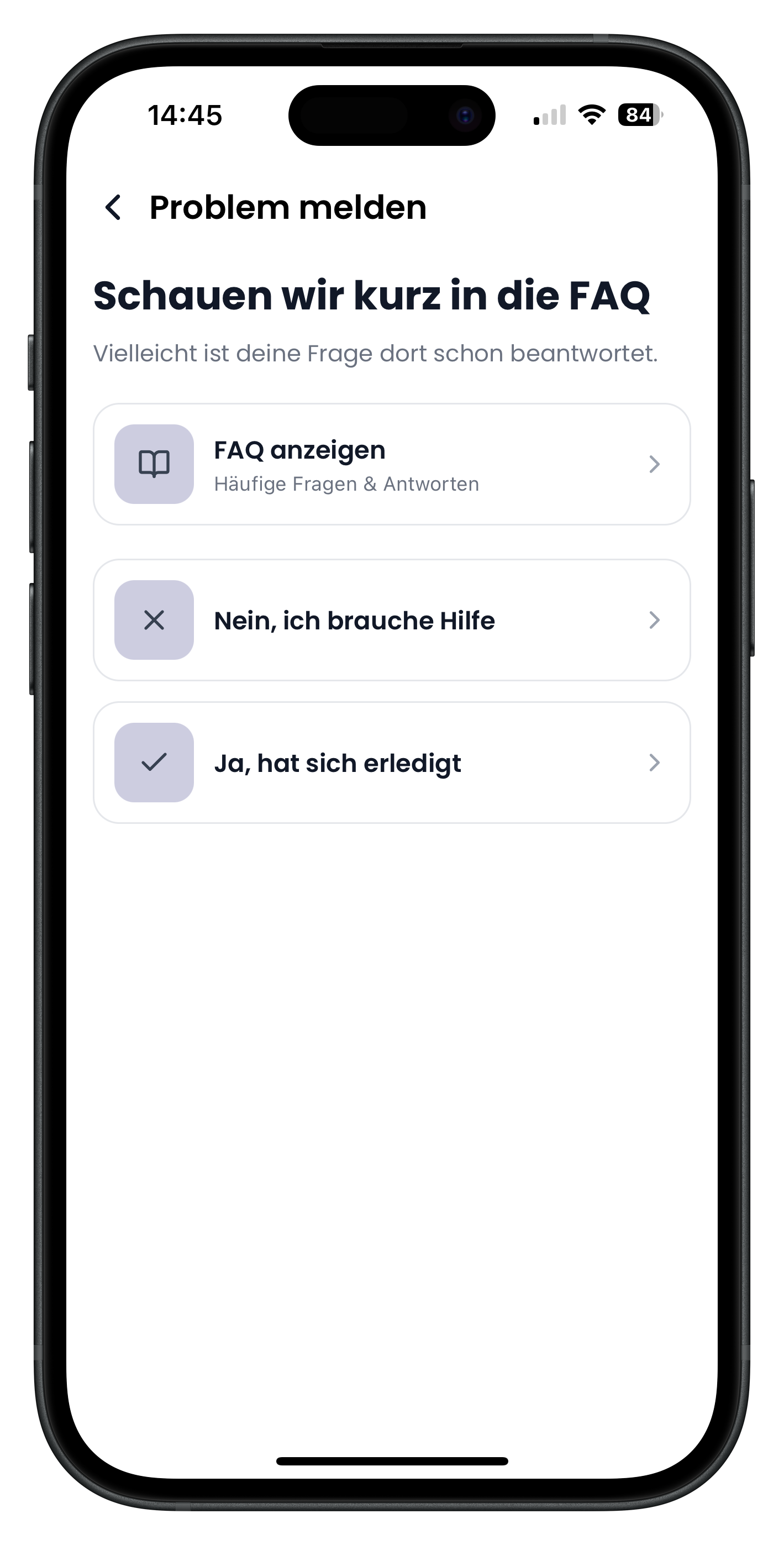
Before things get started, Drivable will ask you one more time under Let's take a quick look at the FAQ whether your question might already be answered. You have three options: tap Show FAQ to go back to the frequently asked questions. Tap Yes, it's sorted to cancel if everything has been resolved. If you genuinely need help, tap No, I need help to continue to the problem report.
- Show FAQ takes you back to the frequently asked questions
- Yes, it's sorted exits the process without submitting a report
- No, I need help takes you to the next step
5
Choose the right category for your problem
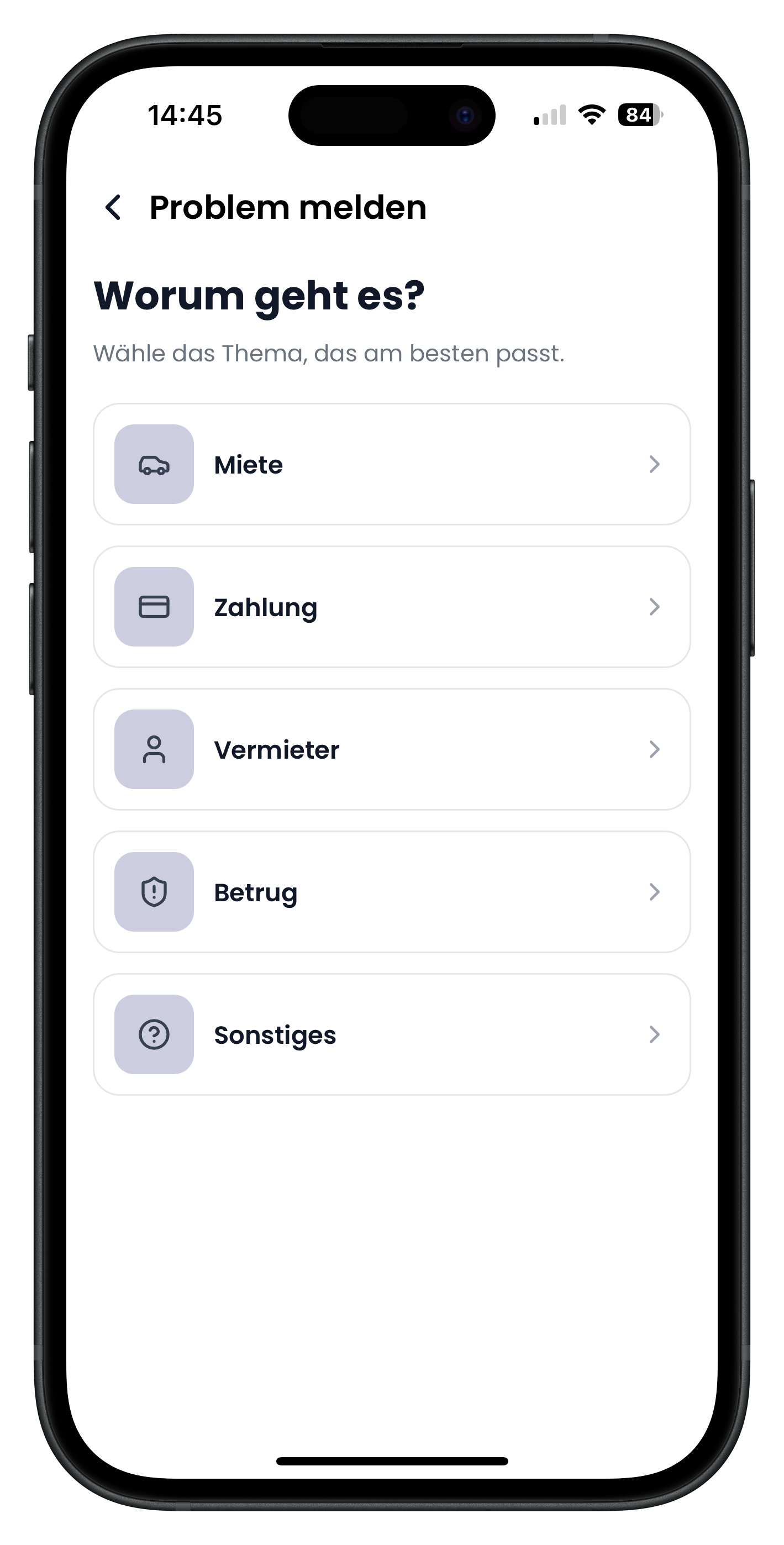
Under the heading What is it about? you choose the topic that best fits your situation. The options are Booking, Payment, Host, Fraud, and Other. Just tap the card that most closely matches your issue. This ensures your problem reaches the right person straight away, so you get a relevant response faster.
- Booking for issues relating to a specific booking or handover
- Payment for questions about charges or amounts
- Host, Fraud, or Other for everything else
- If in doubt, choose Other — the team will assign it correctly internally
6
Indicate whether the problem is linked to a booking
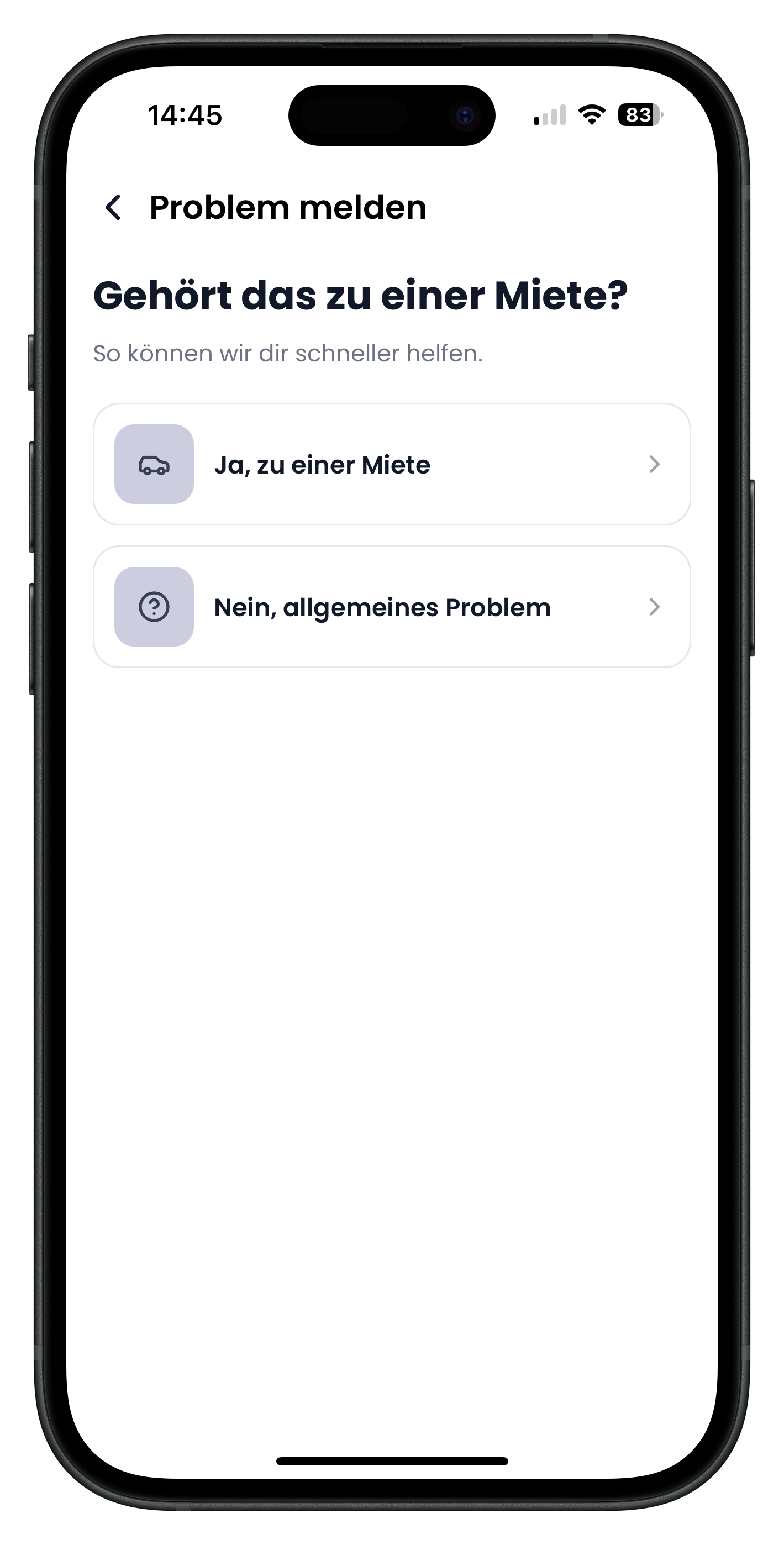
In the next step, Drivable asks you under Is this related to a booking? whether your problem is connected to a specific booking. Tap Yes, linked to a booking if it concerns a particular booking, then select the relevant booking. If your issue isn't related to a specific booking, tap No, general issue. This helps the support team assist you more precisely.
- Yes, linked to a booking: you then select the booking in question
- No, general issue: your report is submitted without a booking attached
- The assignment helps the team understand your case more quickly
7
Describe your problem and send it
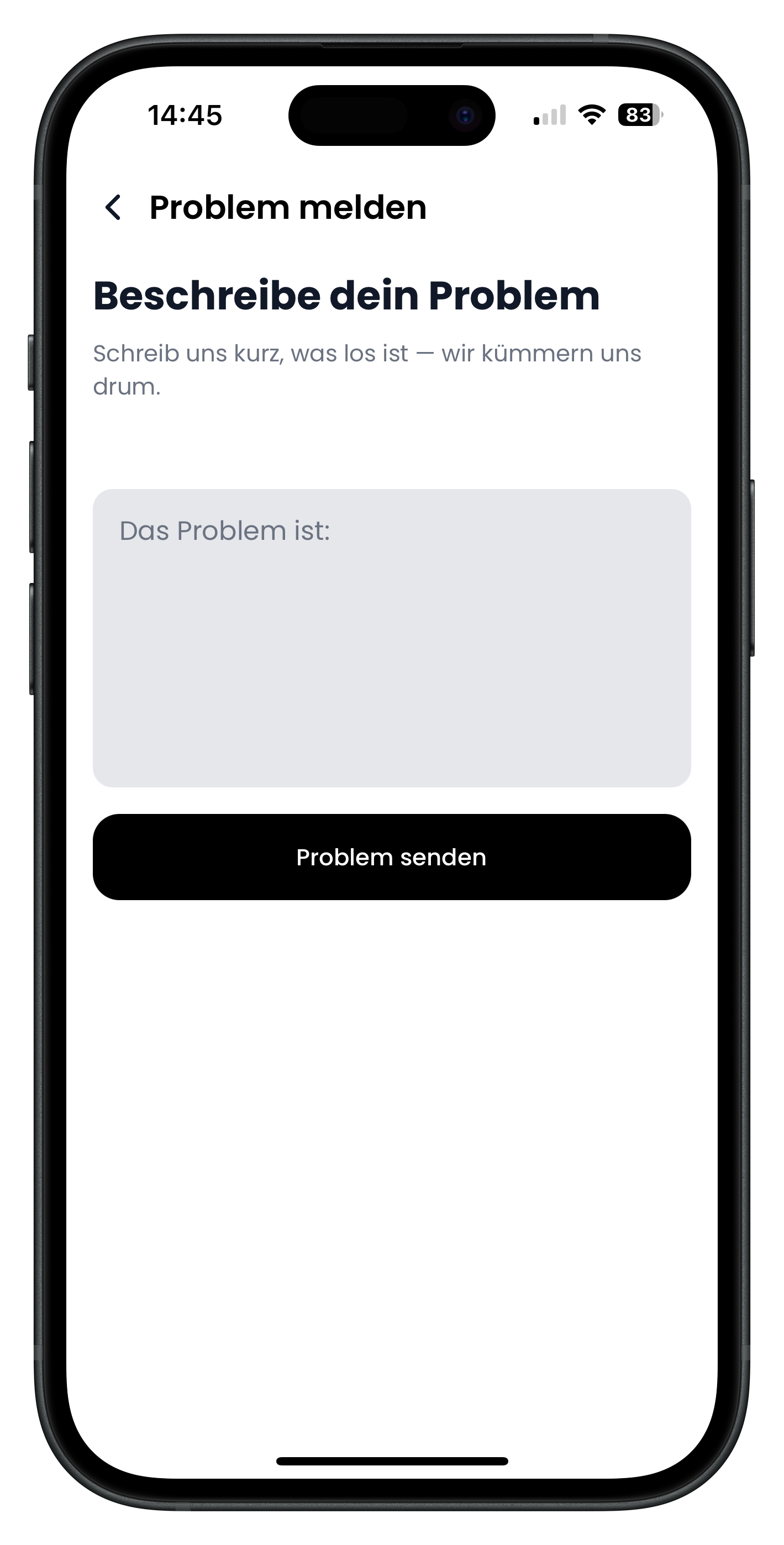
Now for the main part. Under Describe your problem you'll find a large text field with the placeholder The problem is:. Write a few sentences explaining exactly what's happening and what you'd like to happen. The more specific you are, the faster the team can help. When you're done, tap the black button Send problem.
- Briefly and clearly describe your issue in the text field
- Include important details such as the date, vehicle, or amount
- Tap Send problem to submit the report to support
8
Confirmation: your problem has been created
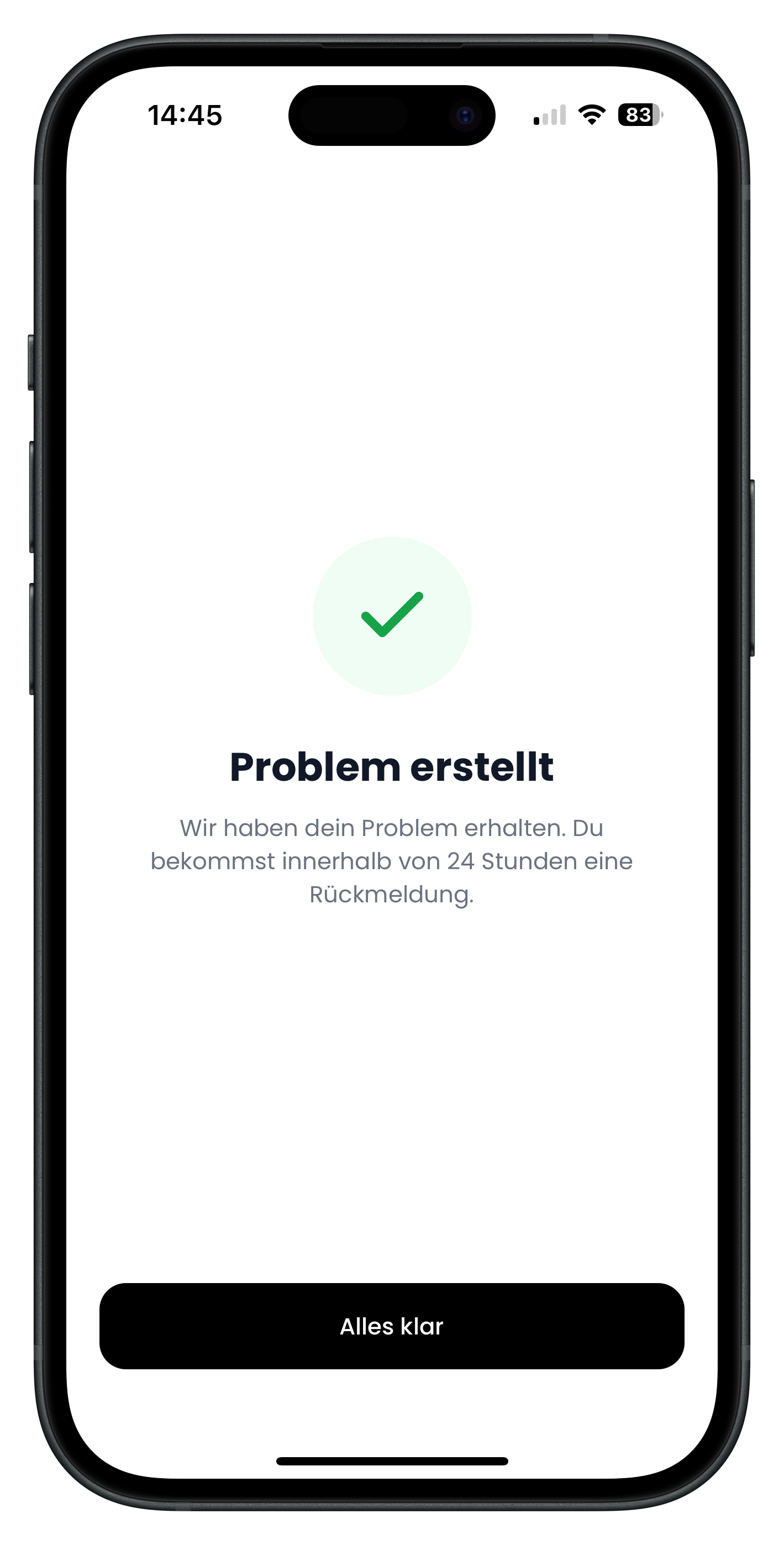
If everything went through, you'll see a large green tick and the heading Problem created. Below it, you'll be told that your report has reached the team and that you'll receive a response within 24 hours. Tap the black button Got it to continue to the chat with support.
- The green tick confirms your report has been received
- You'll usually get a reply within 24 hours
- Tap Got it to go straight to the support chat
In the chat with Drivable Support
9
Chat with support and upload photos or documents
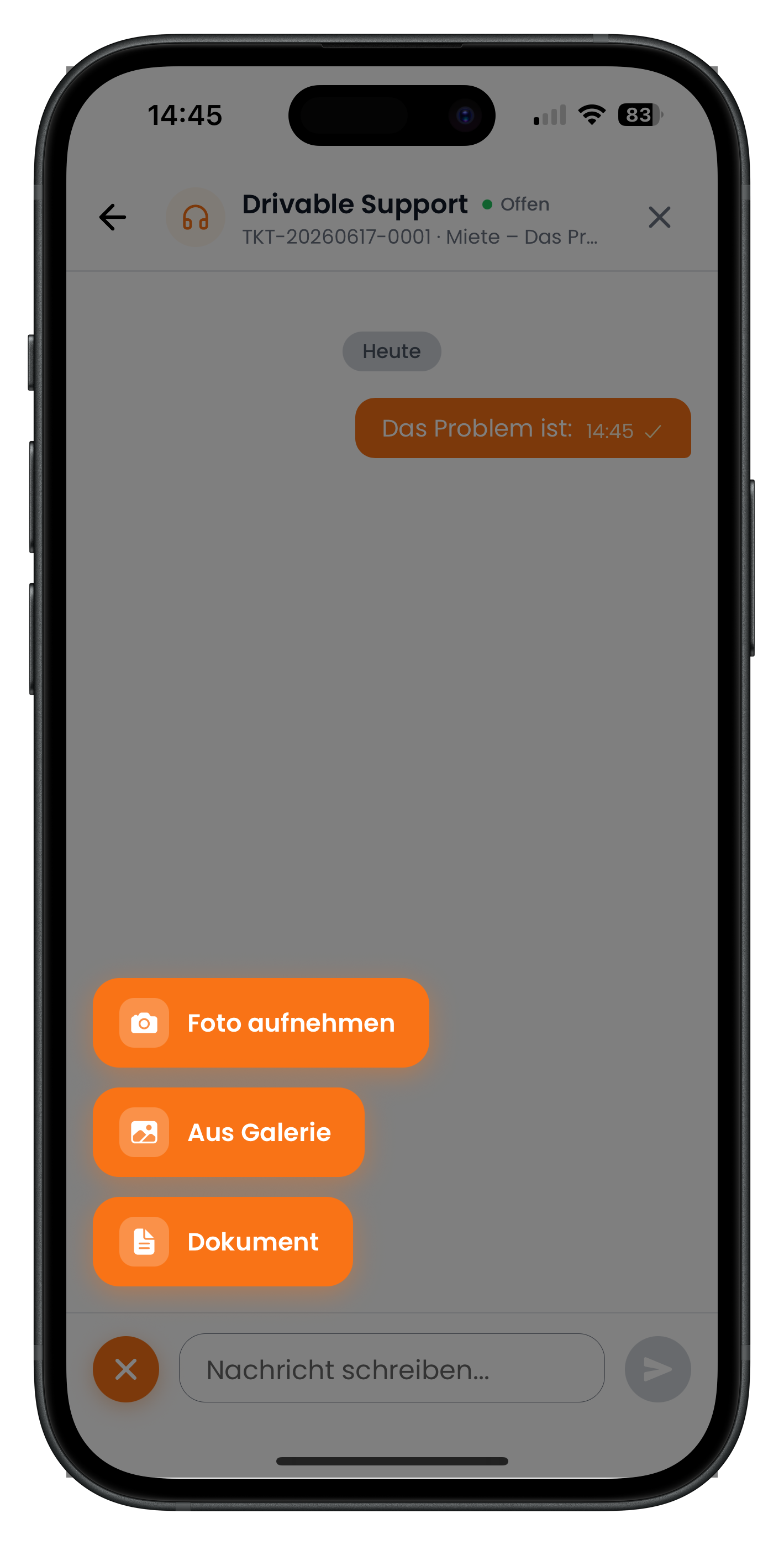
From this point on, you're in direct contact with Drivable Support. At the top you'll see the name, the status Open, and your ticket number — for example TKT-20260617-0001. Your description already appears as the first message in the thread. Using the plus or attachment icon at the bottom left, you can add evidence: Take photo, From gallery, or Document. Type your message in the Write a message field and tap the send arrow.
- Take photo opens the camera to capture a new image
- From gallery uploads an existing photo from your phone
- Document attaches something like an invoice or a PDF
- A member of the team will get back to you promptly in this chat
The support chat works similarly to the regular chat with your host. The article Chat & Booking Offers explains how to manage messages and offers there.
10
Close the problem once everything is resolved
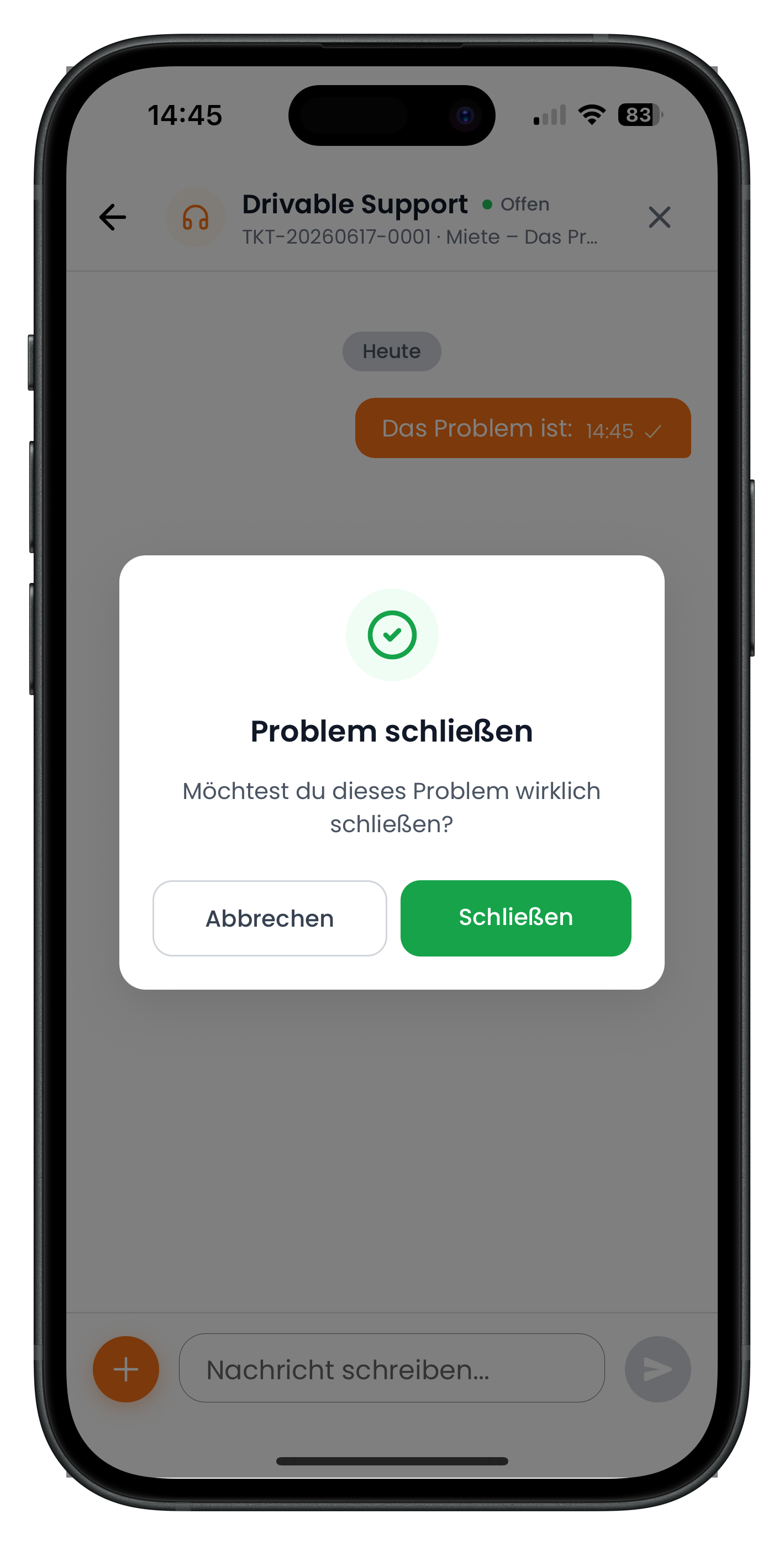
Once your issue is sorted and you're happy, you can close the problem. Tap the X in the top right of the chat. A dialogue will appear with the heading Close problem and the question Do you really want to close this problem?. Tap the green button Close to confirm, or tap Cancel if you want to keep the chat open.
- The X in the top right starts the closing process
- Confirm by tapping the green Close button in the dialogue
- Cancel keeps the problem open
- Only close a problem once it's truly resolved
You don't need to close a problem straight away. As long as it's open, you can send additional messages, photos, or documents at any time.
Next steps
You now know how to search the FAQ for answers and, if needed, report a problem to support. If you have questions about your personal details, notifications, or account settings, take a look at the article Manage Profile & Settings. For questions about a specific booking, Pay for your booking has you covered.
Frequently asked questions

Drivable Team
Help & Support
Das Drivable Team erklärt dir Schritt für Schritt, wie du die Plattform und App nutzen kannst.
21. Juni 2026
War dieser Artikel hilfreich?