The Listing – Everything You Need to Know About a Vehicle at a Glance
How to read a vehicle listing in the Drivable app: photos, specs, rental conditions, prices, insurance, cancellation policy, and how to send a booking request.
Found something that catches your eye in the search? You're now on the listing – the vehicle's detail page. Everything you need to know before sending a request is right here. Just scroll down and each section will appear one after the other.
1
Vehicle Photos & Specs
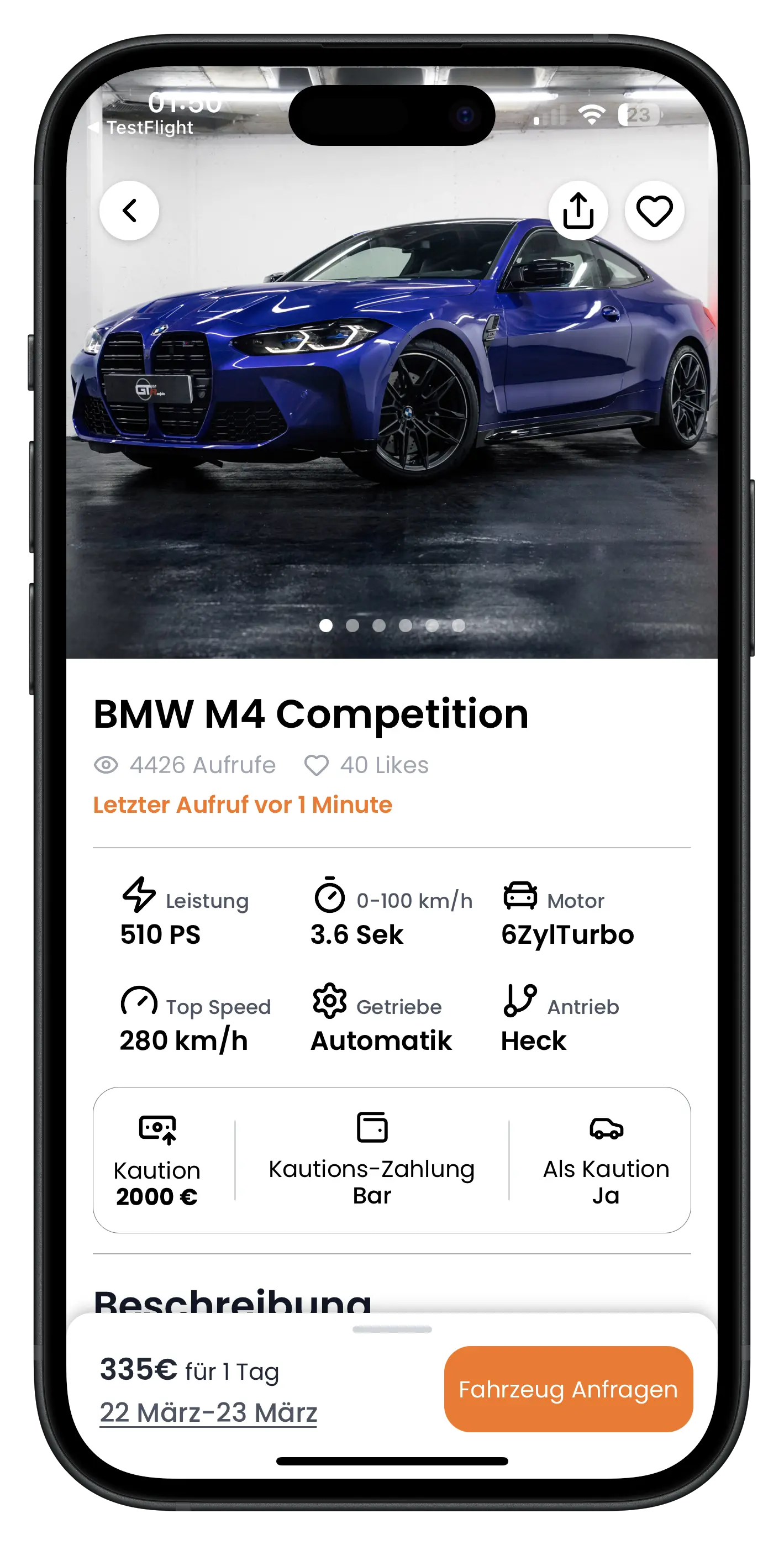
At the very top you'll find the vehicle photos. Swipe left or right to browse through the gallery. The small dots show you how many photos there are. Tap any photo to open it in full screen, where you can also zoom in.
Just below the photos you'll see the vehicle name, followed by its stats: views, likes, and when someone last looked at the listing. The numbers update in real time, so you can see how popular the car is right now.
Further down you'll find the specs:
- Power output in bhp
- 0–100 km/h acceleration
- Engine type (e.g. 6-cylinder turbo)
- Top speed
- Gearbox (automatic or manual)
- Drive (rear-wheel, all-wheel, etc.)
Below the specs is the deposit box. It gives you three things at a glance: the deposit amount (e.g. €2,000), how the host accepts payment (cash, credit card, or PayPal), and whether you can use your own car as collateral. If it says "As deposit: Yes", that means: you hand over your vehicle registration document at handover and sign a contract. Once you return the car, you get the document back.
The deposit is not handled through the app. You pay it in person to the host at vehicle handover.
2
Description & Rental Conditions
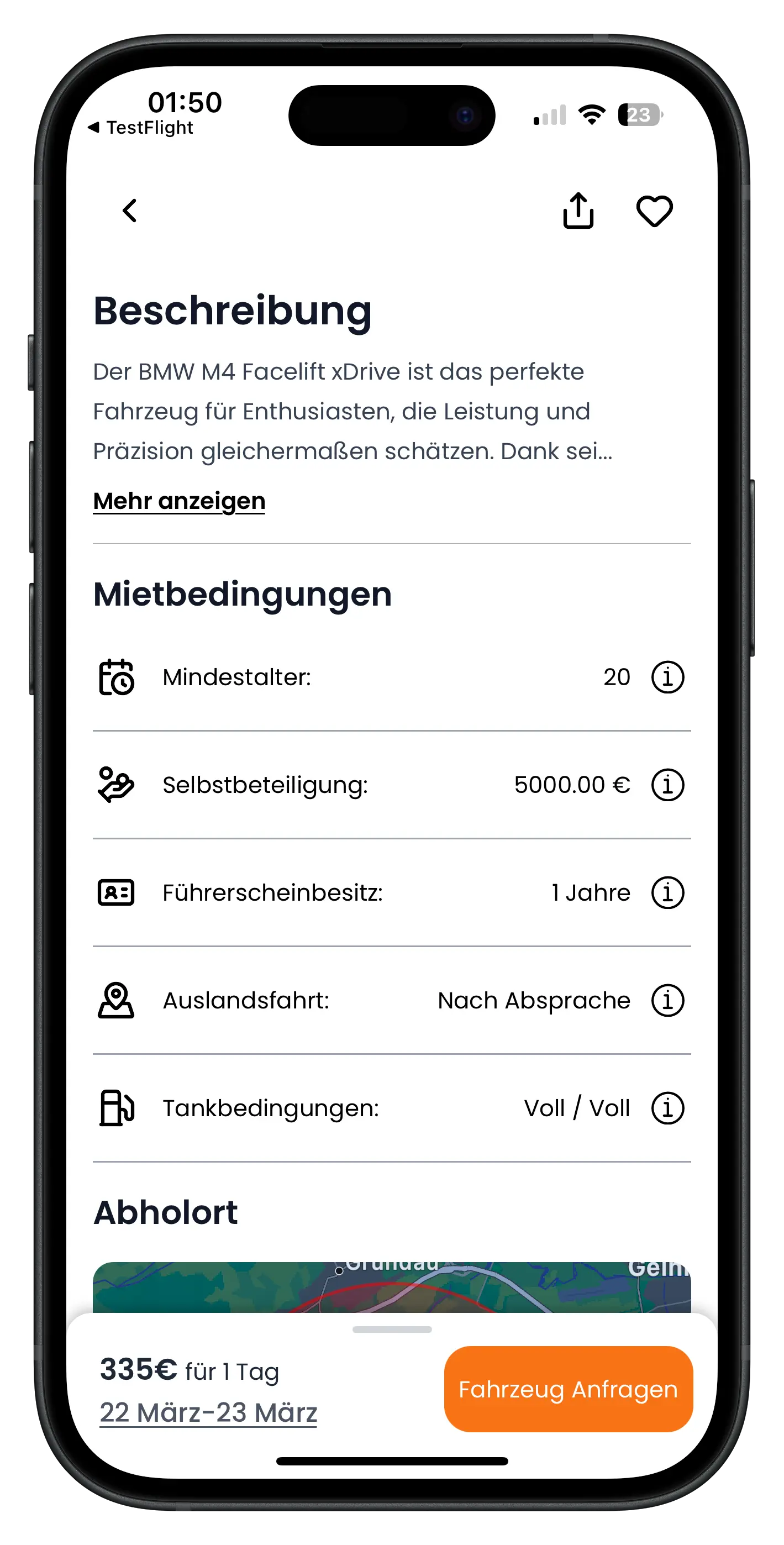
Next comes the description. The host writes this themselves – sometimes it covers special features, sometimes pickup instructions, or exactly what's included in the price. Tap "Show more" for the full text.
After that you'll see the rental conditions. These are also set by the host:
- Minimum age – The minimum age at which you can rent the car
- Excess – Your maximum out-of-pocket contribution in the event of damage
- Driving licence held for – How long you must have held your licence
- Travel abroad – Whether you're allowed to take the car across the border (e.g. "By prior arrangement")
- Fuel policy – How the fuel rule works. "Full/Full" means: you receive it full and return it full
Next to each rental condition there's an info icon (i). Tap it and you'll get a plain-language explanation of what that condition means.
3
Pickup Location
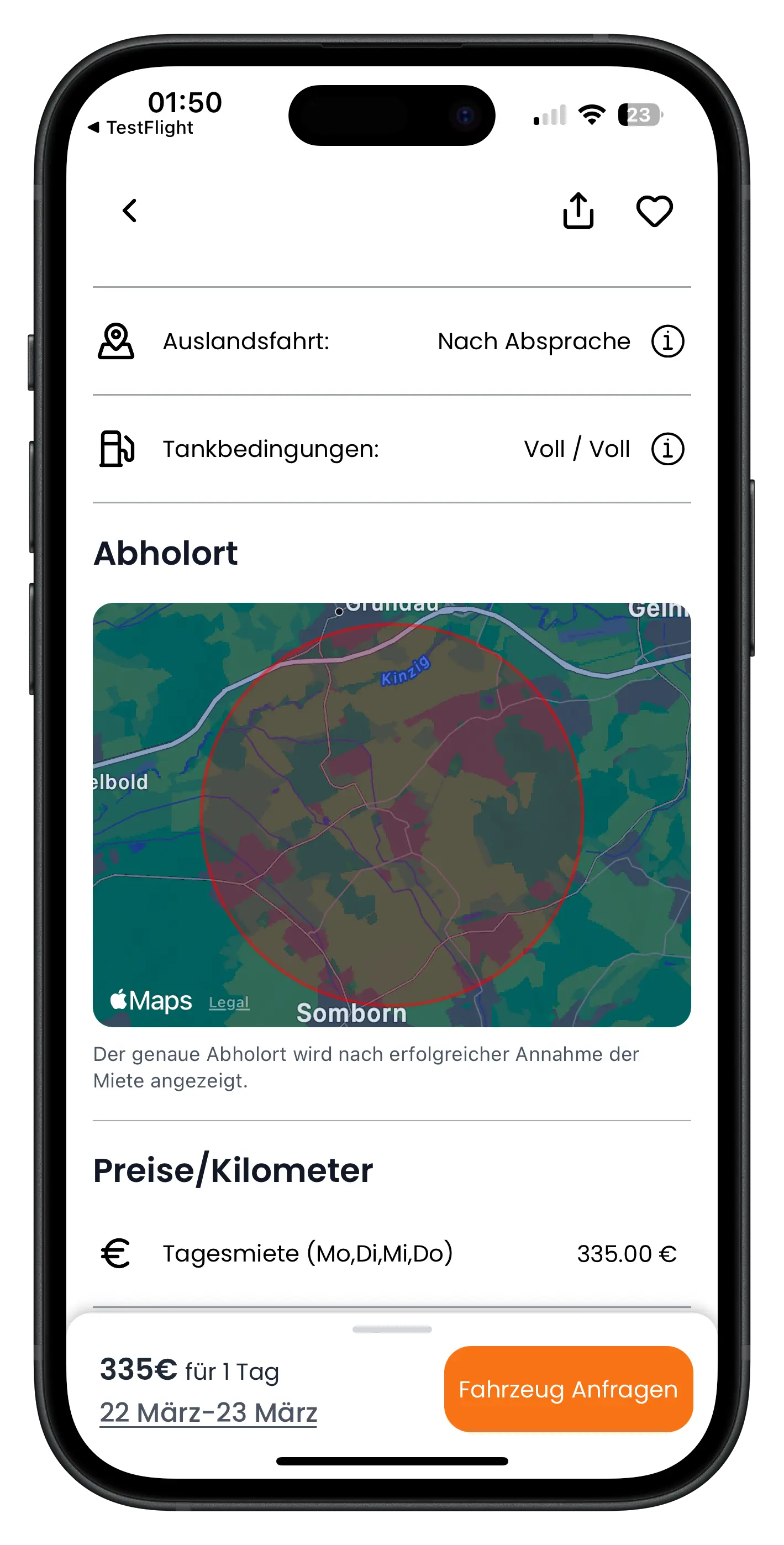
This section shows a map with the vehicle's approximate location. The red circle marks the general area. You can drag the map with your fingers to get your bearings.
The exact address is only revealed once the host has accepted your request and you've paid for the booking. Until then, you'll only see the approximate area.
4
Prices & Mileage
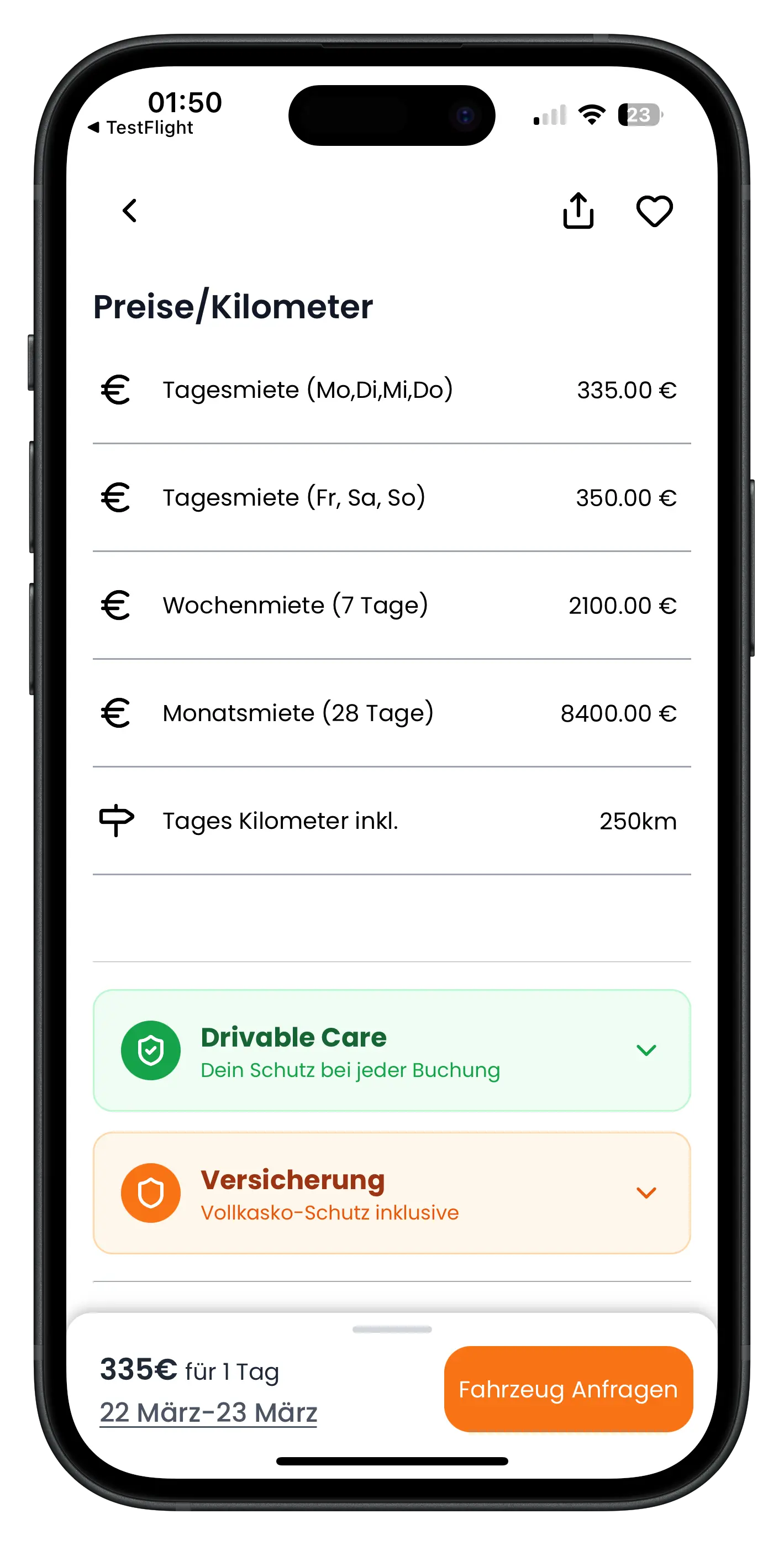
In the pricing section you'll find all rental rates listed. The host sets these themselves:
- Daily rate (Mon, Tue, Wed, Thu) – The price per weekday
- Daily rate (Fri, Sat, Sun) – The weekend day rate, usually a little higher
- Weekly rate (7 days) – The total price for a full week, i.e. Monday to Monday
- Monthly rate (28 days) – The total price for 28 days
- Daily included mileage – How many kilometres per rental day are included in the price
Every booking is calculated in 24-hour blocks. This applies equally to daily, weekly, and monthly rentals. Some hosts also offer hourly rentals. If so, the hourly rate and per-kilometre rate will appear here too.
5
Drivable Care & Insurance
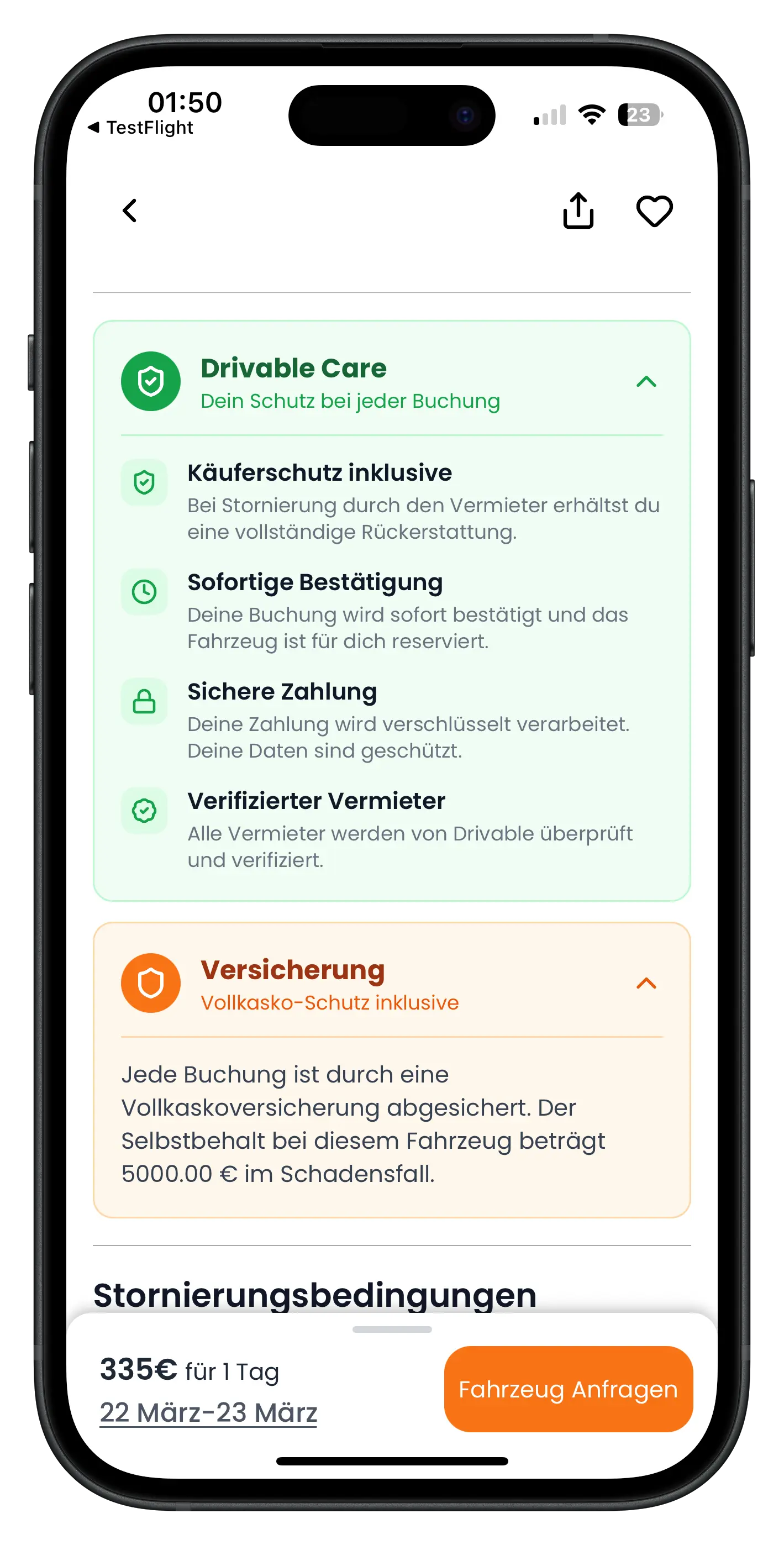
Below the prices there are two expandable sections. Tap them to see the details.
Drivable Care is your protection with every booking:
- Buyer protection included – If the host cancels, you get a full refund
- Instant confirmation – Your booking is confirmed and the car is reserved for you
- Secure payment – Your payment is processed with encryption
- Verified host – All hosts on Drivable are checked and verified
The second section covers insurance. Every vehicle on Drivable is fully comprehensively insured – the cover runs through the professional host. The listing shows the maximum excess in the event of damage. That's the most you would ever have to pay yourself. In this example: €5,000.
6
Cancellation Policy
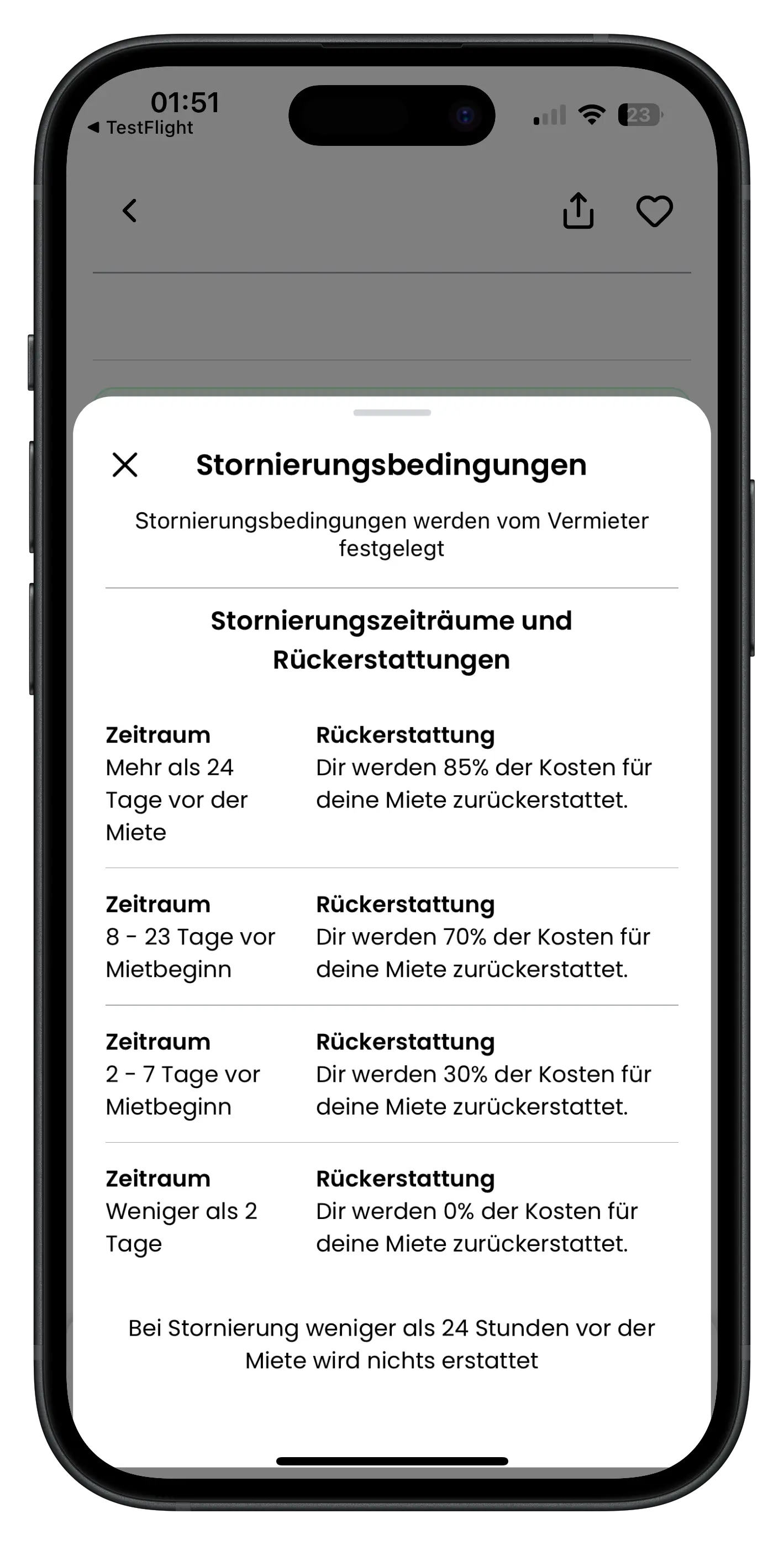
Every host sets their own cancellation policy. Drivable has no influence over this. The listing shows you directly how much you'd get back if you cancelled right now.
Tap "Show more" and a popup opens with the full tiered breakdown. A typical example:
- More than 24 days before → 85% refund
- 8–23 days before → 70% refund
- 2–7 days before → 30% refund
- Less than 2 days before → 0% refund
Regardless of the host: if you cancel less than 24 hours before the rental starts, nothing will be refunded.
At the very bottom of the listing is the support section. "How does a rental work?" walks you through the booking process step by step. Use "Report listing" to get in touch with Drivable if something doesn't seem right.
7
Choosing a Period & Sending a Request
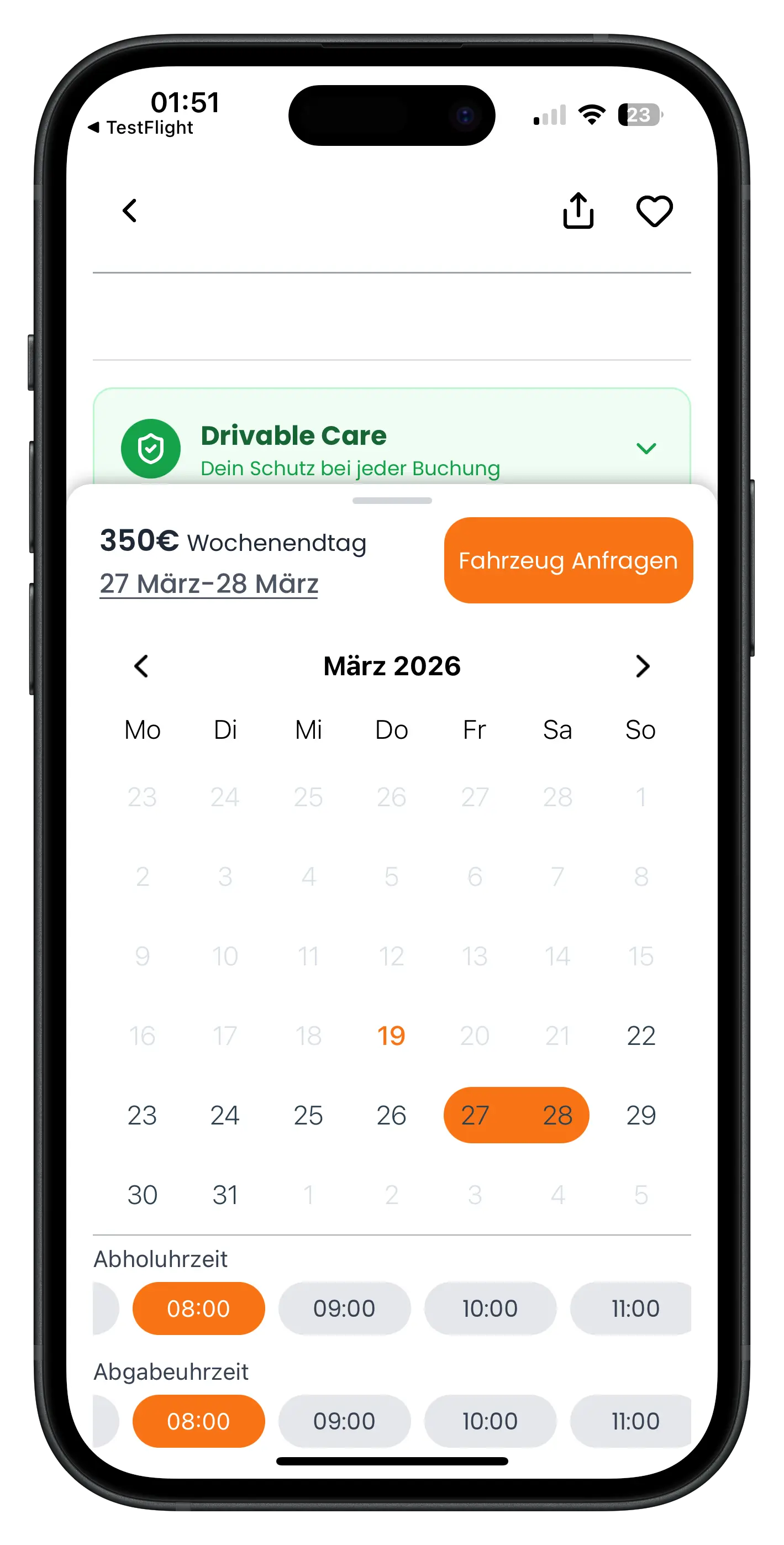
A price bar is pinned to the bottom of the screen at all times, no matter where you are in the listing. It shows the current price, the selected period, and the orange "Request vehicle" button.
Swipe the bar upwards and the calendar expands. Tap your start and end dates. The price updates instantly – if you select Friday to Saturday, the weekend rate is applied automatically.
Below the calendar you can set the pickup and return times. What's available depends on the host. Some are available around the clock, others only at certain times.
Next steps
Looked through everything and happy with the dates? Tap "Request vehicle". This sends a binding booking request to the host. They'll review it and decide whether to accept. You only pay after they do. Until then, it costs you nothing.
Frequently asked questions

Drivable Team
Help & Support
Das Drivable Team erklärt dir Schritt für Schritt, wie du die Plattform und App nutzen kannst.
19. März 2026
War dieser Artikel hilfreich?