The Search Function – How to Find Your Dream Car
Learn how to search for sports cars in the Drivable app. We show you how to get from the home screen to the search, how to filter by city, make and minimum age, and how to end up seeing exactly the vehicles that suit you.
Fancy a Porsche for the weekend or a Lamborghini for your birthday? In the Drivable app you can find your dream car in a matter of seconds. The trick is the search function: instead of swiping through hundreds of listings, you filter by city, make and minimum age and see only the vehicles that are right for you.
- How to get from the home screen to the search
- How to filter by city or location
- How the minimum age works and why it matters
- How to filter by your favourite make
- How to start the search and read the results
1
Open the home screen and discover nearby vehicles
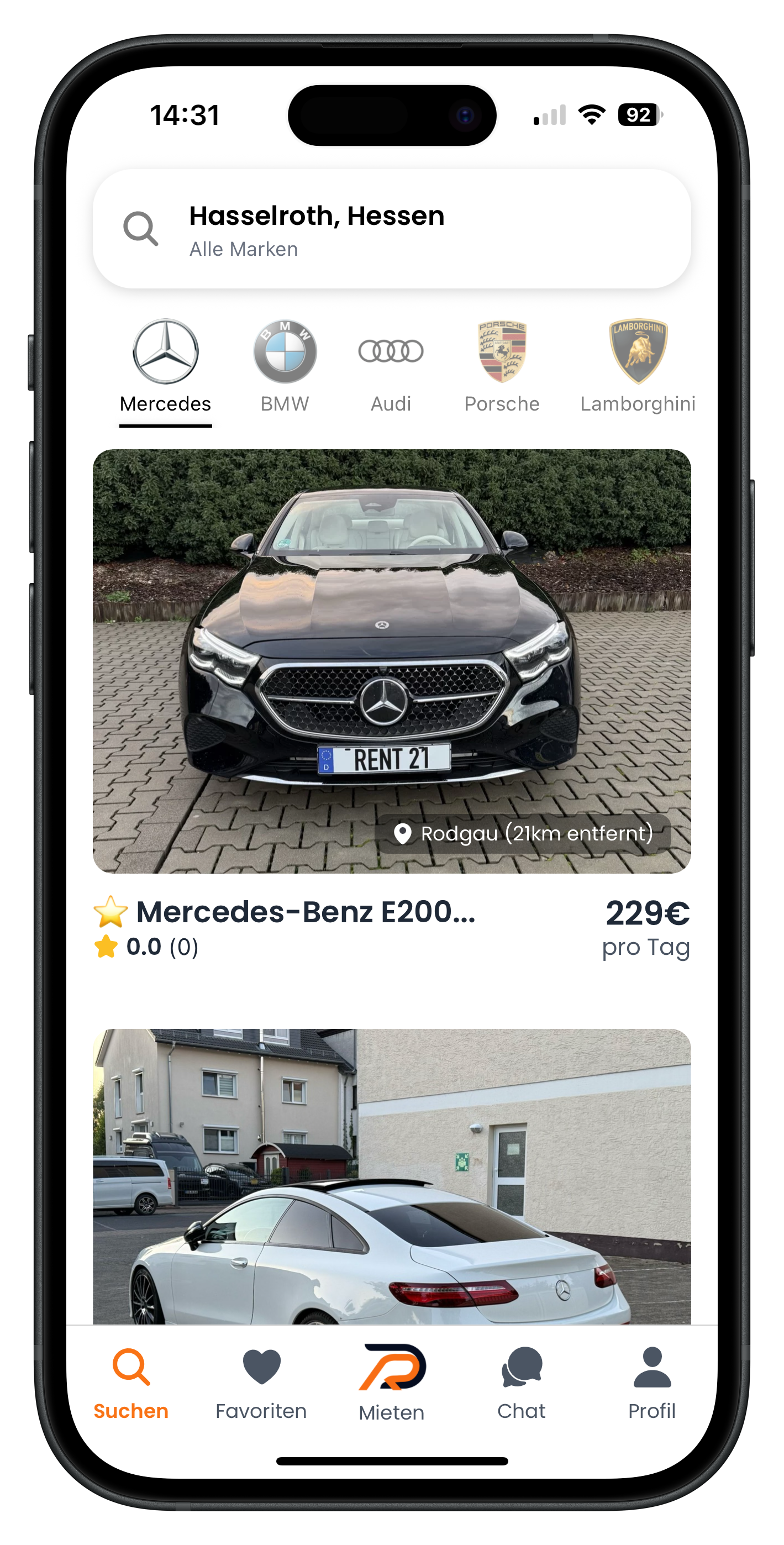
When you open the app, you land straight on the home screen. Vehicles near you are already shown here — in this example a Mercedes-Benz E200 from €229 per day in Rodgau, 21 km away. At the top you can see a white search bar with a magnifying glass to its left; it currently shows your location and "All Makes". Below the search bar there is a row of make logos — Mercedes, BMW, Audi, Porsche and Lamborghini — which you can use to filter in an instant.
- Vehicle cards show you the price per day, distance and review score at a glance
- The bottom navigation takes you to Favourites, Chat and your Profile at any time
- The home screen gives you a good overview — use the search for targeted filtering
2
Tap the magnifying glass to open the search and choose a city
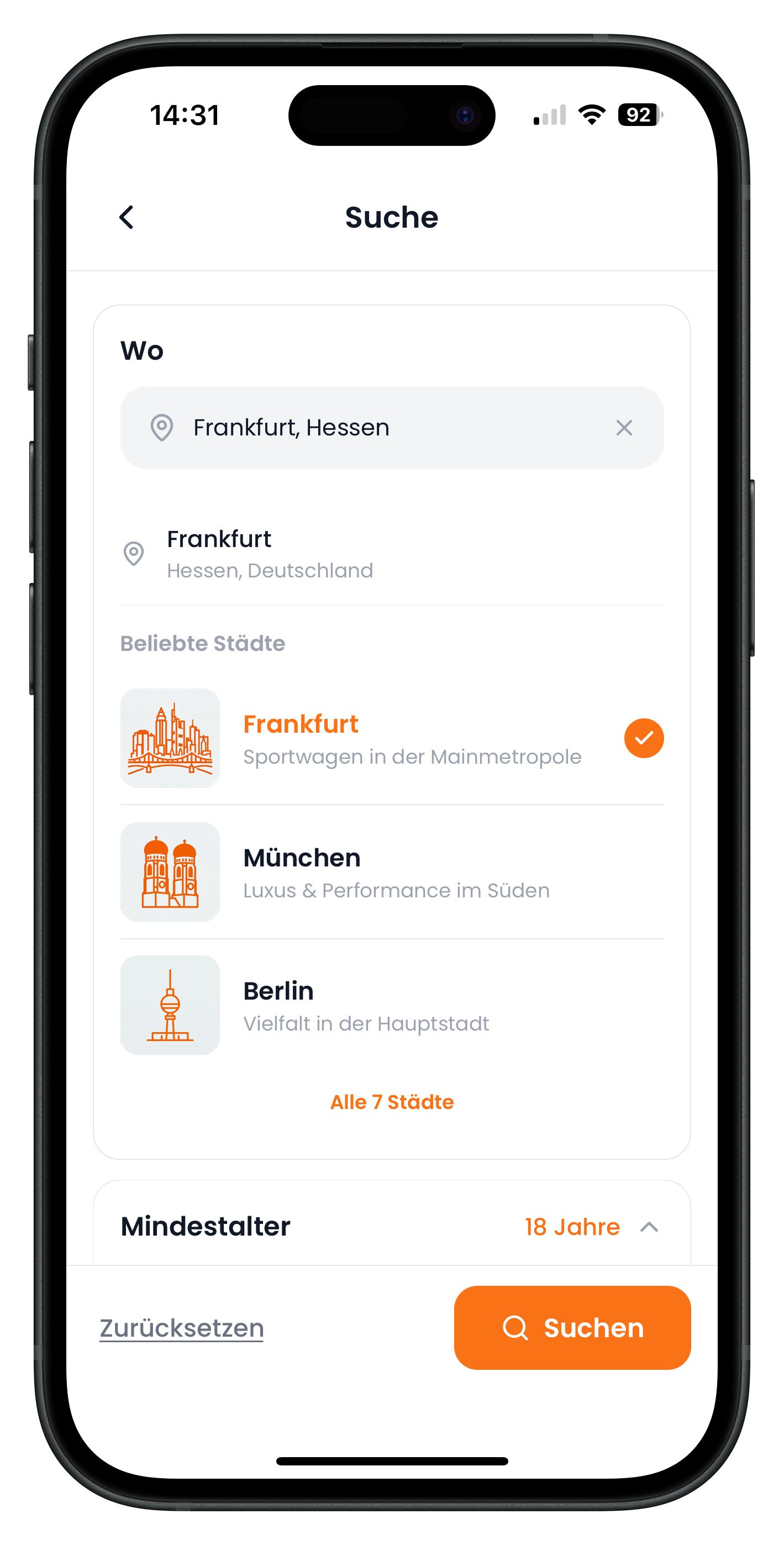
Tap the white bar with the magnifying glass at the top to open the full search. You land on the "Search" screen. At the very top is a "Where" section with an input field where you can type your city — here it shows Frankfurt, Hessen. Below that, under "Popular Cities", you will find options such as Frankfurt, Munich and Berlin. Tap a city to select it; the active tick turns orange.
- You can type the city directly or pick from the popular cities list
- Tap "All 7 Cities" to see the full list of available locations
- Use the small X in the input field to clear what you have typed
Drivable is a marketplace with professional, verified hosts across Germany. When you select a city, you only see vehicles available near that location — so you avoid a long drive just for the handover.
3
Set the minimum age and filter by your favourite make
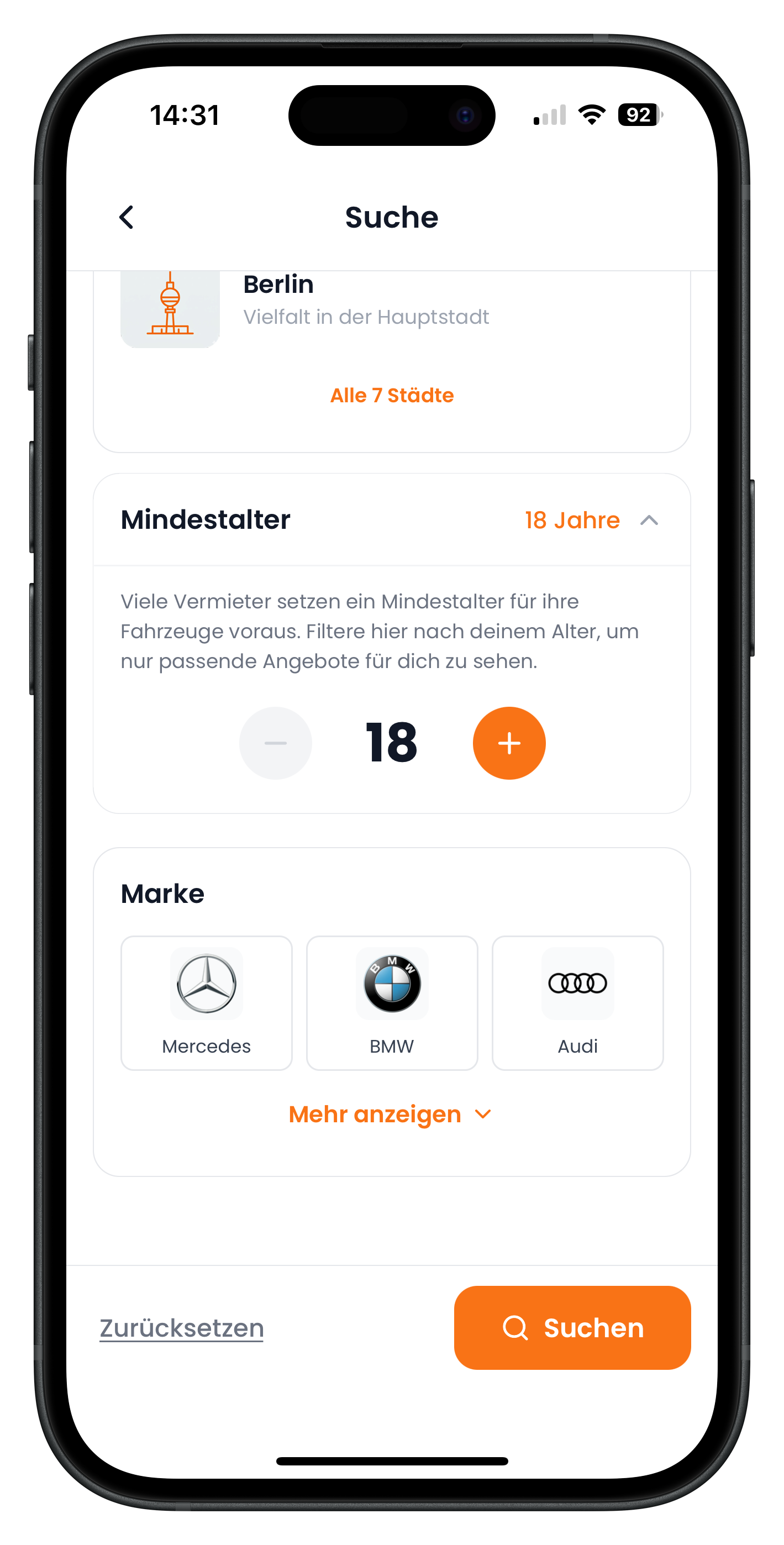
Scroll further down the Search screen to reach the "Minimum Age" section. A note here explains that many hosts require a minimum age for their vehicles. Use the minus and the orange plus to set your age — in the example it is 18. Directly below is the "Make" section with tiles for Mercedes, BMW and Audi. Tap "Show More" to expand additional makes. You can combine as many options as you like.
- The minimum age filter automatically removes any vehicles you are not yet allowed to rent
- Tap a make tile to add it to your search
- Selecting multiple makes at once is no problem — just pick everything that interests you
- Tap "Reset" in the bottom left to clear all filters in one go
You don't have to set every filter. Simply leave the make field empty if you are open to anything — you will then see all sports cars at the chosen location. The fewer filters you set, the more choice you get.
4
Start the search and browse matching vehicles
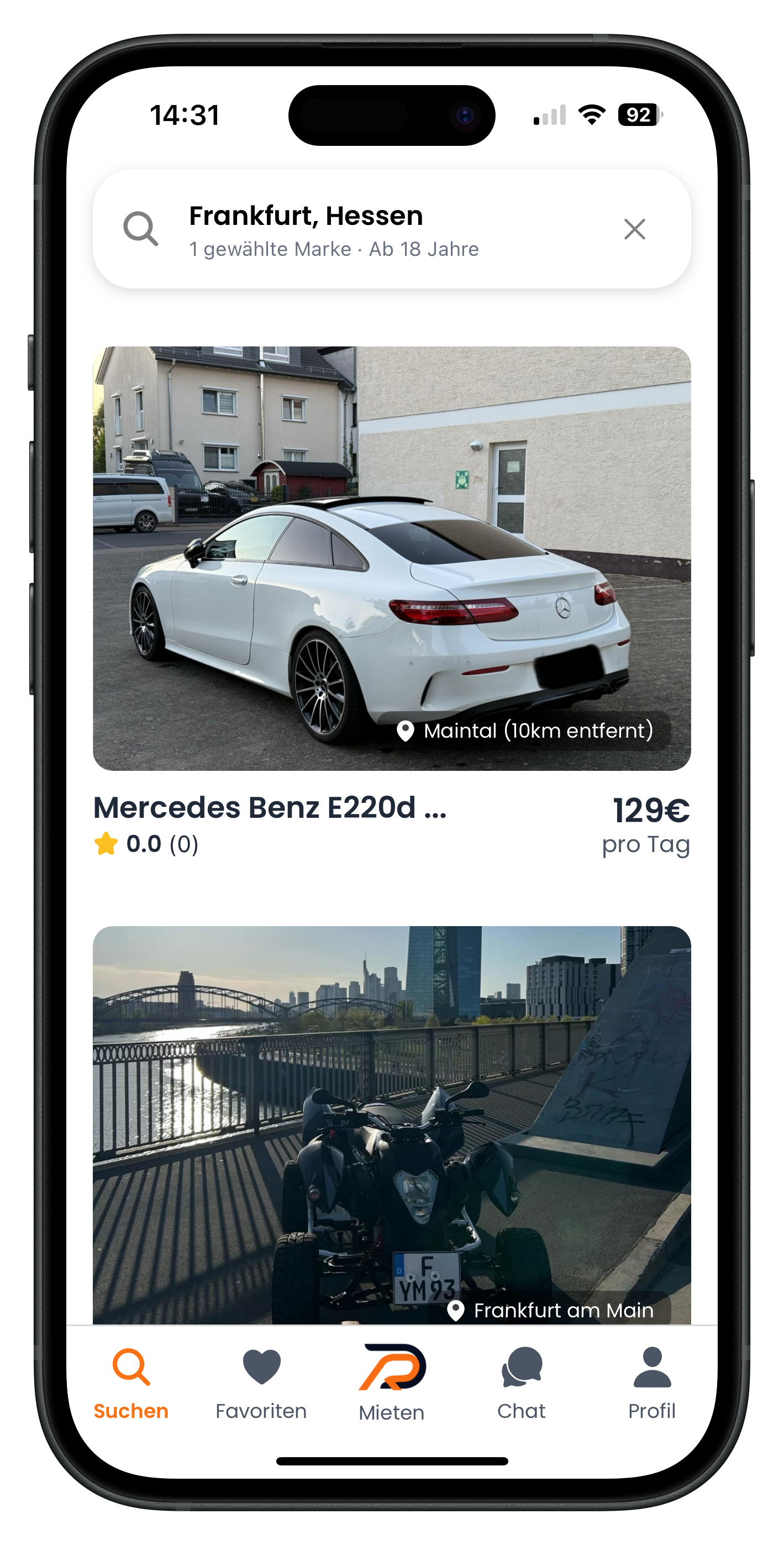
Once your filters are set, tap the large orange "Search" button in the bottom right. You land straight in the results list. The search bar at the top now shows a summary of your filters — in the example "Frankfurt, Hessen · 1 make selected · From 18 years". Below that, exactly the vehicles matching your criteria appear — for instance a Mercedes-Benz E220d from €129 per day in Maintal, 10 km away. All that is left to do is tap your favourite.
- Every card shows you the price per day, location and distance at a glance
- Tap the X in the search bar to go back and adjust your filters
- Tap a vehicle to see all the details, photos and rental terms
The prices shown on the cards are the rental price per day. Payment only takes place after you have sent a request and the host has accepted it. The deposit is settled later in person with the host at the handover.
Next steps
Found your dream car? Tap it and check out all the details. In our article The Listing Explained we show you what information you will find on the vehicle page and what to look out for. Once you are ready to go, head to Request a Vehicle, where you can learn how to send a booking request in just a few steps. And if you are just getting started, Welcome to Drivable will help you find your feet.
Frequently asked questions

Drivable Team
Help & Support
Das Drivable Team erklärt dir Schritt für Schritt, wie du die Plattform und App nutzen kannst.
17. März 2026
War dieser Artikel hilfreich?