Block booking dates & manage availability
Need to take a vehicle off the market for maintenance, personal use, or an external booking? Here you'll learn how to block individual days or entire periods in the Calendar tab so customers can't request the car during that time — and how to remove any block whenever you like.
Sometimes you need to take a vehicle off the market for a while. Maintenance is coming up, you need the car yourself, or you've already got a booking through another channel. That's exactly what booking dates are for. Block a period and no customer can request the vehicle on those days. Your listing stays online and visible — only the blocked days are unavailable. Everything happens in the Calendar tab, and you can remove any block at any time with a single tap.
- Where to find booking date management in the Calendar
- How to select a vehicle and block a period
- Quick select for preset periods or manual selection
- How the monthly calendar shows blocked days
- How to remove a block
Blocked days mean the vehicle can't be requested by customers during that period. Any bookings that are already confirmed remain completely unaffected. It's particularly useful for maintenance and inspections, personal use, or bookings you've arranged outside the app.
1
Open the Calendar tab and tap Block booking dates
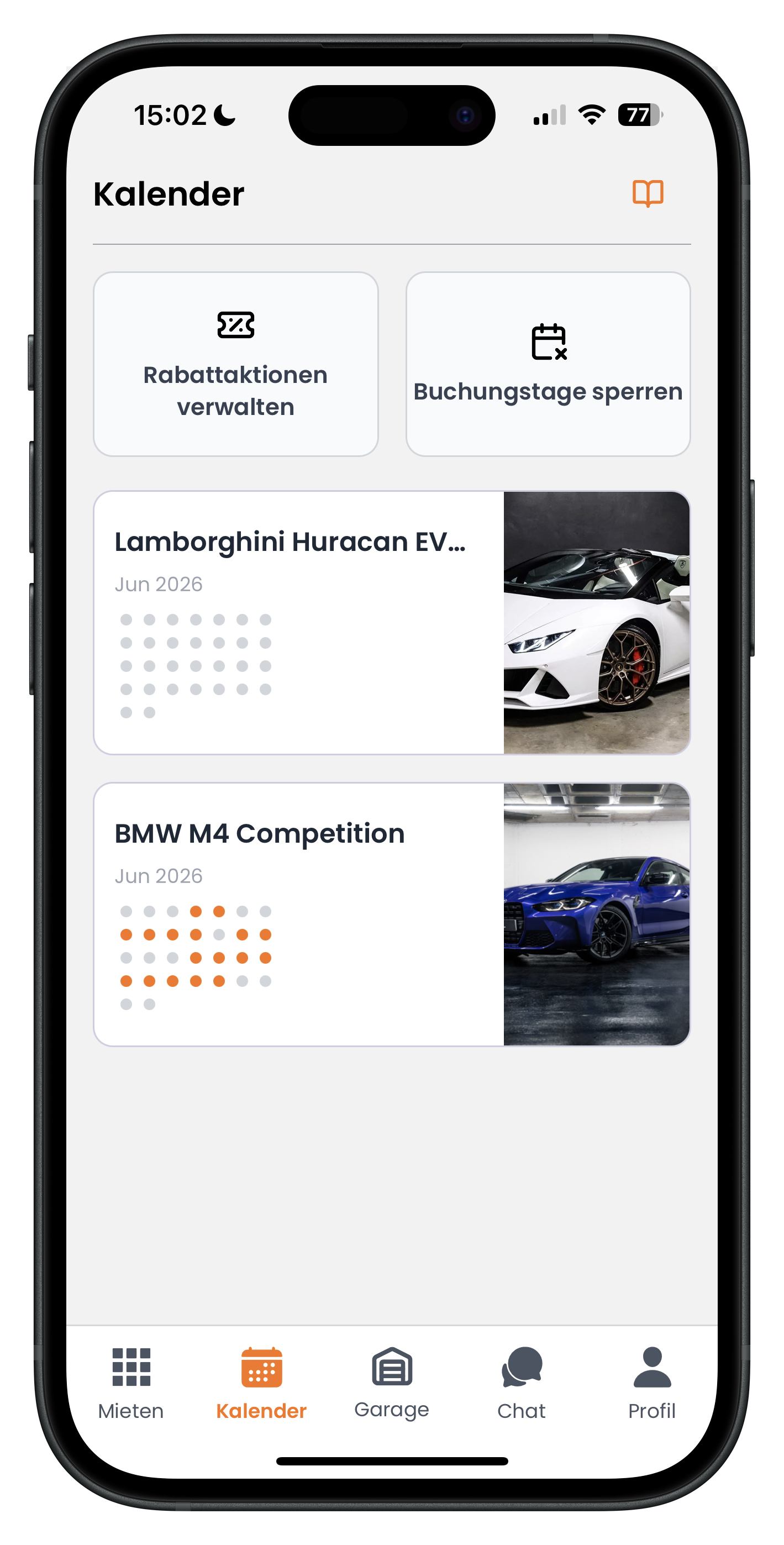
Open the Calendar tab in the bottom navigation. At the top you'll see two tiles side by side: Manage discount offers on the left and Block booking dates on the right. Below that, the app lists all your vehicles with their photo and name, each with a small dot calendar giving you a quick overview of the current month. Tap the Block booking dates tile in the top right to get started.
- The Calendar tab is the middle icon in the bottom navigation
- Each vehicle shows a mini calendar with coloured dots for booked and free days
- The neighbouring tile takes you to Manage discount offers
2
Select the vehicle whose availability you want to adjust
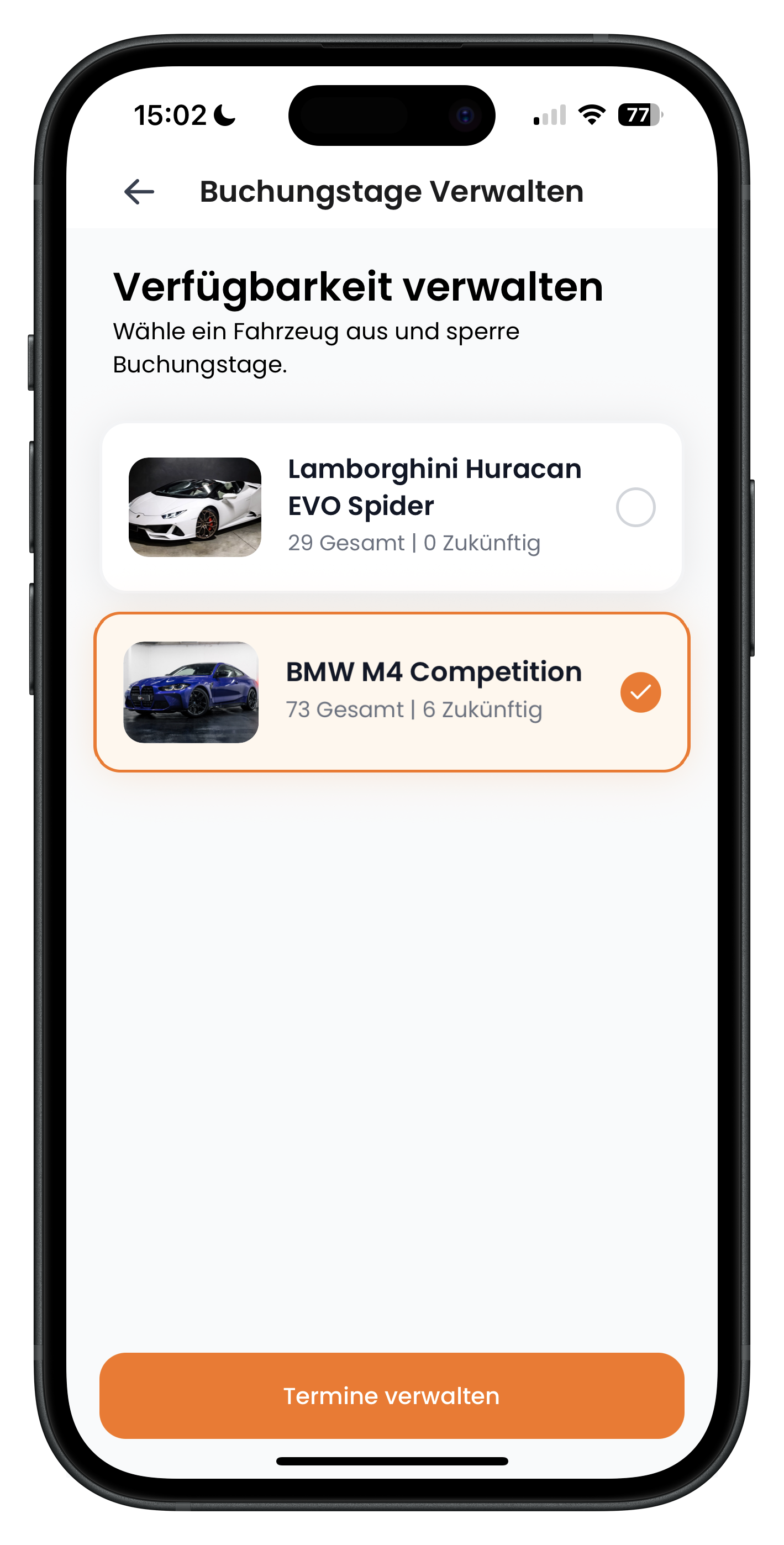
You'll land on the Manage availability page, which prompts you to Select a vehicle and block booking dates. All your cars are listed below. For each one you'll see the photo, the name, and small numbers such as 73 Total and 6 Upcoming — showing how many days have already been blocked in total and how many of those are still in the future. Tap the car you want to adjust. It will get an orange border and an orange tick on the right. Confirm by tapping the orange Manage dates button at the bottom.
- The selected vehicle is highlighted with an orange border and a tick
- Total shows all blocked days; Upcoming shows only those still to come
- You can only edit one vehicle at a time
3
View your existing blocked periods
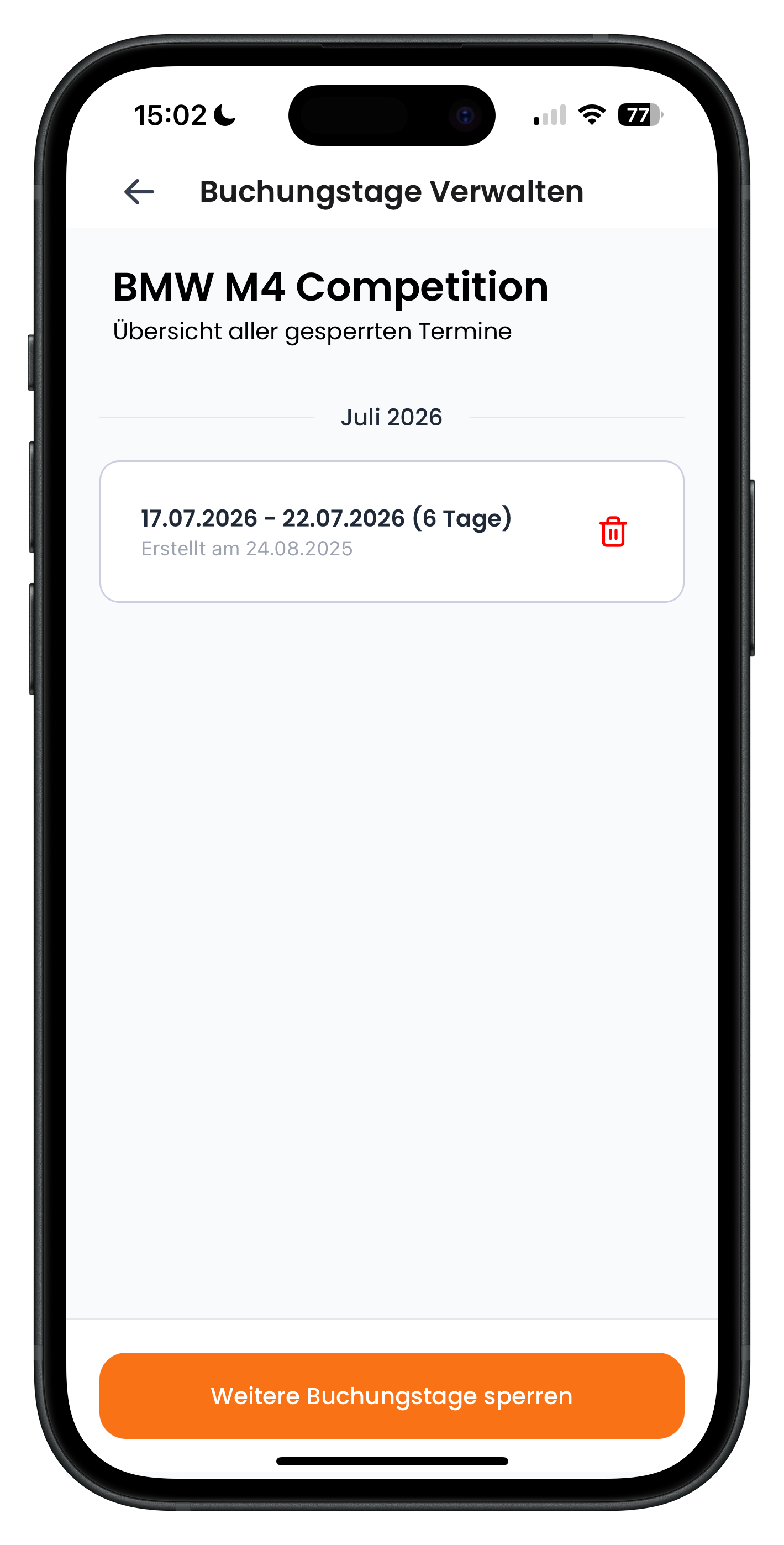
At the top you'll now see the vehicle name — for example BMW M4 Competition — along with the heading All blocked periods. Sorted by month, you can see which periods you've already marked as unavailable, such as 17.07.2026 to 22.07.2026 (6 days), together with the date they were created. To the right of each entry there's a red bin icon you can use to delete a block directly. To add a new period, tap the orange Block more booking dates button at the bottom.
- Blocked periods are grouped by month and show the number of days
- The red bin icon deletes an individual entry
- Tap Block more booking dates to create a new block
Check this page regularly before adding a new block. It helps you avoid duplicate entries and lets you see at a glance whether an old maintenance period is still blocked when the vehicle should be free again.
4
Set a period using quick select or manually
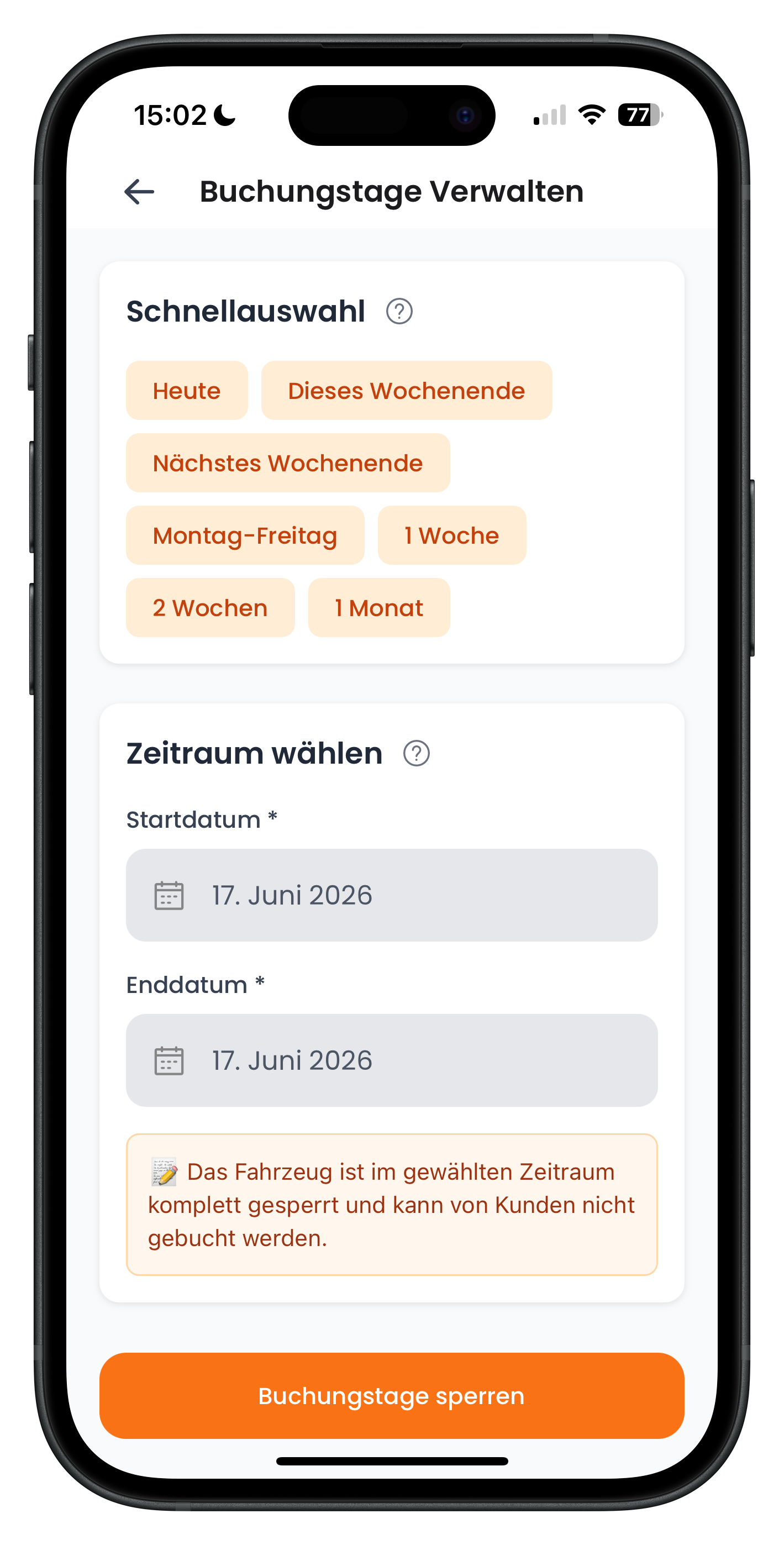
At the top you'll find the Quick select section with preset periods shown as orange chips: Today, This weekend, Next weekend, Monday–Friday, 1 week, 2 weeks, and 1 month. Tap one and the corresponding period is filled in automatically. For more specific dates, use the Select period section below and set the Start date and End date manually. The info box reminds you that the vehicle will be completely blocked during the chosen period and cannot be booked by customers. Confirm by tapping Block booking dates at the bottom.
- Quick select saves time for common periods like weekends or 1 week
- For unusual dates, use the Start date and End date fields manually
- The orange info box confirms the entire period will be blocked
5
Identify blocked days in the monthly calendar
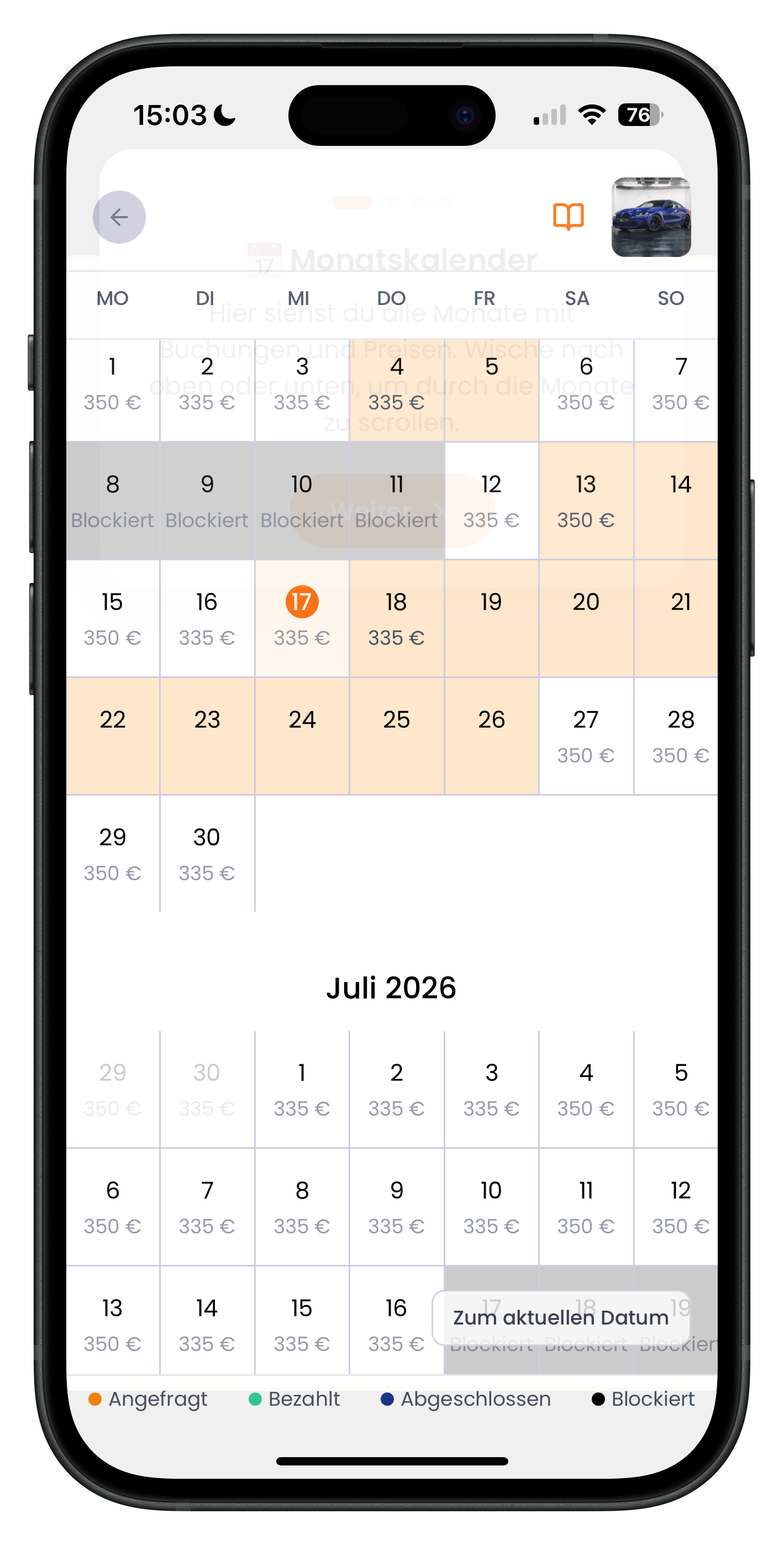
The monthly calendar shows every day with its daily rate, for example 335 Euro or 350 Euro. Days you've blocked are greyed out and labelled Blocked. A legend at the bottom explains the colours: Requested, Paid, Completed, and Blocked. This makes it easy to see at a glance which days are free, which are already taken, and which you've blocked yourself. Tapping directly on a date lets you create a new block at that point.
- Greyed-out days labelled Blocked have been blocked by you
- The legend at the bottom matches each colour to a status
- Tapping a date starts a new block at that point
6
Fine-tune your block using the date fields
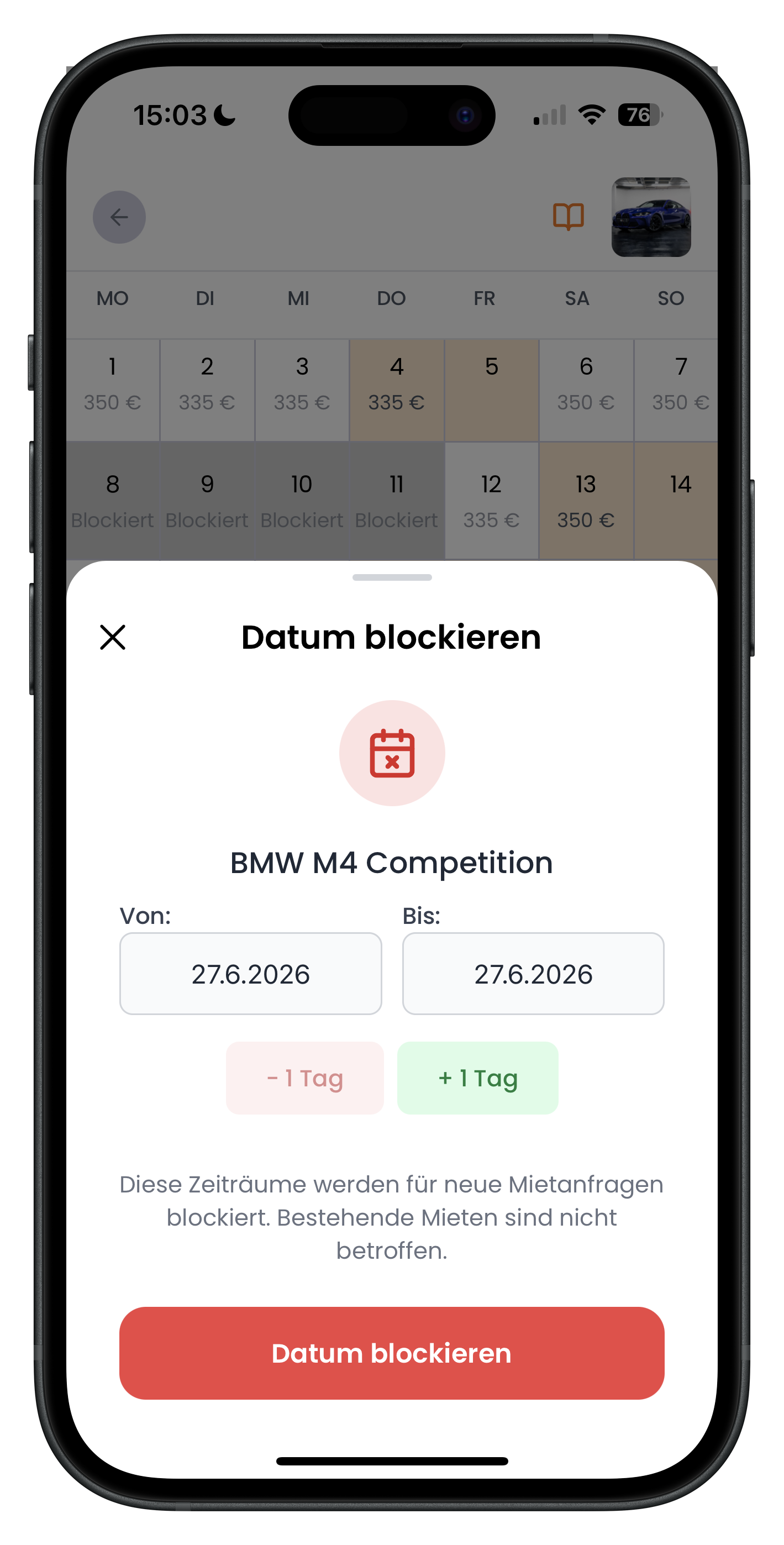
When you tap on a date, a Block date panel slides up from the bottom, showing the vehicle name. You'll see two fields, From and To, pre-filled with the date you selected. Use the two buttons below to adjust the period: the red -1 day button shortens it, and the green +1 day button extends it by one day at a time. The notice explains that these periods will be blocked for new rental requests and existing bookings will not be affected. Tap the red Block date button to save the block.
- Red -1 day shortens the period; green +1 day extends it
- From and To show you exactly which days will be blocked
- Existing bookings are not affected by a new block
Blocking dates isn't the same as hiding a vehicle permanently. If you want to remove a vehicle from search results long-term, archiving is the better option. Find out how in Archive and restore a listing.
7
Remove a block and free up dates
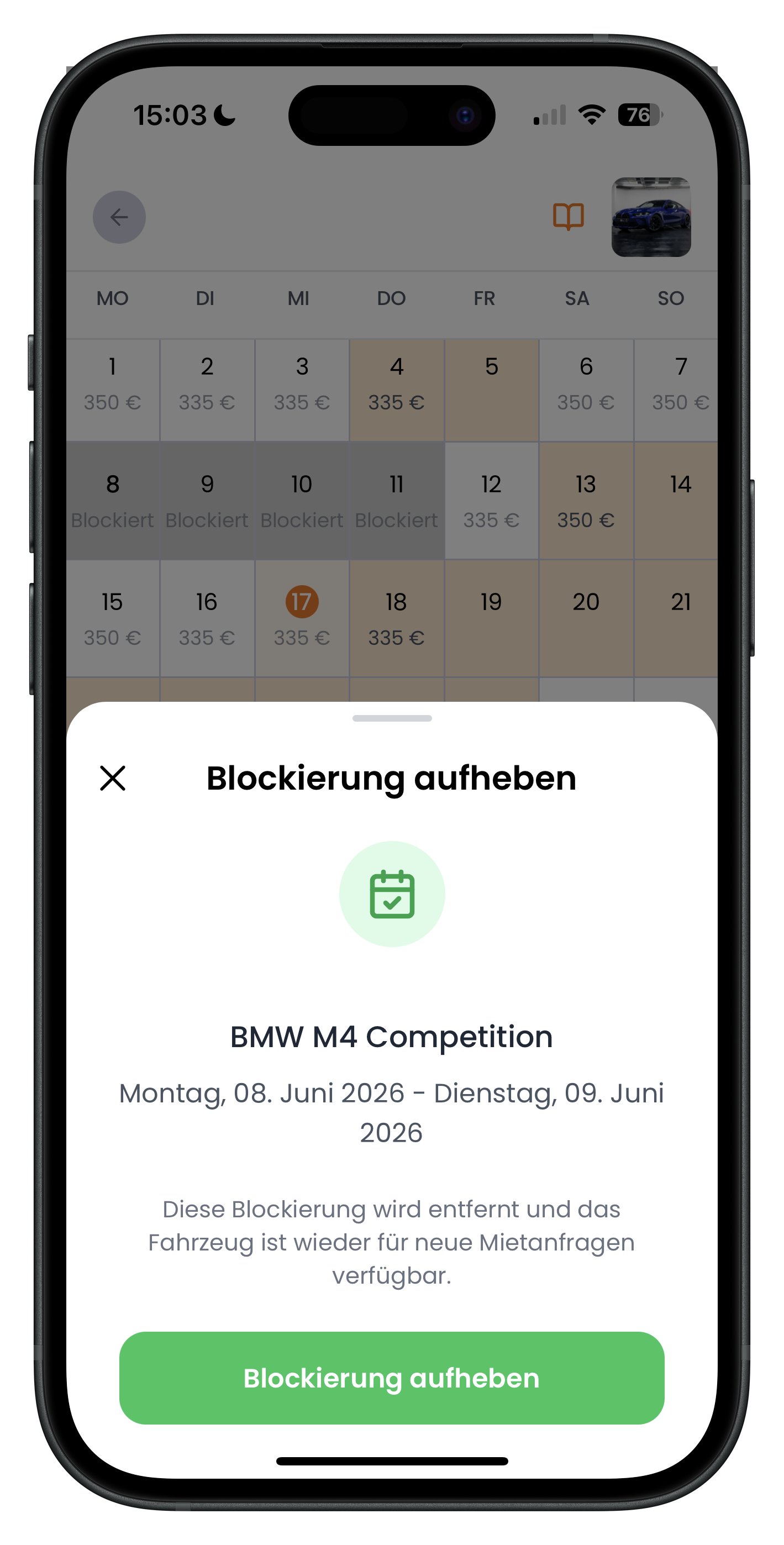
Tapping an existing block in the calendar opens the Remove block panel. It shows the vehicle name and the blocked period — for example Monday, 08 June 2026 to Tuesday, 09 June 2026. The notice explains that this block will be removed and the vehicle will be available for new rental requests again. Tap the green Remove block button and the dates are immediately open for customers to request.
- The panel shows you the exact period you're freeing up
- Once removed, the vehicle can be requested straight away
- Alternatively, delete a block via the red bin icon in the overview
Only block what you need to. Every blocked day is a day no customer can reach you with a request. If you get the car back sooner than expected, just remove the block and free up those days again.
Next steps
When your calendar is kept up to date, your free days show up reliably in search results. To increase the chances of getting booked on those days, targeted discounts can help: Create and manage discount offers shows you how to set them up. And once a request comes in, Handle customer requests as a host walks you through accepting or declining quickly.
Frequently asked questions

Drivable Team
Help & Support
Das Drivable Team erklärt dir Schritt für Schritt, wie du die Plattform und App nutzen kannst.
21. Juni 2026
War dieser Artikel hilfreich?