Handling booking requests as a host
As soon as a renter enquires about one of your vehicles, the request lands in your host dashboard. Here you'll learn how to review all the booking details and the renter's profile, how to accept or decline a request with a reason, and why a fast response is worth real money.
Every new booking request is a potential booking. How quickly and professionally you respond often determines whether that request turns into real money in your account. In this article we walk through step by step how to open a request, review all the details and the renter's profile, and decide whether to Accept or Decline.
- Where new requests appear in your dashboard
- Which booking details and renter information you see before deciding
- How to accept a request (and what happens next)
- How to decline a request with a reason and optionally block the dates
- Why accepted does not mean paid — and only payment confirms a booking
Keep one rule in mind throughout this article: Accepted is not the same as paid, and only payment makes a booking final. When you accept a request, you're simply saying yes to the booking. The booking is only confirmed once the renter pays.
Finding a new request in your dashboard
1
Opening a new booking request in the host dashboard
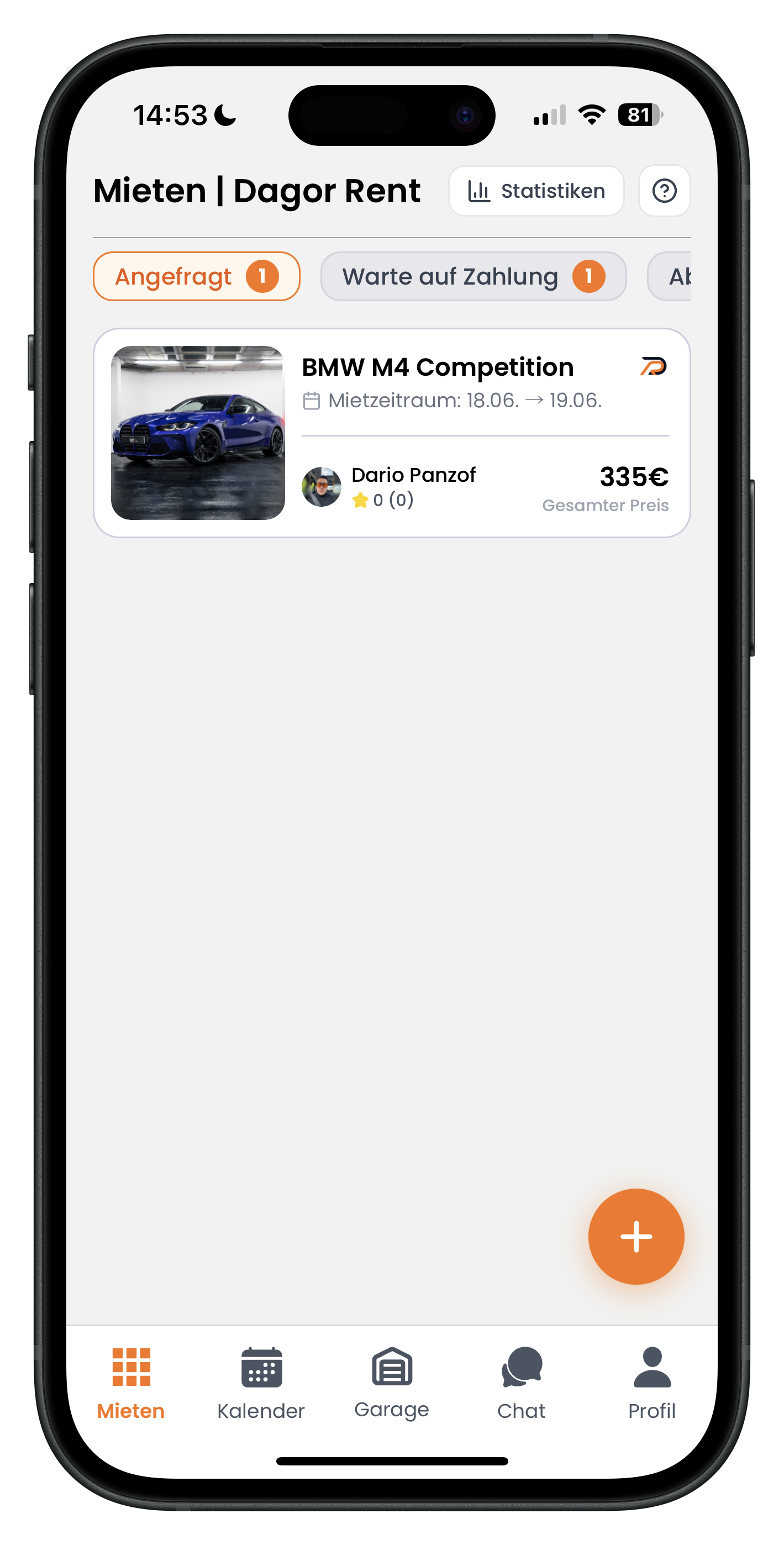
As soon as a renter enquires about one of your vehicles, the request appears at the top of the Requested tab in your dashboard. Next to it you'll see the Awaiting Payment tab and other status tabs. The small number in the orange circle tells you how many open requests are waiting for you. In the preview card you can see at a glance the vehicle (here BMW M4 Competition), the booking period (18.06. to 19.06.), the renter's name, and the Total Price of €335 on the right. Tap the card to open the full request.
- The Requested tab on the far left collects all new, unanswered requests
- The orange number on the tab is your prompt: someone is waiting for your reply
- The preview already shows you the renter, the period, and the price
- The article on the host dashboard explains how to read your dashboard in general
A deeper overview of all tabs and figures is available in the article The Host Dashboard at a Glance, where you can see what each status tab means.
Reviewing booking details and the renter
2
Going through all the booking details
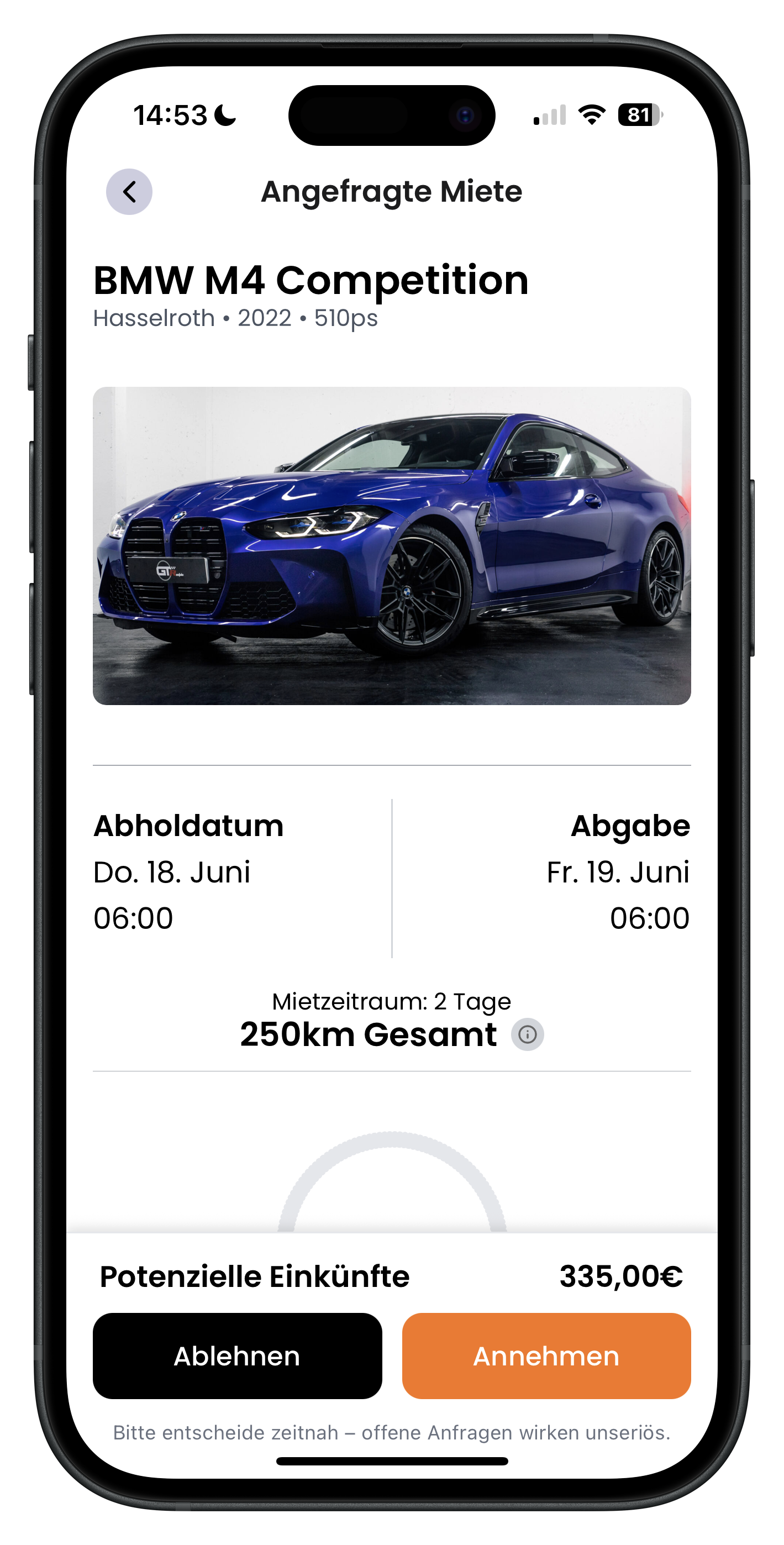
At the top of the opened Requested Booking you'll see the vehicle with its location, year, and power output (Hasselroth, 2022, 510ps), plus a large photo. Below that are the key facts: Pick-up date (Thu 18 June, 06:00) and Drop-off (Fri 19 June, 06:00), the booking period of 2 days, and the requested 250km total. At the very bottom the app shows your Potential Earnings of €335.00. Run through this information before you decide whether the period and the mileage work for you.
- Check the pick-up and drop-off times: does the period fit your calendar?
- Keep an eye on the requested mileage (here 250km total)
- Potential Earnings show you what this booking is worth to you
- The buttons at the bottom let you go to Decline or Accept at any time
3
Viewing the renter's profile and keeping an eye on response time
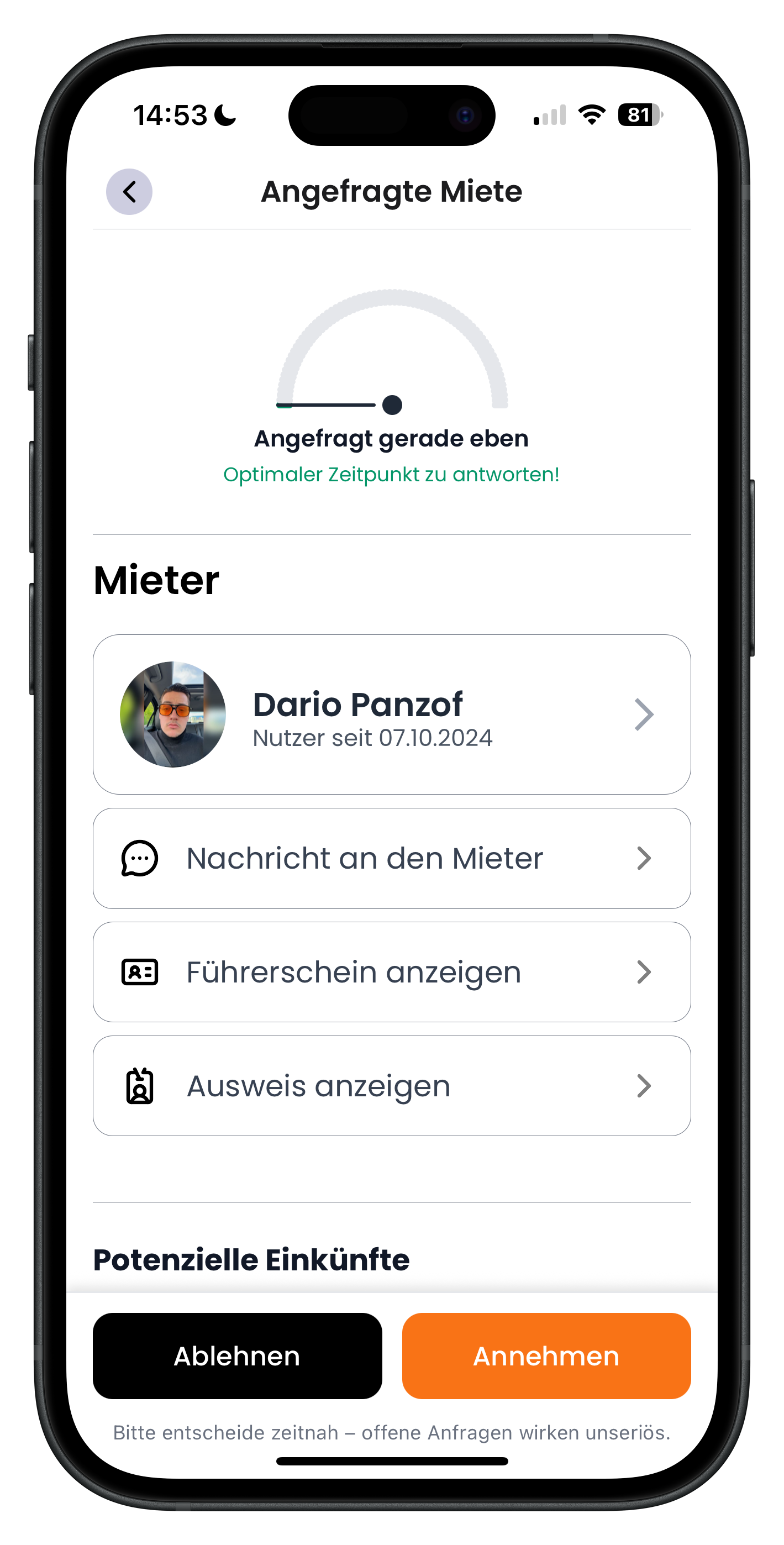
Scroll further down and you'll reach the Renter section. At the top you'll see a gauge-style indicator with the text Requested just now and, in green, Perfect time to respond!. This indicator shows how long you've been taking to handle the request. Below it you'll find the renter's profile (here Dario Panzof, member since 07.10.2024) and three buttons: Message the renter, View driving licence, and View ID. This lets you contact the renter and check their documents before you make your decision.
- Tap the renter's profile to find out more about the customer
- Use Message the renter to start a chat directly
- You can view the potential renter's driving licence and ID in advance
- The indicator at the top tells you whether you're responding quickly or already running late
A fast response time matters enormously. Renters trust you more when you reply promptly, and they pay more quickly and more often as a result. You shouldn't leave a decline sitting either. The app puts it plainly: Please respond promptly — open requests look unprofessional.
4
Checking the total price including all extras
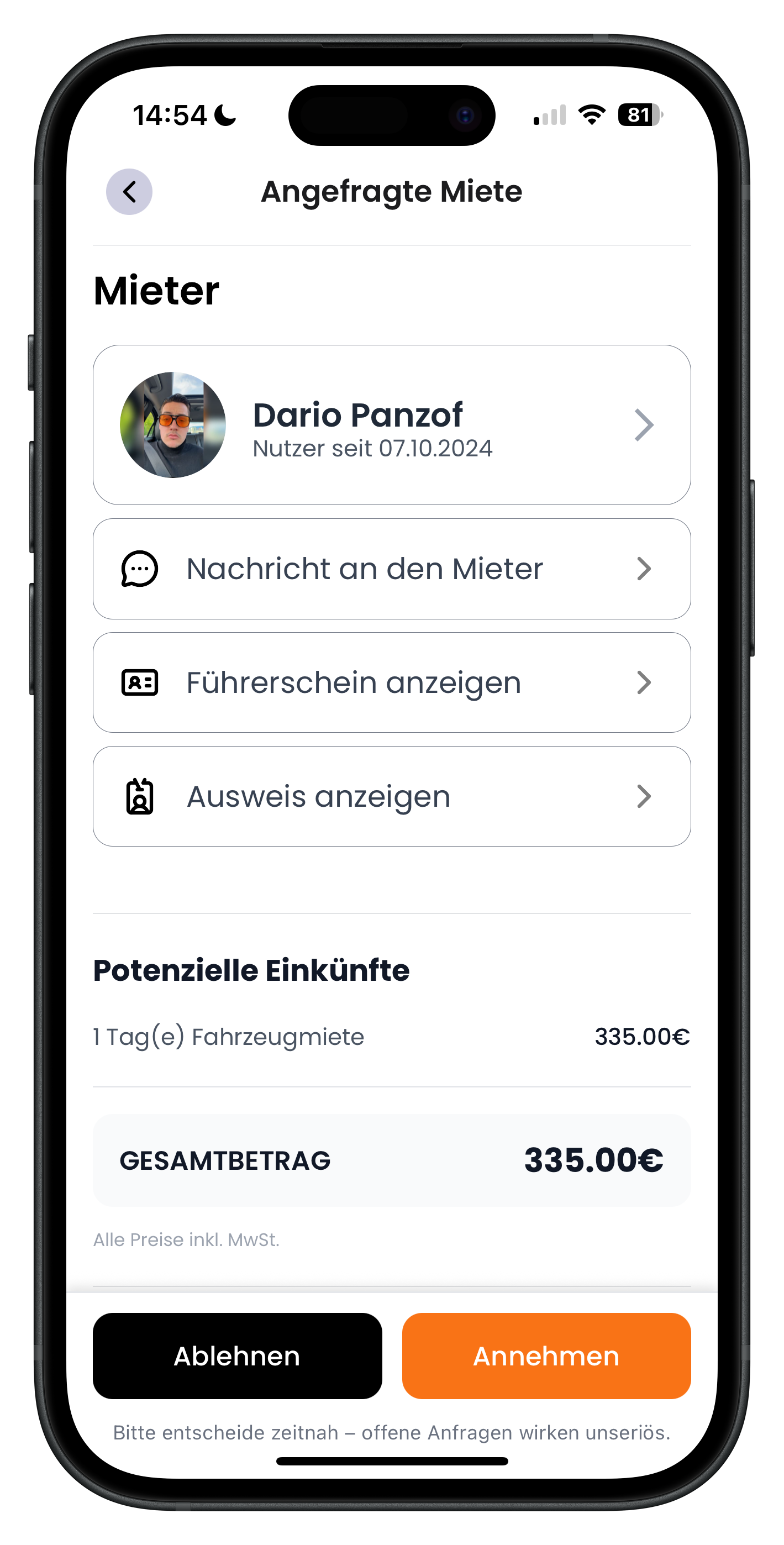
Directly below the renter section you'll find the full price breakdown under Potential Earnings. Here you can see each line item — for example 1 day(s) vehicle rental at €335.00 — and the Total amount at the bottom. The note All prices include VAT confirms that the figures already include tax. This gives you a clear picture of what you'll receive if you accept, including all extras the renter has requested.
- The breakdown shows every line item individually, not just the final total
- The total amount is your potential revenue from this booking
- All prices are shown inclusive of VAT
- This is where you see the full price with all extras included
Declining a request (with a reason)
If a request doesn't work for you, you can decline it using the black Decline button. Important: you always need to provide a reason. This helps the renter understand your decision, and you can optionally block those dates straight away so other renters can't request them again.
5
Choosing a reason for declining
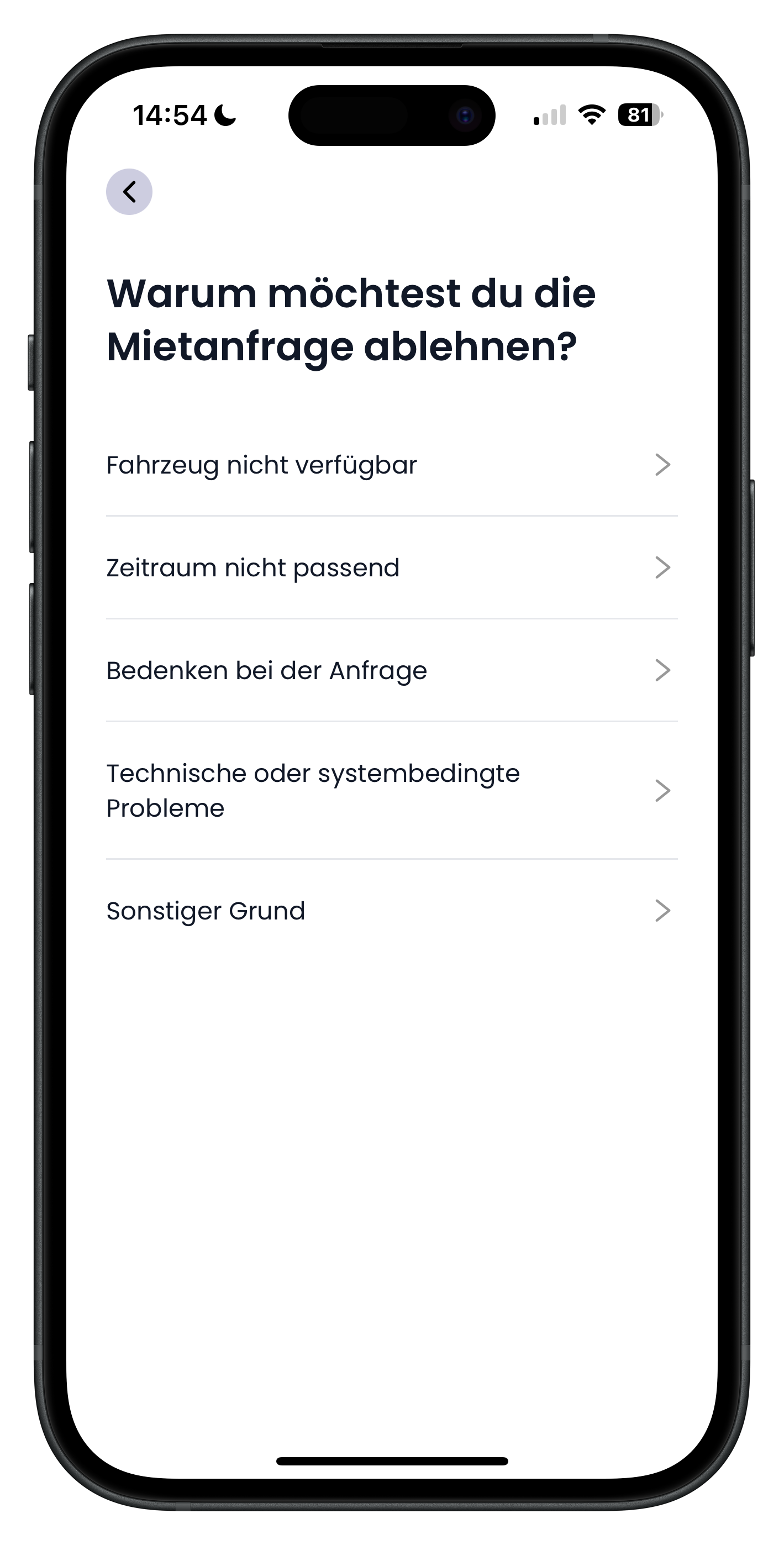
After tapping Decline, the app asks: Why do you want to decline this booking request? You choose the most suitable main reason from a list — for example Vehicle not available, Period not suitable, Concerns about the request, Technical or system-related issues, or Other reason. Tap the reason that fits best to continue.
- Choose the reason that best matches your situation
- Vehicle not available will prompt you for more detail in the next step
- Other reason works when none of the other options really apply
- A quick, honest decline is better than no reply at all
6
Narrowing down the reason further
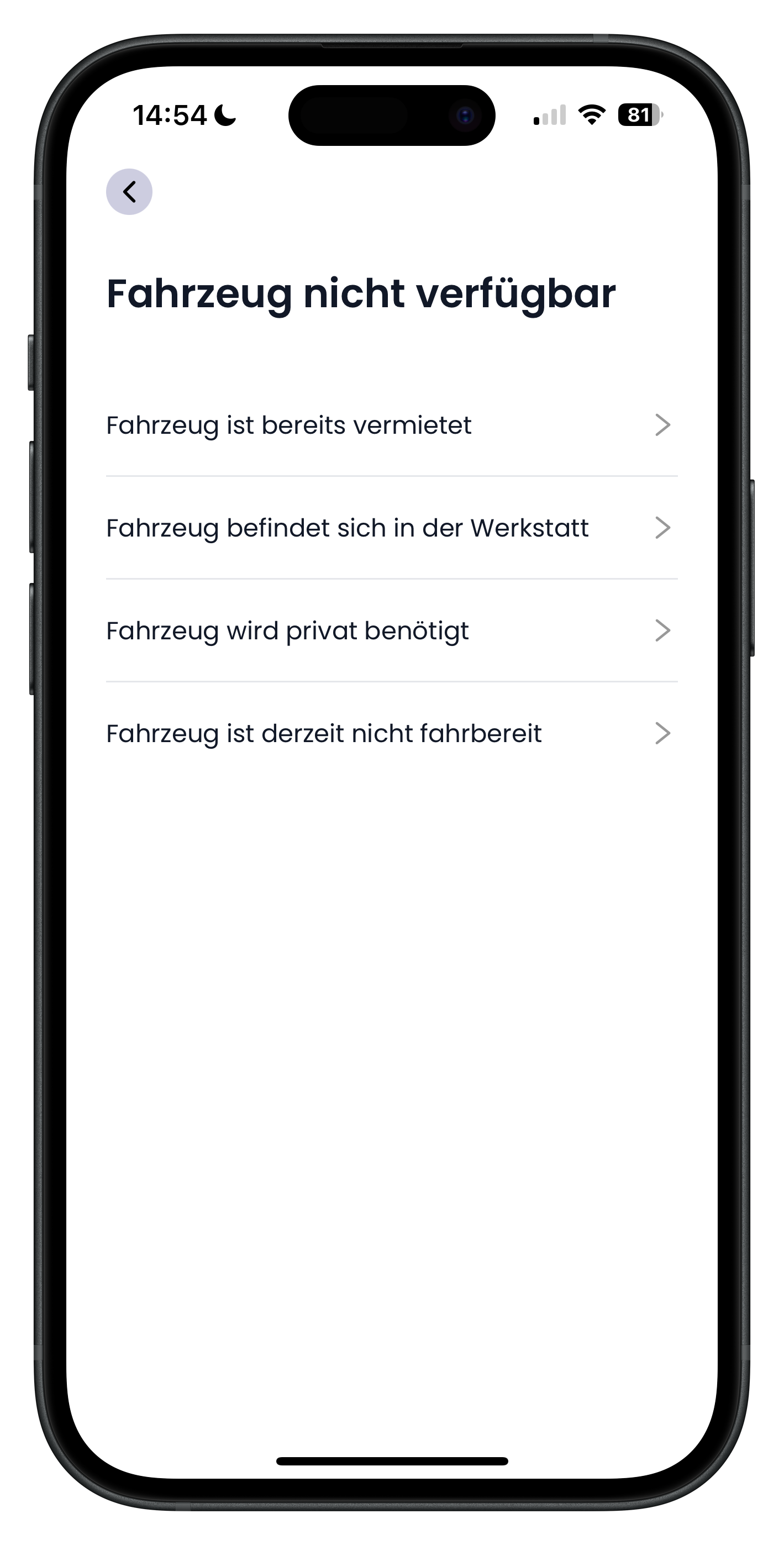
For some reasons, the app asks a follow-up question. If you chose Vehicle not available, for example, you'll now see a second list with specific options: Vehicle is already rented out, Vehicle is in the garage, Vehicle is needed for personal use, or Vehicle is currently not roadworthy. This makes your decline easier for the renter to understand. Tap the option that genuinely applies.
- This follow-up gives your decline a clear, honest background
- The more precise the reason, the easier it is for the renter to understand
- Already rented out is typical when those dates are already taken
- Not roadworthy or in the garage fits technical issues
7
Confirming the decline and optionally blocking the dates
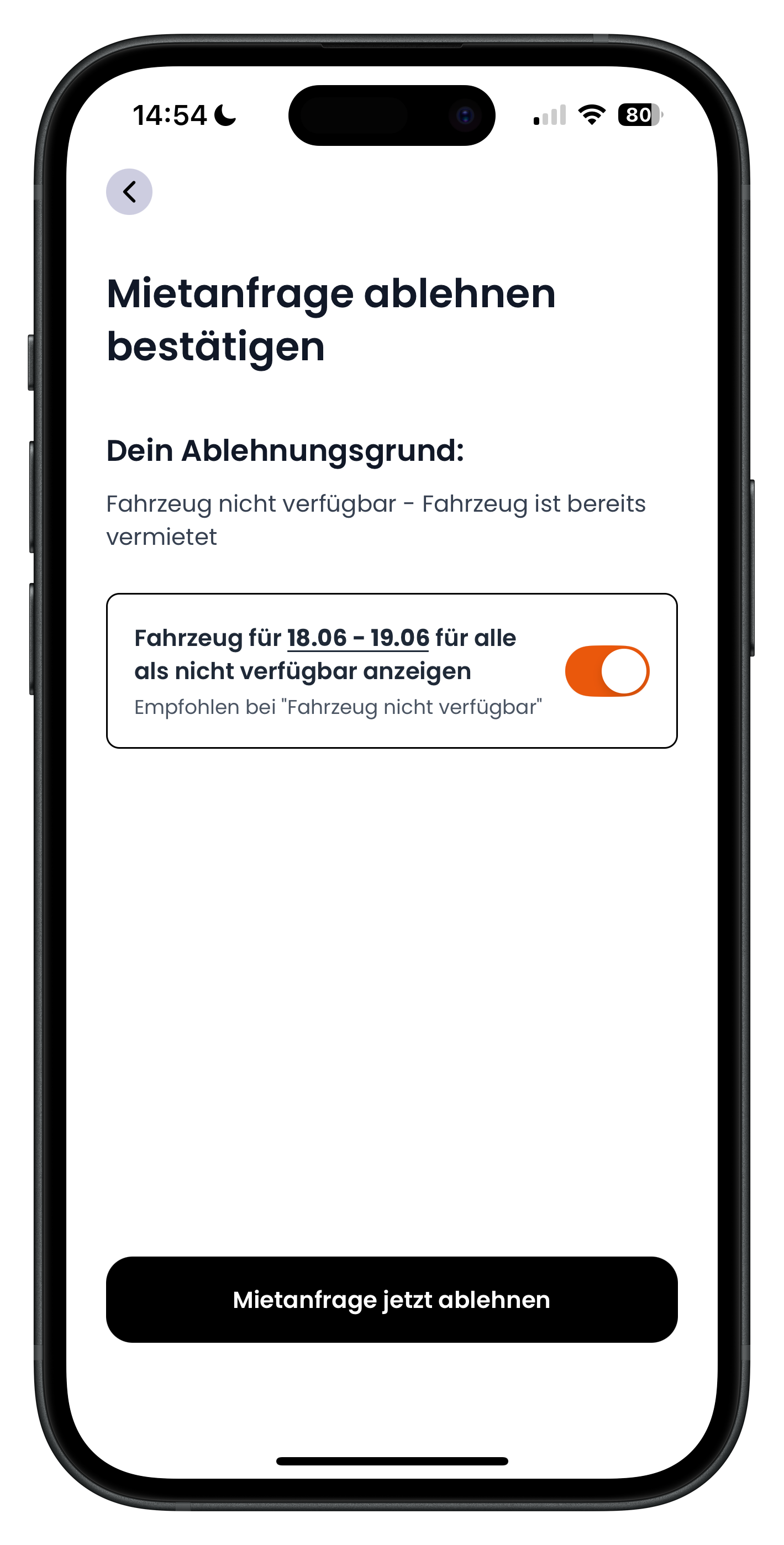
Finally, the app shows you a summary under Confirm decline of booking request with your chosen reason. Below it you'll find a toggle: Show vehicle as unavailable for 18.06 to 19.06 for everyone. Switch it on (orange) and those dates are immediately blocked for all other renters, so nobody can request the same period again. This is particularly recommended when your reason was Vehicle not available. Then tap the black Decline booking request now button to complete the decline.
- The orange toggle blocks the requested dates in your calendar
- This prevents further requests for dates you simply can't do
- Recommended especially when declining due to Vehicle not available, otherwise optional
- Only the Decline booking request now button actually sends the decline
Blocking the dates here is just a quick shortcut. You can manage your availability in full at any time in your calendar. The article Blocking booking dates and managing availability explains how.
Accepting a request
8
Accepting a request and understanding the next steps
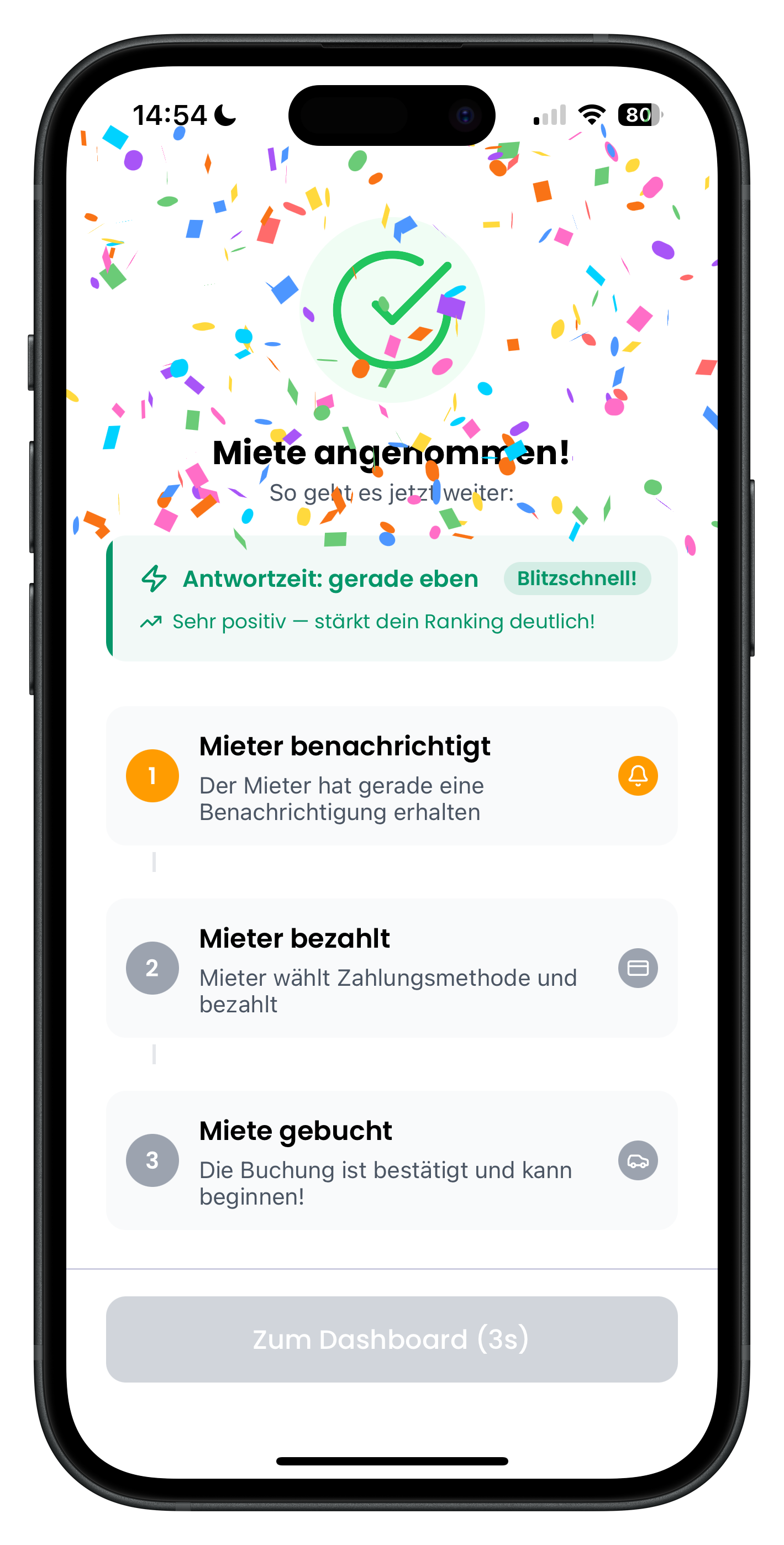
If everything looks good, tap the orange Accept button in the detail view. The app then celebrates with a brief confetti animation and the message Booking accepted!. At the top you'll see your Response time with a rating such as Lightning fast, because quick replies boost your ranking. Below that, the app shows you the next steps: 1 Renter notified, 2 Renter pays, and 3 Booking confirmed. The renter has just been notified and now needs to pay for the accepted request.
- Accept is the orange button at the bottom right
- Your response time visibly feeds into your ranking
- Step 1 is done: the renter has received a notification
- Steps 2 and 3 (pay and confirm) are now up to the renter
One key point: an accepted booking is not yet a binding or guaranteed deal. You've simply said yes. The booking is only confirmed once the renter selects a payment method and pays. Until then, the request sits under Awaiting Payment.
9
Understanding the Awaiting Payment status
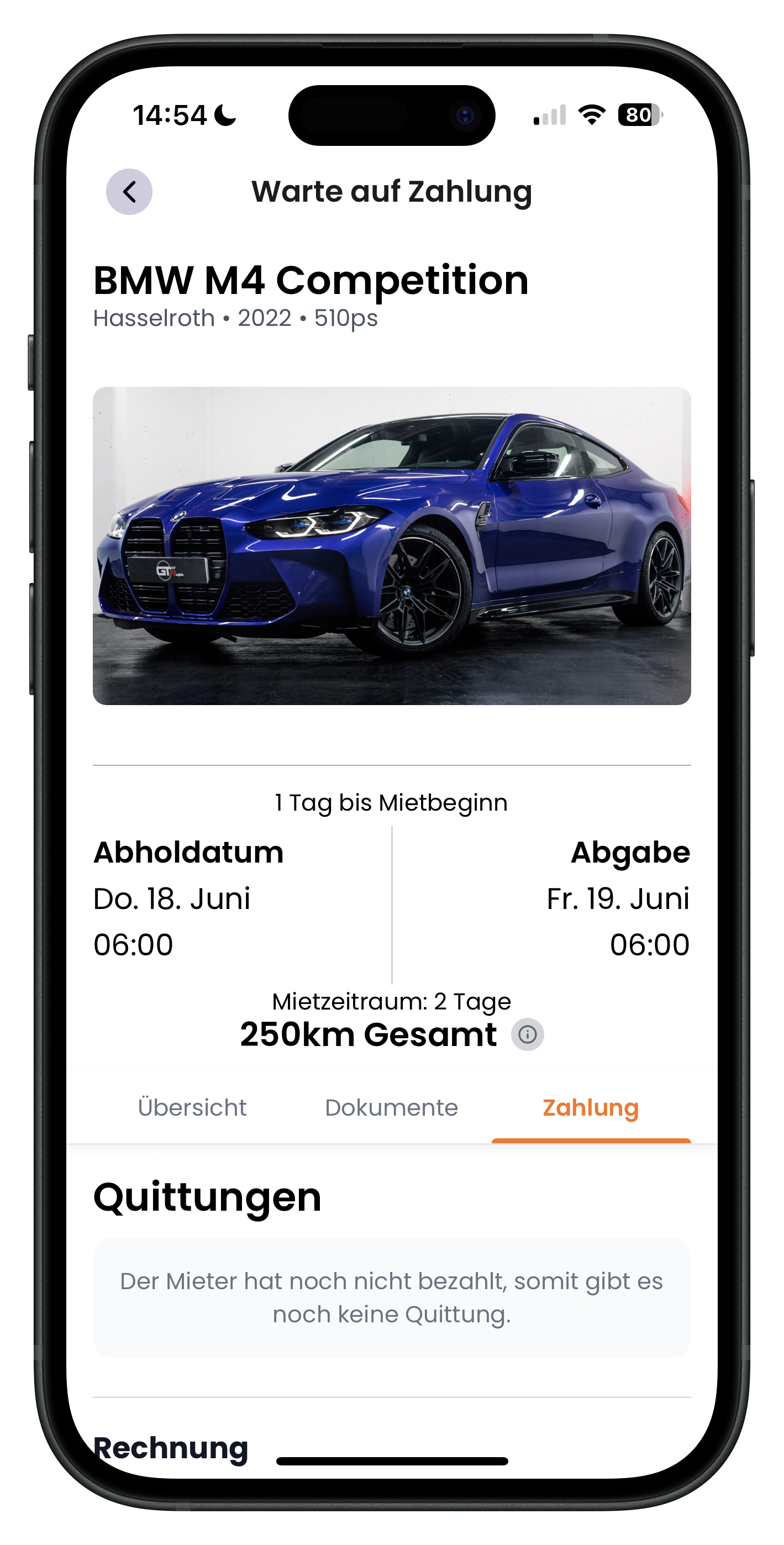
Once you accept, the request moves to the Awaiting Payment status. If you open it, you'll see this status in the header bar instead of Requested Booking. In the Payment tab, under Receipts, you'll see the note: The renter has not yet paid, so there is no receipt yet. This is completely normal and expected. There is no receipt and no invoice because no money has changed hands yet. Only once the renter pays does the accepted request become a confirmed booking.
- Awaiting Payment means: accepted, but not yet paid
- As long as there's no receipt, the renter hasn't paid yet
- Only the renter's payment makes the booking binding
- You don't need to do anything here — the ball is in the renter's court
Use the time between acceptance and payment wisely. In the chat you can build trust, answer any open questions, and offer the renter a custom booking deal, a small discount, or a few bonus kilometres to close the sale. The article Chat and custom booking offers as a host shows you how.
Next steps
You now know how to review booking requests, accept them, or decline them with a reason. The logical next step is communicating with the renter, because a good chat often makes or breaks a booking. Read Chat and custom booking offers as a host to find out more. And if you want to block dates proactively, Blocking booking dates and managing availability has you covered.
Frequently asked questions

Drivable Team
Help & Support
Das Drivable Team erklärt dir Schritt für Schritt, wie du die Plattform und App nutzen kannst.
21. Juni 2026
War dieser Artikel hilfreich?