Archive and restore a listing
Want to take a vehicle off your showcase temporarily without deleting it? Here you'll learn how to archive a listing, where your archived vehicles go, and how to make them visible to all customers again with a single tap.
Sometimes you just don't want a car to be bookable for a while. Maybe it's in the garage for repairs, you've sold it, or you simply want a break. That's exactly what archiving is for. Your listing is only hidden from customers — nothing is deleted. All your data, photos and settings are kept safe, and you can bring the listing back at any time with a single tap.
- Archive a listing via the Edit screen
- What happens after archiving
- Finding archived listings in your Garage
- Restoring an archived listing and making it visible again
Archiving means the listing is hidden, not deleted. Customers can no longer see it or book it. Once you restore it, everything is exactly as it was before.
1
Open Edit listing and scroll to the bottom
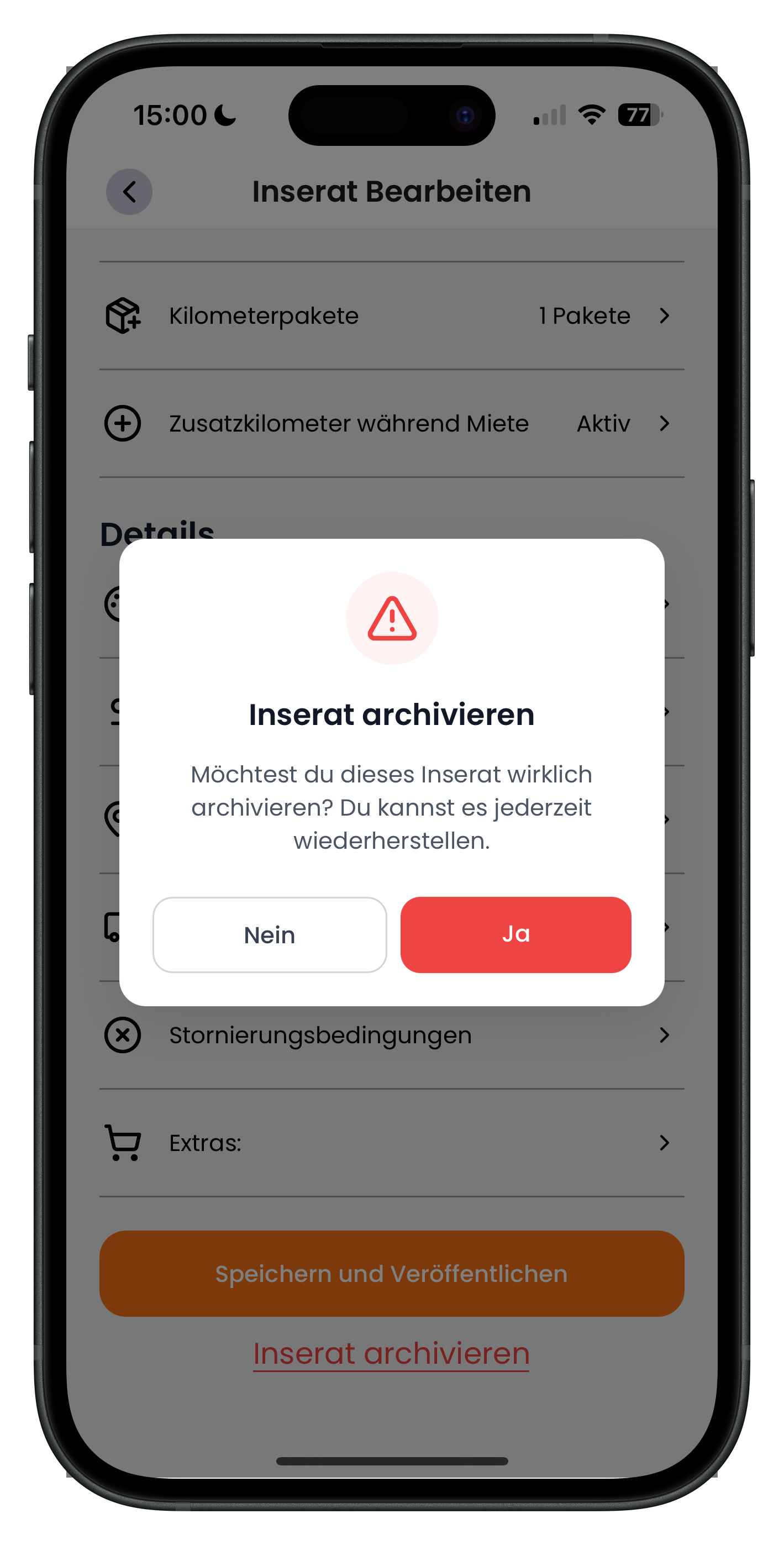
First, open the vehicle you want to archive and tap Edit listing. You'll land on the Edit listing screen with all your settings — mileage packages, cancellation policy, extras, and more. Scroll all the way to the bottom of the page. Below the orange Save and publish button you'll find the red underlined link Archive listing. Tap it. A dialogue will appear asking "Are you sure you want to archive this listing? You can restore it at any time.". Tap the red Yes button to confirm.
- The Archive listing link is right at the bottom, below the Save button
- If you change your mind, just tap No in the dialogue
- To learn how to edit the listing itself, see the Edit listing article
2
Confirmation: listing successfully archived
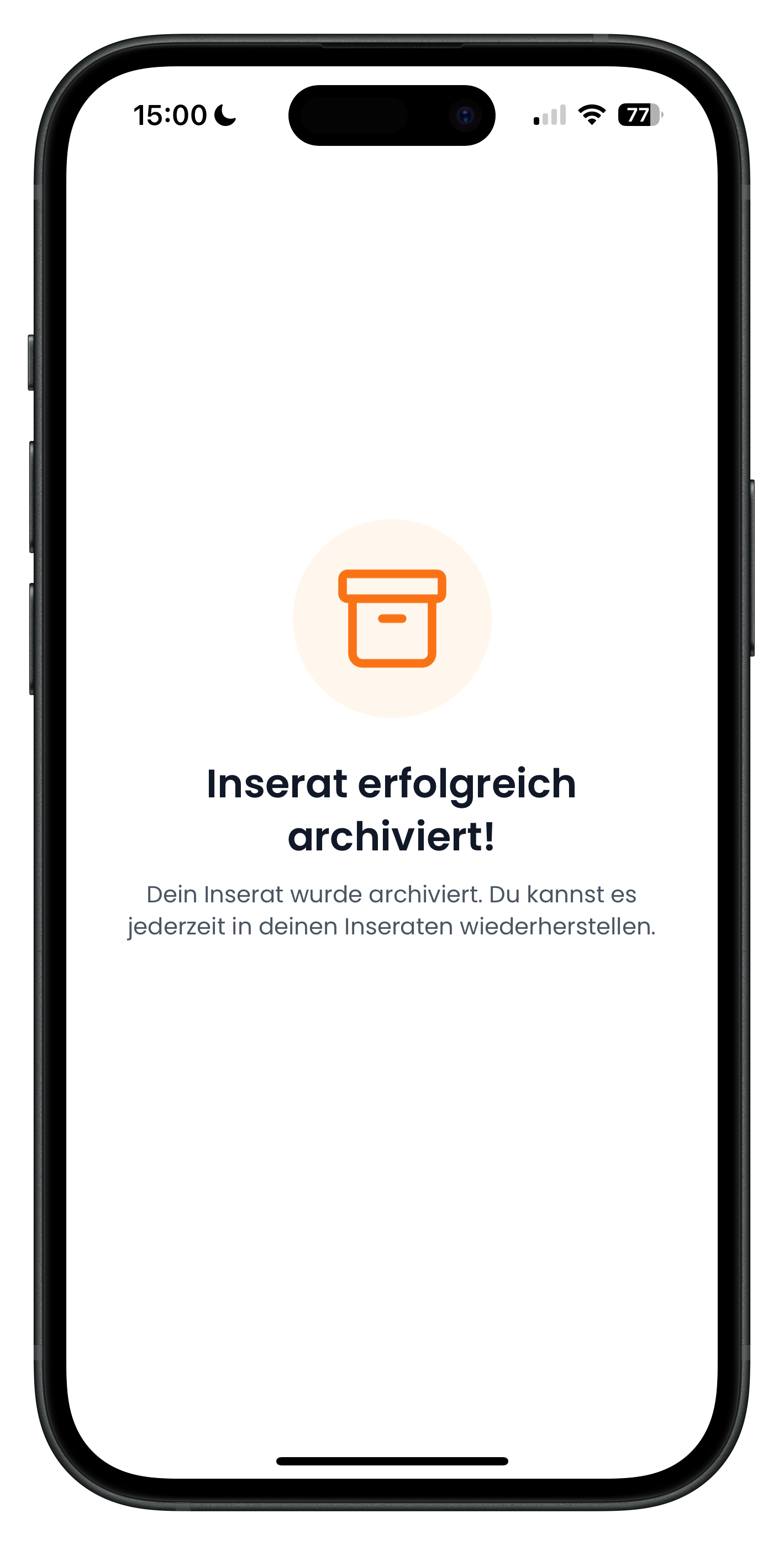
After tapping Yes, you'll see a confirmation screen with an orange archive icon and the heading "Listing successfully archived!". Below it reads "Your listing has been archived. You can restore it at any time from your listings.". From this point on, the car no longer appears in the public search and customers can no longer send enquiries for it. Your vehicle data, prices and photos are all kept safe.
- The vehicle is instantly hidden from customers
- No data is lost — only the visibility changes
- Any bookings already in progress are not affected by archiving
If you only want to block a car for a few days — for example because it's being used privately at the weekend — you don't need to archive it. Instead, block individual days via Block booking days. That way the listing stays live and only the blocked days are unavailable.
Your archived vehicles haven't gone anywhere — they're just hidden. In your Garage you can show them again at any time and check which listings are currently paused.
3
Show archived listings in the Garage
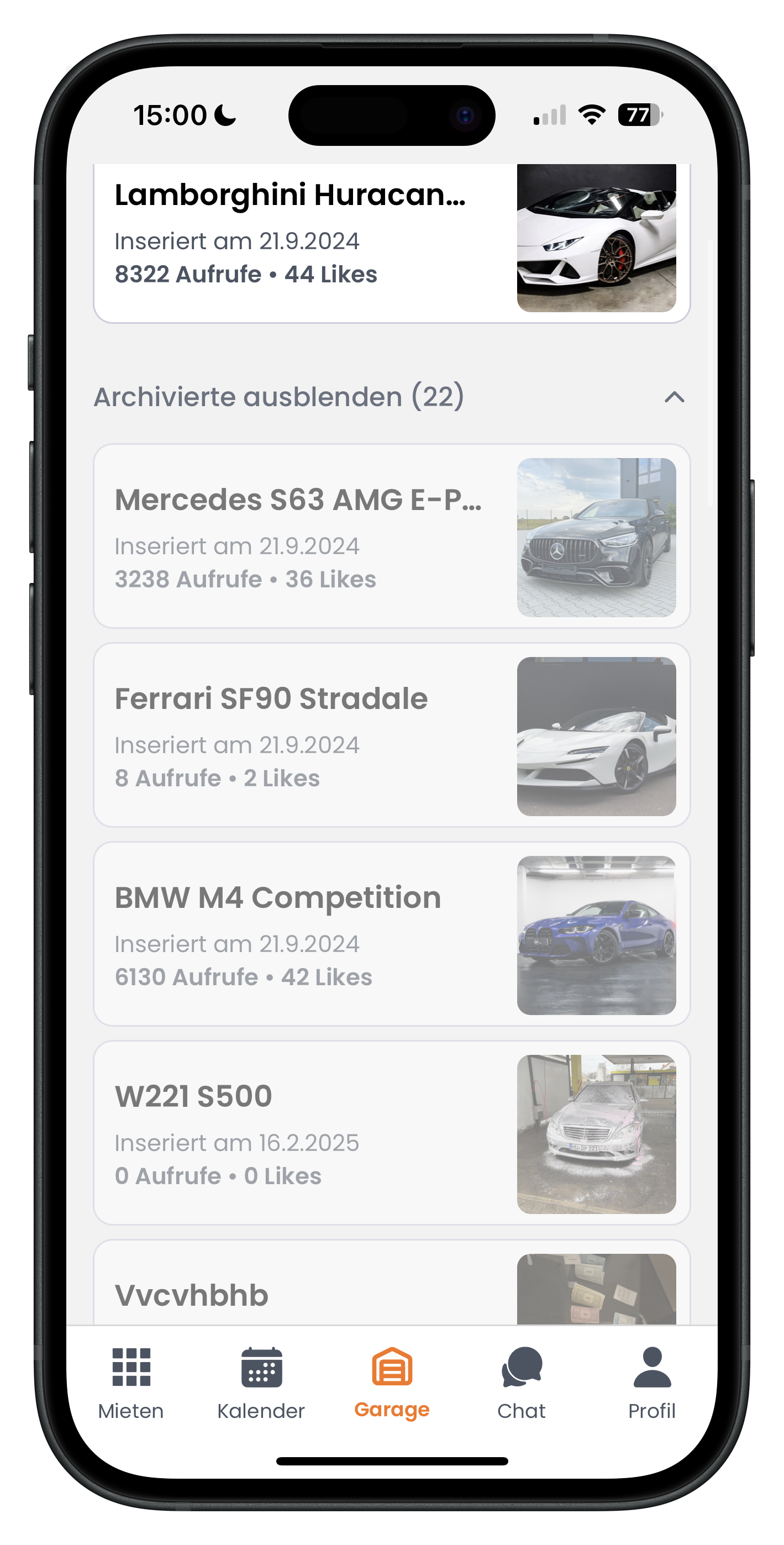
Go to the Garage tab at the bottom of the navigation. Above your list of listings you'll see the row "Hide archived" with a number in brackets, for example (22). This number shows how many listings are currently archived. Tap that row to display your archived and hidden vehicles. They appear slightly greyed out beneath your active listings, each showing the model name, listing date, and views and likes.
- The number in brackets shows how many listings are archived
- Archived listings are displayed greyed out
- Tap the vehicle you want to open it
4
Open the listing and tap Restore
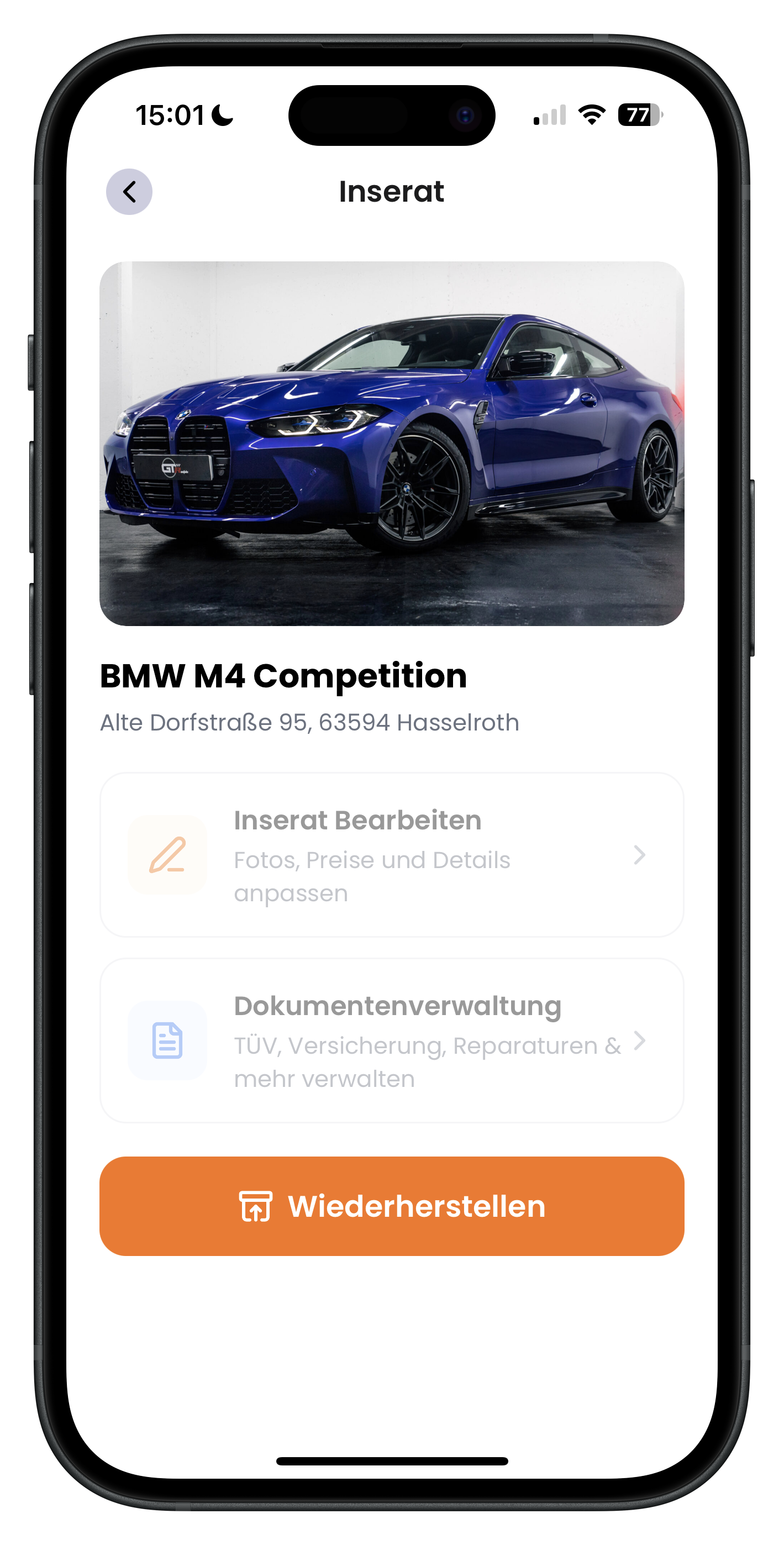
Tap the archived vehicle you want to bring back. You'll land on the Listing screen showing the large vehicle photo, the model name and the address. Below that you'll see the greyed-out sections Edit listing and Document management. At the very bottom is the orange Restore button. Tap it to reactivate the listing and make it visible to all customers again.
- The Restore button is orange and sits right at the bottom
- Edit and Document management are fully usable again after restoring
- You can archive and restore a listing as many times as you like
5
Confirmation: listing active and visible again
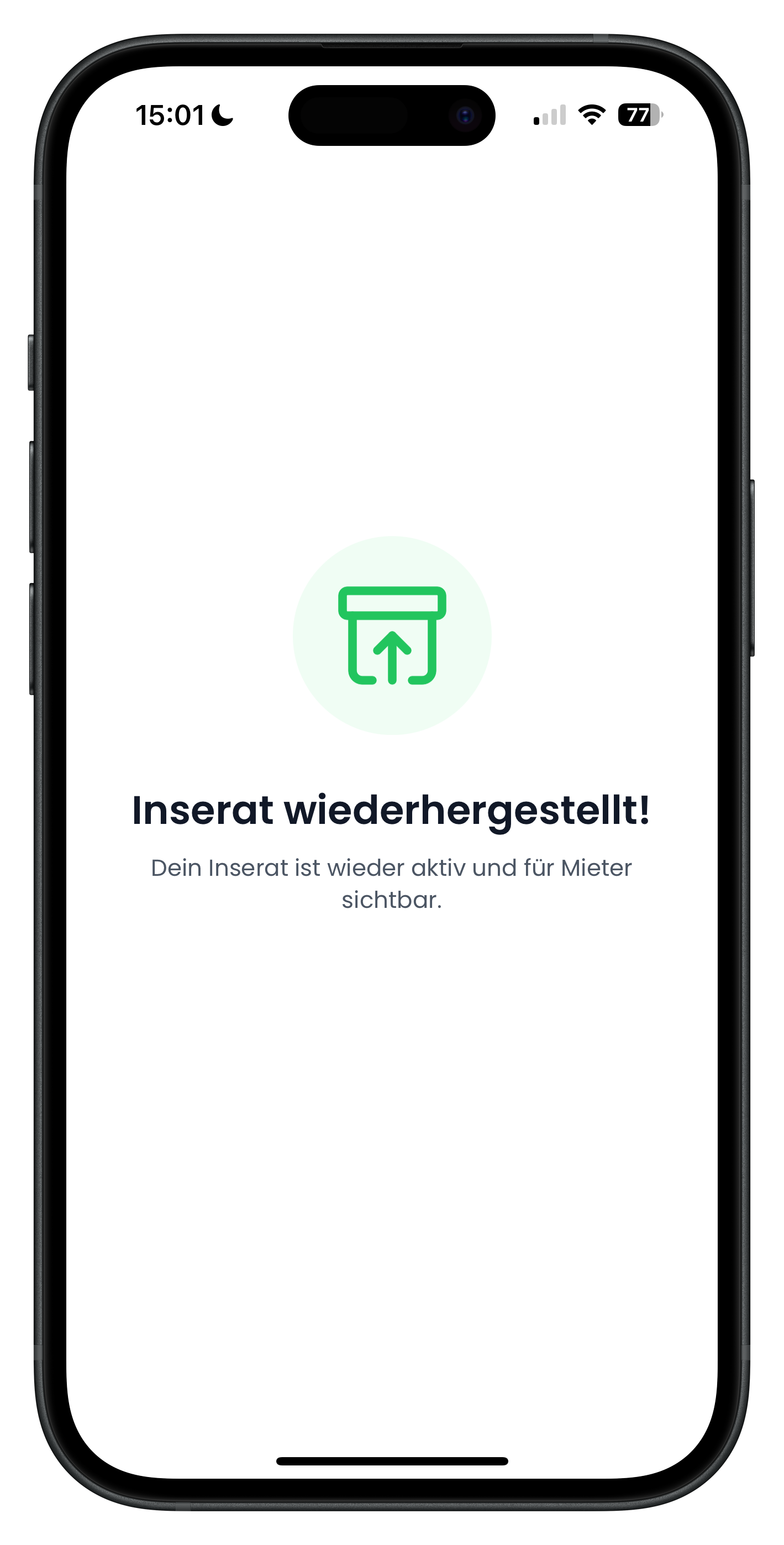
After tapping Restore, a screen appears with a green icon and the heading "Listing restored!". Below it reads "Your listing is active again and visible to renters.". That's it — you're done. Your vehicle appears in search results again and customers can send enquiries for it.
- The listing is immediately findable in customer searches again
- All your original data, prices and photos are unchanged
- Take the opportunity to check that your prices and availability are still up to date
If you no longer need the car at all, just leave it archived. That way your reviews and statistics are preserved in case you want to list it again later.
Next steps
If you want to update a restored vehicle straight away, check out the Edit listing article to update photos, prices and details. If you'd rather add a brand-new vehicle, Create a listing will walk you through it. And if a car is only unavailable for a short time, it's better to use Block booking days rather than archiving the whole listing.
Frequently asked questions

Drivable Team
Help & Support
Das Drivable Team erklärt dir Schritt für Schritt, wie du die Plattform und App nutzen kannst.
21. Juni 2026
War dieser Artikel hilfreich?