Managing Your Host Profile & Business Details
Your profile plays a big part in how many enquiries you receive. Here you'll learn what the response time indicator means, how to keep your business details in order, how to connect your Google reviews to Drivable, and why you should keep all notifications switched on.
Your host profile is more than just a data sheet. At a glance, it shows customers how reliable you are, how quickly you respond, and which business is behind the listing. Hosts who keep it in good shape receive more qualified enquiries and more bookings. In this article we walk through the most important areas: the response time indicator, your business details, your Google reviews, and your notifications.
- What the response time indicator means and why it affects your revenue
- Managing business details: name, logo, address, VAT ID, small-business status, and description
- Connecting your Google reviews to your Drivable profile
- Setting up all booking request notifications correctly
1
Opening your host profile via the Profile tab
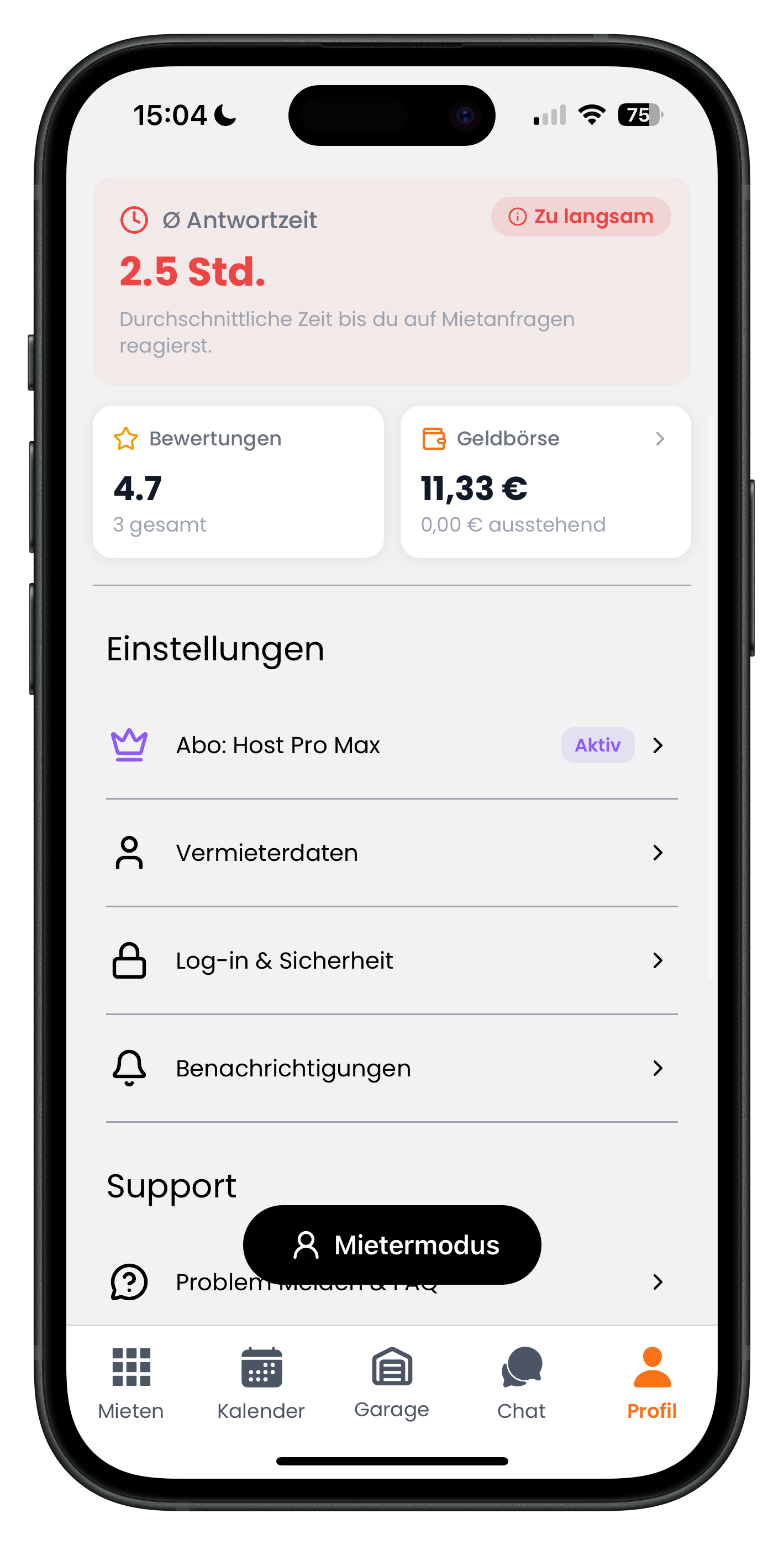
In host mode, tap Profile in the bottom-right corner of the navigation bar. At the very top you'll see your cockpit: on the left, your Avg. Response Time (shown here as 2.5 hrs with the red label Too slow), and below that your Reviews and your Wallet. Further down you'll find the Settings section with the items Subscription, Host Details, Log-in & Security, and Notifications. The black Renter Mode button in the centre lets you switch back to the customer view at any time.
- The Profile tab is always the last icon in the bottom-right corner of host mode
- The response time at the top is your most important trust signal for customers
- The Wallet takes you straight to your payouts
The response time shows how long it takes you on average to reply to a booking request. Customers can see immediately whether they can do business with you quickly. A fast response time signals reliability and is one of the biggest levers for more bookings and more revenue on Drivable.
2
Understanding the response time rating colours
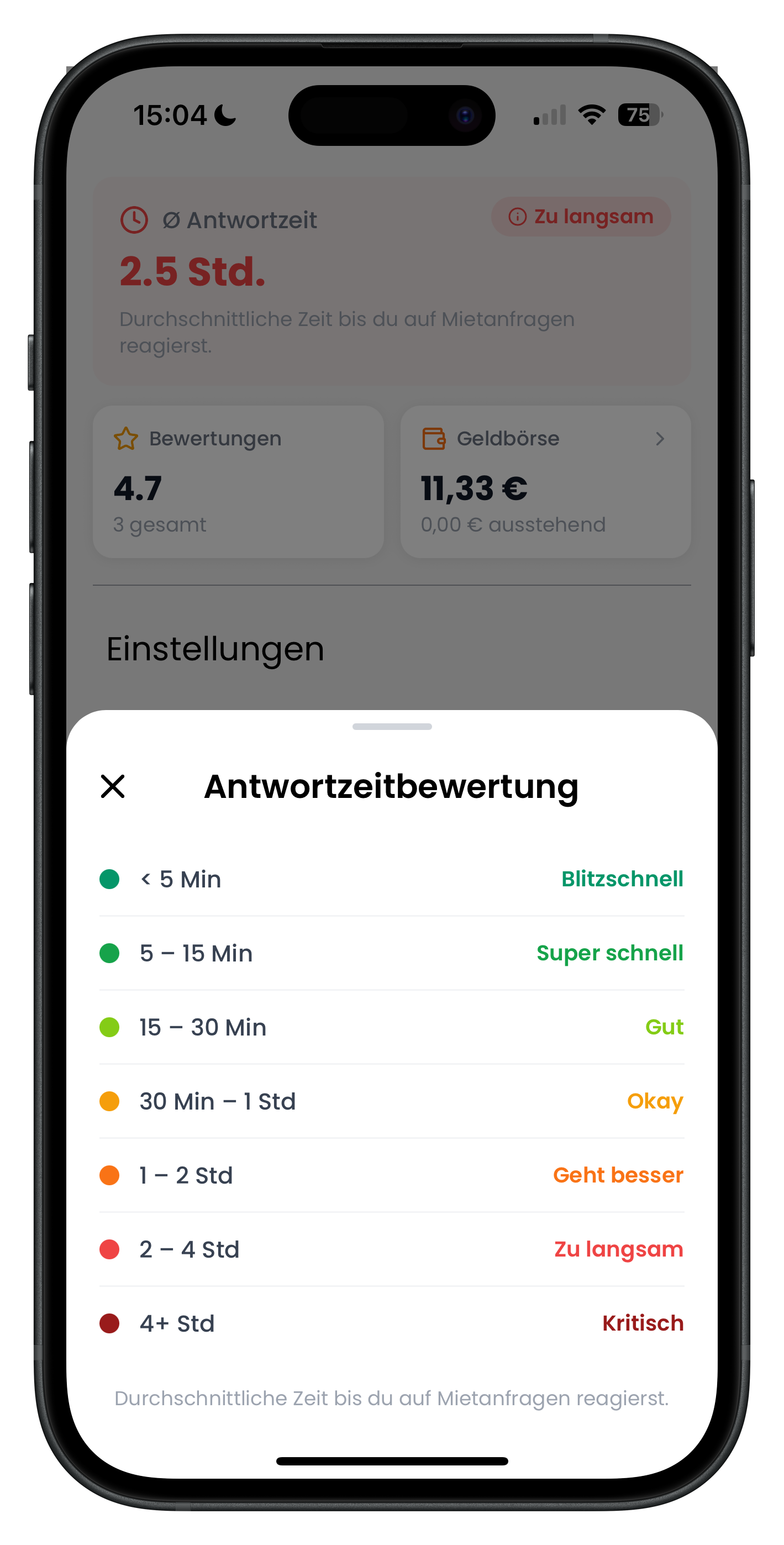
Tapping the response time indicator opens the Response Time Rating as a legend. It explains what each colour means. At the top in green: < 5 min – Lightning fast, followed by 5 – 15 min – Super fast and 15 – 30 min – Good. In the yellow-to-orange range: 30 min – 1 hr – Okay and 1 – 2 hrs – Could be better. Red kicks in at 2 – 4 hrs – Too slow and 4+ hrs – Critical. The higher and greener your rating, the better you look to customers.
- Green (under 30 minutes) is the target and gives you the best standing
- From 2 hours onwards you drop into the red Too slow zone
- Ideally, reply within the first few minutes of receiving a request
Being quick pays off twice over: you get more bookings and your profile comes across as more trustworthy. Find out how to respond to requests as fast as possible under Handling Customer Requests as a Host.
Managing business details
Your business details are what customers see about your company and what appears on your invoices. Keep them up to date and complete. You can reach this section via Profile > Host Details and then Business Details.
3
Updating your company name, logo, and address
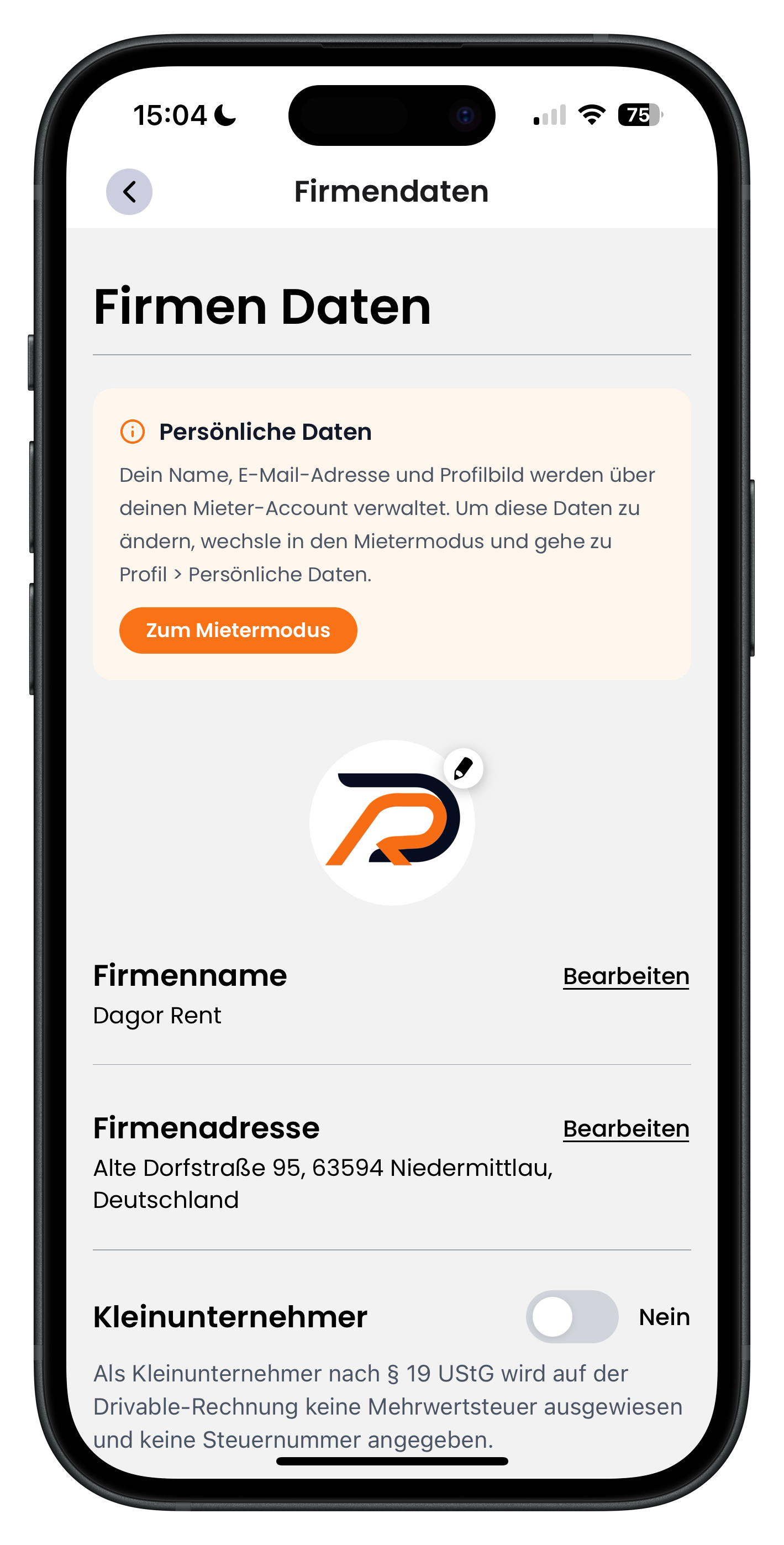
In Business Details you can edit everything related to your company. At the top you'll see an orange notice labelled Personal Details: your name, email address, and personal profile picture are managed through your renter account. Tap Go to Renter Mode to get there. Below that you'll find the round Company Profile Picture with a pencil icon to change it, the Company Name (shown here as Dagor Rent), and the Company Address. Tap Edit on the right of each field to make changes. At the very bottom is the Small Business toggle.
- Company logo: tap the pencil icon on the round picture
- Edit the company name and address using the Edit links on the right
- Personal details (name, email, profile picture) are changed in renter mode
- A complete address looks professional and builds trust
The Small Business toggle is set to No by default. If you switch it on, no VAT will be shown on the Drivable invoice and no tax number will be included, in line with the small-business exemption under § 19 UStG. Set it however best fits your business.
4
Entering your VAT ID and company description
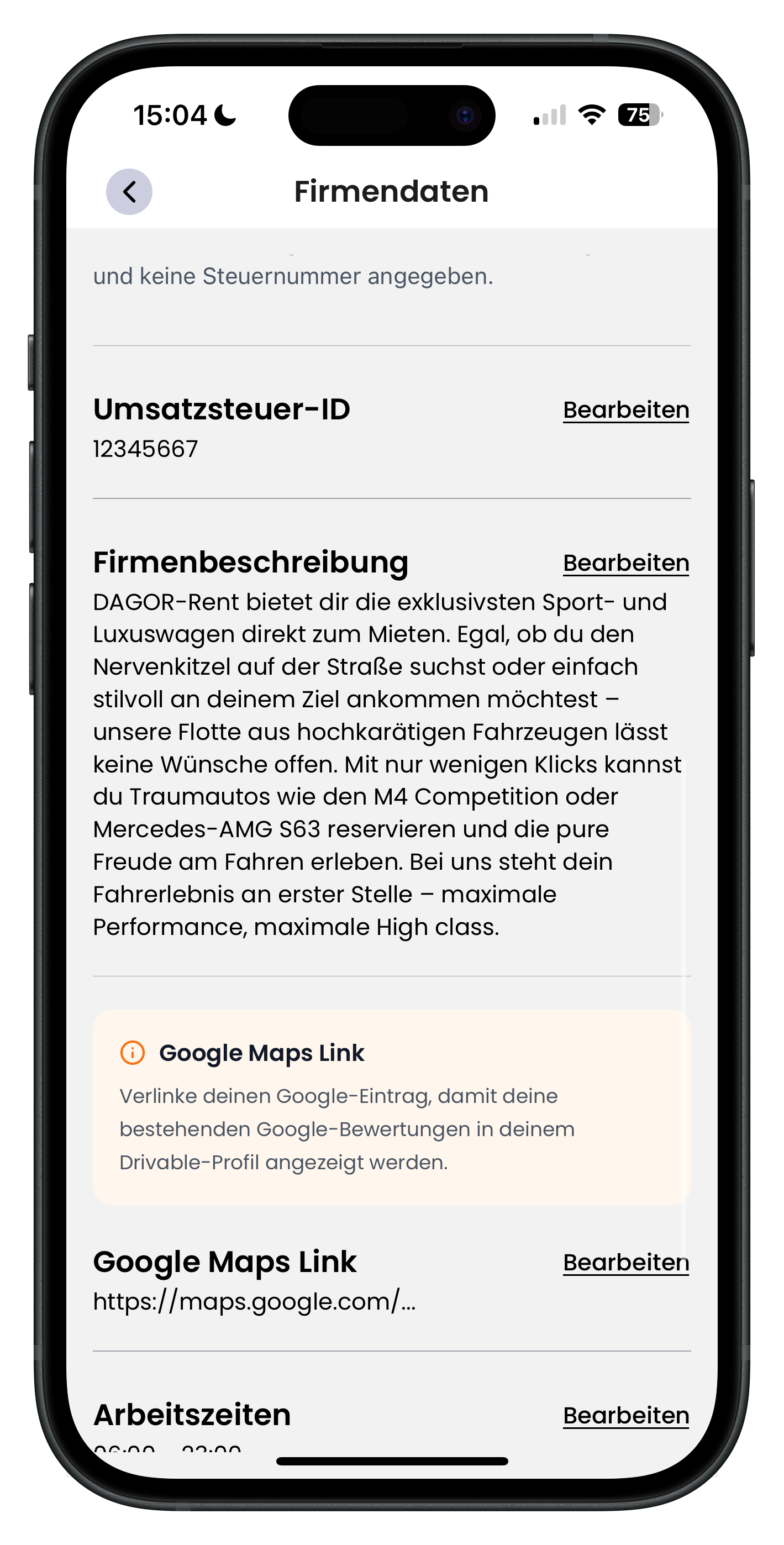
Scrolling further down brings you to the VAT ID field (shown here as 12345667), which you can update via Edit. Below that is the Company Description: a free-text field where you introduce your business and your fleet. Use it to explain what your company stands for, which vehicles you offer, and what customers can expect from you. A good description makes your profile feel more personal and helps customers trust you. Directly below that, the Google Maps Link section begins, marked with an orange notice box.
- Enter your VAT ID correctly — it appears on invoices
- Use the company description to highlight your strengths and standout vehicles
- Keep the description honest and specific — avoid empty marketing clichés
Connecting your Google reviews to Drivable
5
Adding your Google Maps link and connecting your reviews
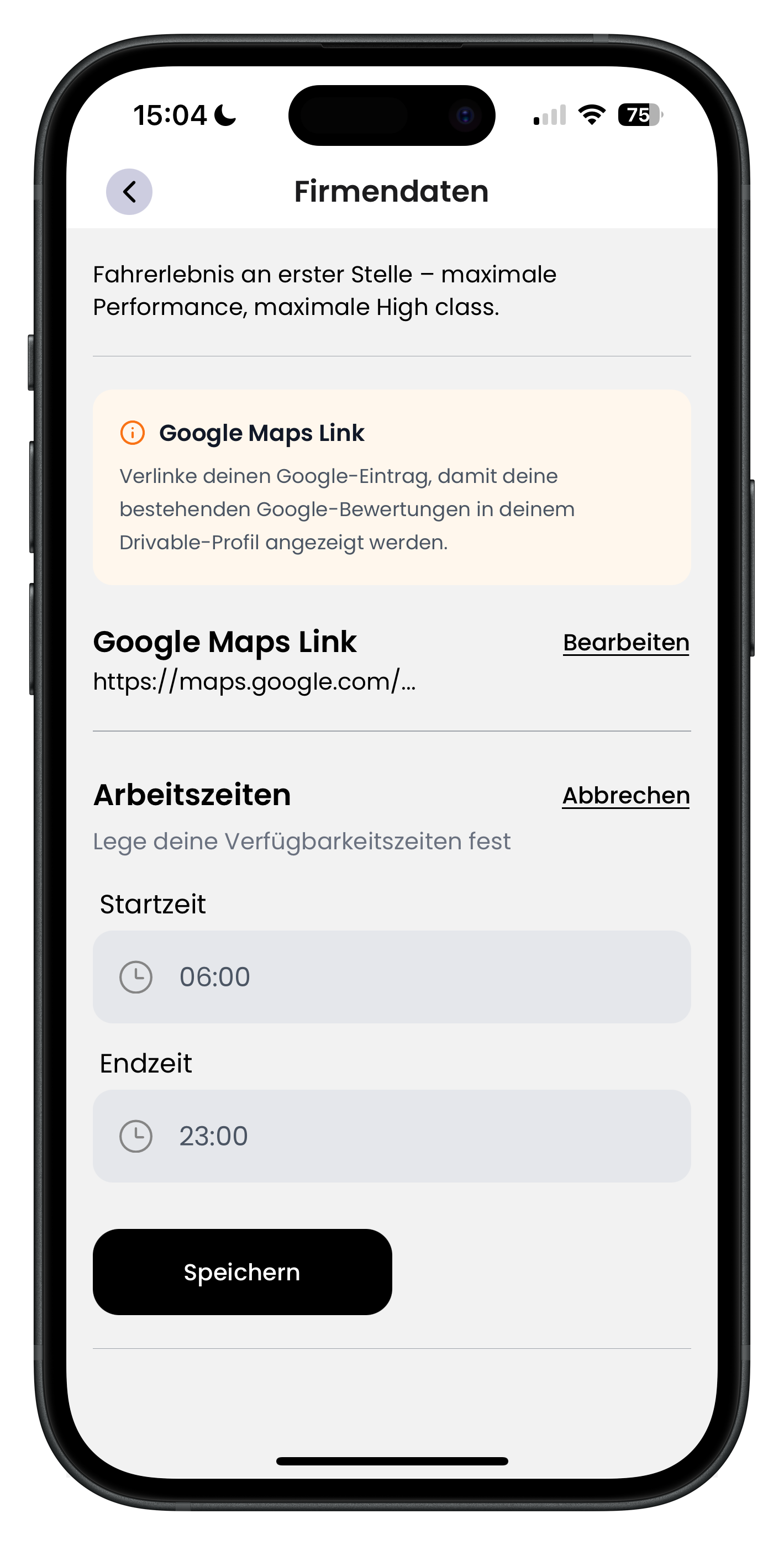
Below the company description you'll find the Google Maps Link section. The orange notice explains it directly: link your Google listing so that your existing Google reviews appear on your Drivable profile. Below that is the current link field (shown here as https://maps.google.com/...). This lets you bring the reviews you've already built up on Google straight over to Drivable. Tap Edit on the right to add or change the link.
- The Google Maps link connects your Google reviews to your Drivable profile
- Existing top reviews instantly act as social proof
- You'll find the link in your Google Business Profile via the Maps address
6
Pasting the link and saving
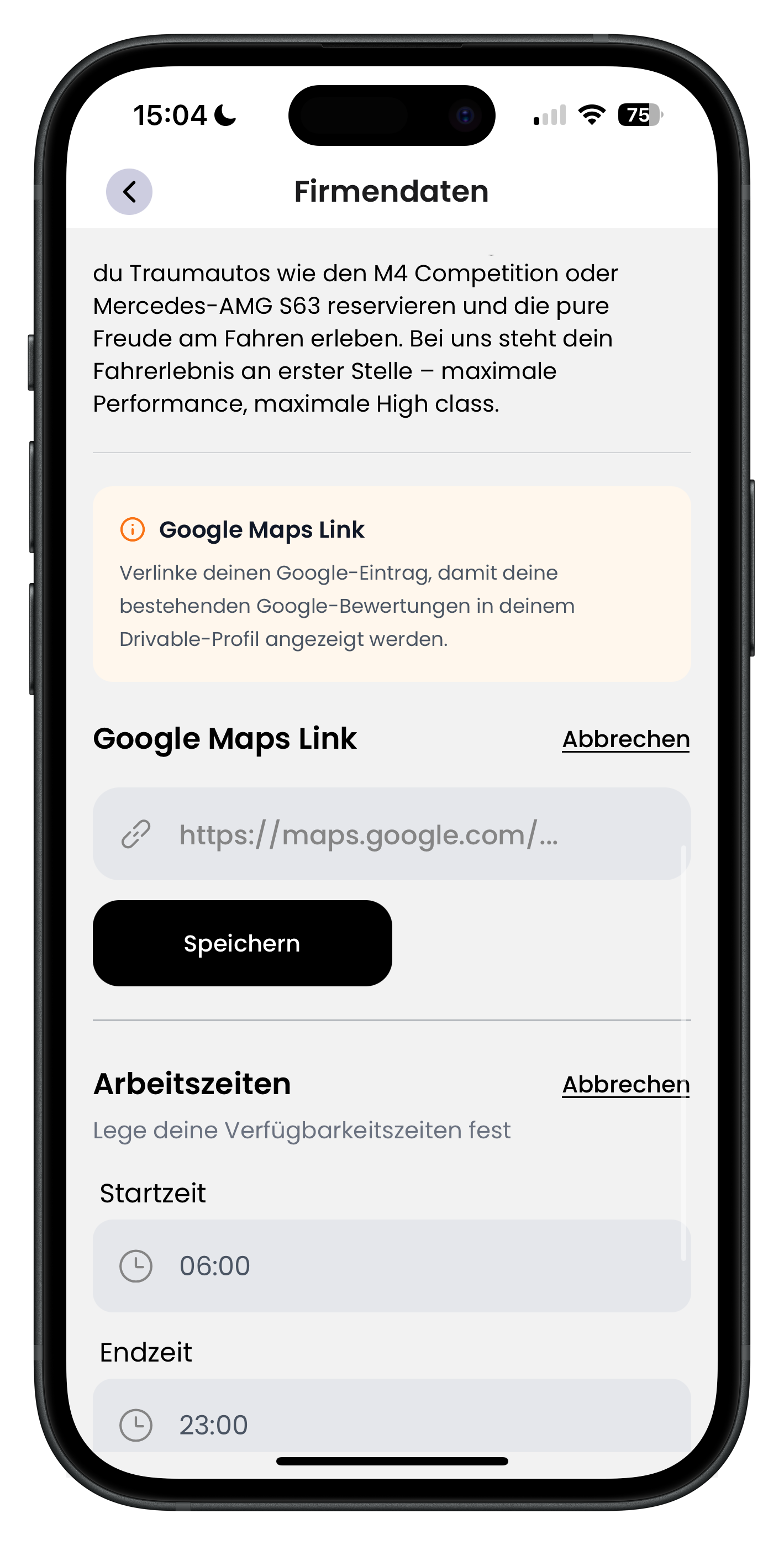
Once you tap Edit, an input field opens with the placeholder https://maps.google.com/... and a link icon in front of it. Paste your full Google Maps link here. Tap the black Save button to confirm. Directly below you'll also see the Working Hours section, where you can set your availability using Start time and End time (shown here as 06:00 to 23:00). Save these details using the same Save button.
- Paste the full link — not just the business name
- Tap Save, otherwise the link won't be stored
- In the same section you can set your availability using start and end times
Set your Working Hours realistically. They show customers when you're reachable and work well alongside a fast response time. For a broad overview of all host features, visit The Host Dashboard at a Glance.
Setting up notifications
7
Activating all booking notifications
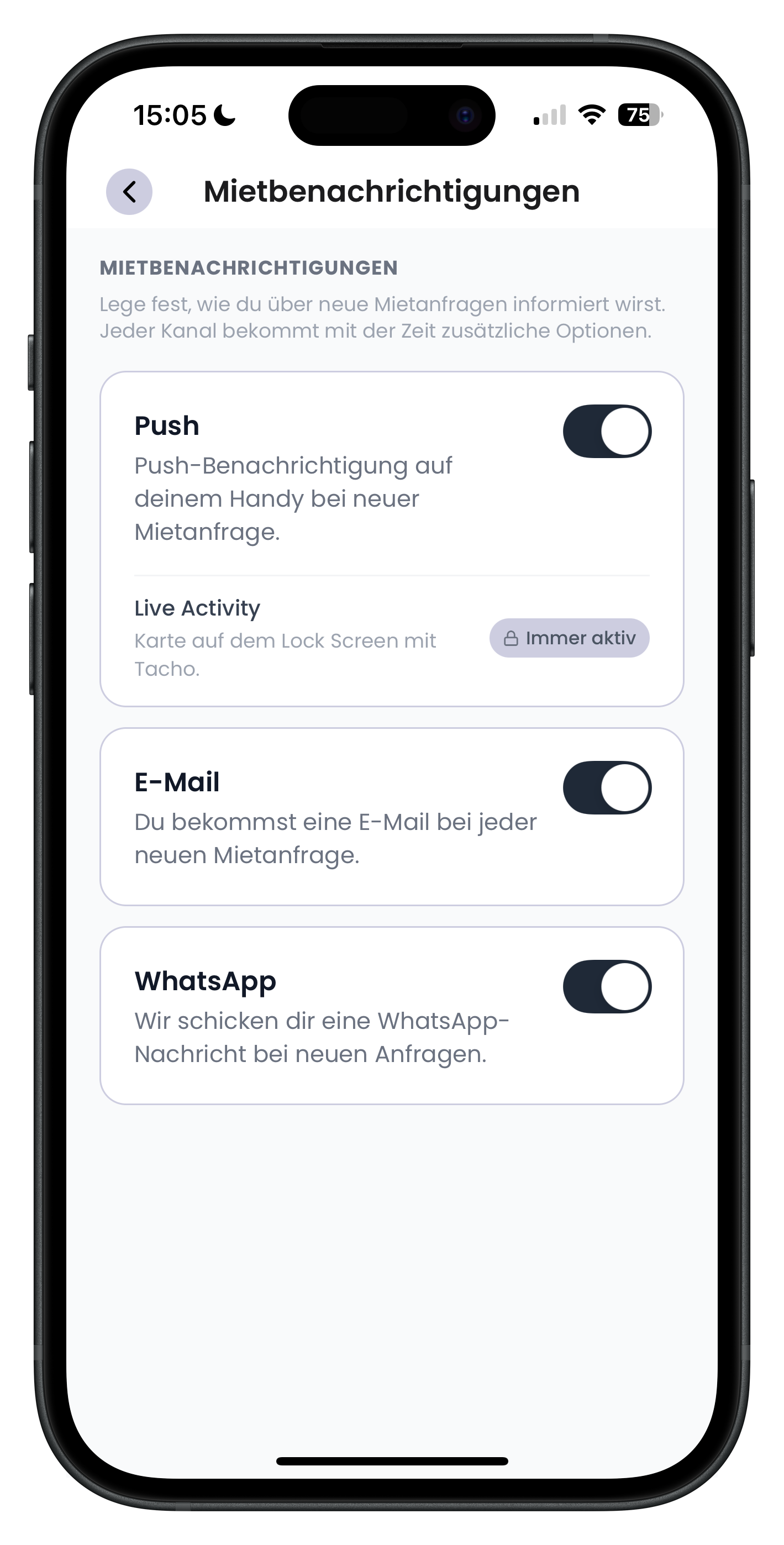
Go to Profile > Notifications to reach the Booking Notifications section. Here you choose how you're notified about new booking requests. There are three channels, each with its own toggle: Push (a push notification on your phone for every new booking request, including a Live Activity on your lock screen with a speedometer), Email (you receive an email for every new booking request), and WhatsApp (we send a WhatsApp message to the number saved in your profile). We recommend keeping all three switched on so you never miss a request.
- Switch on all three: Push, Email, and WhatsApp
- Live Activity shows the request directly on your lock screen
- Every missed request potentially costs you a booking
- WhatsApp messages are sent to the number saved in your profile
The sooner you see a request, the sooner you can reply — and the better your response time will be. Having notifications switched on and maintaining a green response time go hand in hand, and together they lead directly to more bookings.
Next steps
Your profile is now in great shape: business details maintained, Google reviews connected, and all notifications on. Next, take a look at how to manage your money. You'll find everything you need under Managing Your Host Wallet & Payouts. And when the first requests start coming in, Handling Customer Requests as a Host will help you respond quickly and correctly.
Frequently asked questions

Drivable Team
Help & Support
Das Drivable Team erklärt dir Schritt für Schritt, wie du die Plattform und App nutzen kannst.
21. Juni 2026
War dieser Artikel hilfreich?