The Host Dashboard at a Glance
Your dashboard in host mode is the control centre for all your bookings. Get to know each tab — from pending payments and completed bookings to your statistics — and find out what to watch out for once you've accepted a request.
When you're in host mode, the first screen you land on is the Bookings tab. This is your main screen and your control centre. At the top you'll see the name of your rental business, with the Statistics button next to it. Just below that, a row of tabs lets you filter your bookings by status. In this article we'll walk you through every single one.
- Awaiting Payment: accepted requests where the renter hasn't paid yet
- Completed: all successfully finished bookings from the past
- Reviewed: bookings where the renter has already left you a review
- Cancelled: all cancelled bookings, regardless of who cancelled
- Declined: requests you yourself have declined
- Statistics: your key numbers at a glance (revenue, bookings, reviews, response time)
One important thing to understand: an accepted booking is NOT yet confirmed. The booking only becomes binding once the renter has actually paid after you've said yes. Until then, the request sits in the "Awaiting Payment" status.
1
Awaiting Payment: accepted requests waiting to be paid
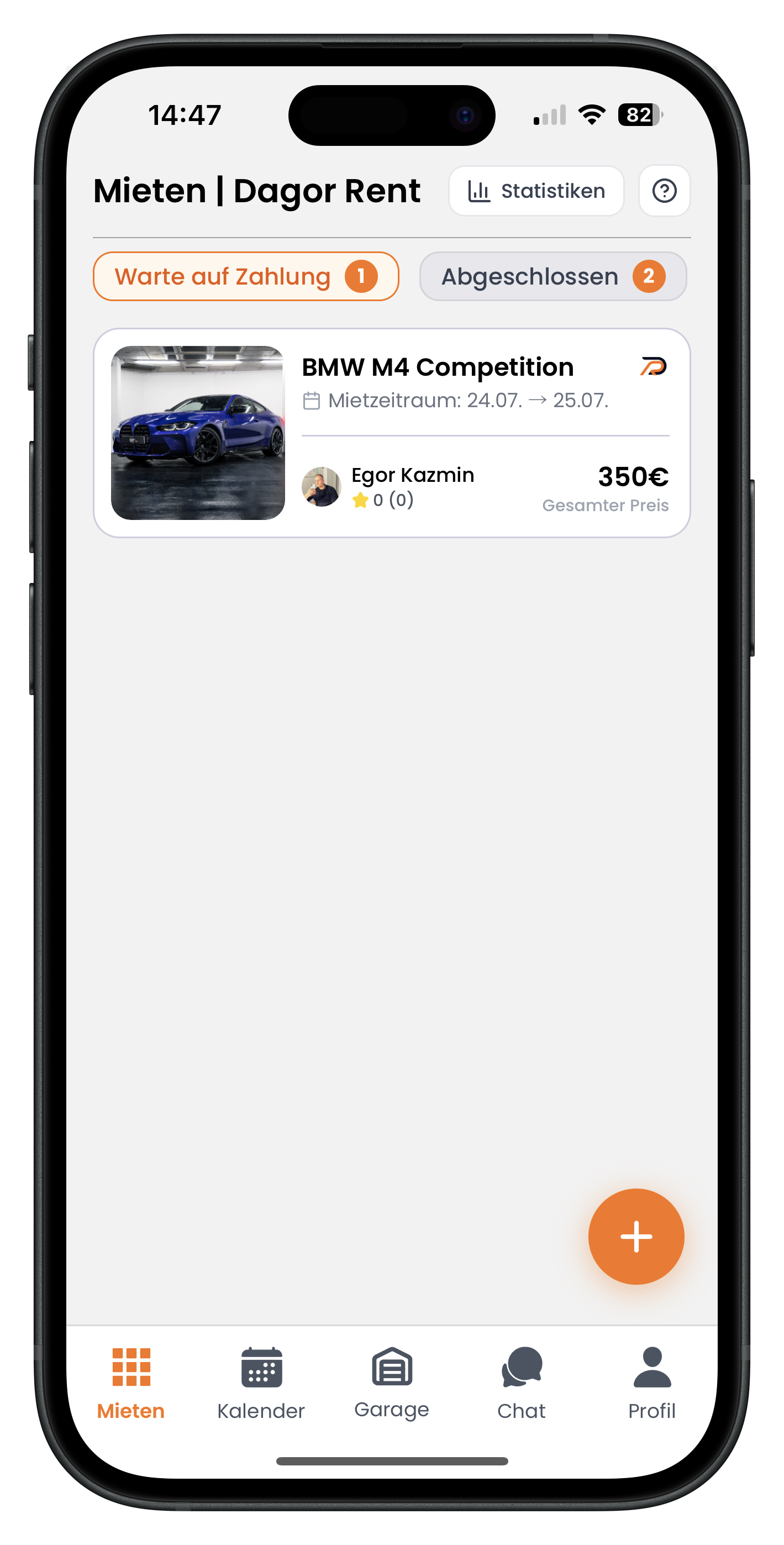
In the first tab, Awaiting Payment, you'll see all the requests you've already accepted where the renter now needs to act. The screenshot shows a booking for a BMW M4 Competition from 24/07 to 25/07 by Egor Kazmin, with a total price of 350€. The small orange number on the tab tells you how many requests are currently waiting for payment. At this stage you just need to be patient: the renter has a limited amount of time to pay and confirm the booking.
- The number on the tab shows how many requests are currently awaiting payment
- Tap a booking card to see the full details of that request
- The booking only becomes confirmed — and the dates blocked — once payment has been made
If the car gets booked externally or becomes unavailable during this period, make sure you cancel the pending request yourself straight away so the renter knows immediately. If you wait until the renter has paid and then have to cancel, it's frustrating for everyone — and as the host, you'll be liable for the cancellation costs.
Fast response times are one of the most important factors for success on Drivable. The quicker you handle requests and reply to messages, the more likely renters are to book with you. Find out how to accept or decline requests in the article Processing Renter Requests.
2
Completed: your successfully finished bookings
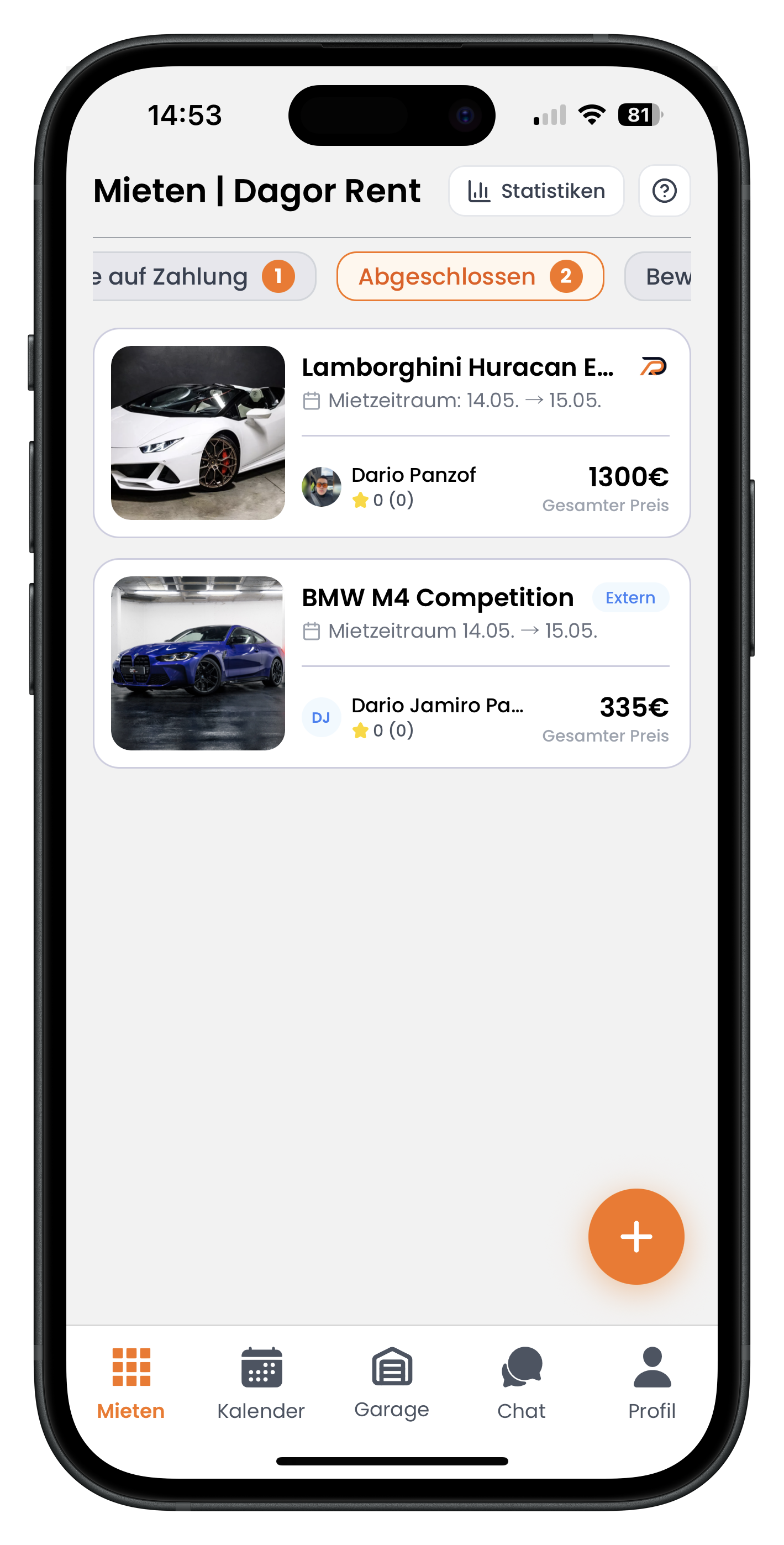
Switch to the Completed tab to see all bookings that have run their course and finished successfully. Each card shows you the vehicle, the renter, the rental period, and the total price. In the screenshot you can see a Lamborghini Huracan (Dario Panzof, 1300€) and a BMW M4 Competition with a blue External badge (335€). The External badge means this booking was handled outside the app and added manually after the fact. Tap any card to pull up the full details for that booking.
- The number on the tab shows how many completed bookings you have in total
- Every card is tappable and takes you to the full booking details
- An External badge marks bookings that were handled outside the app rather than through it
3
Reviewed: bookings where the renter has left you a review
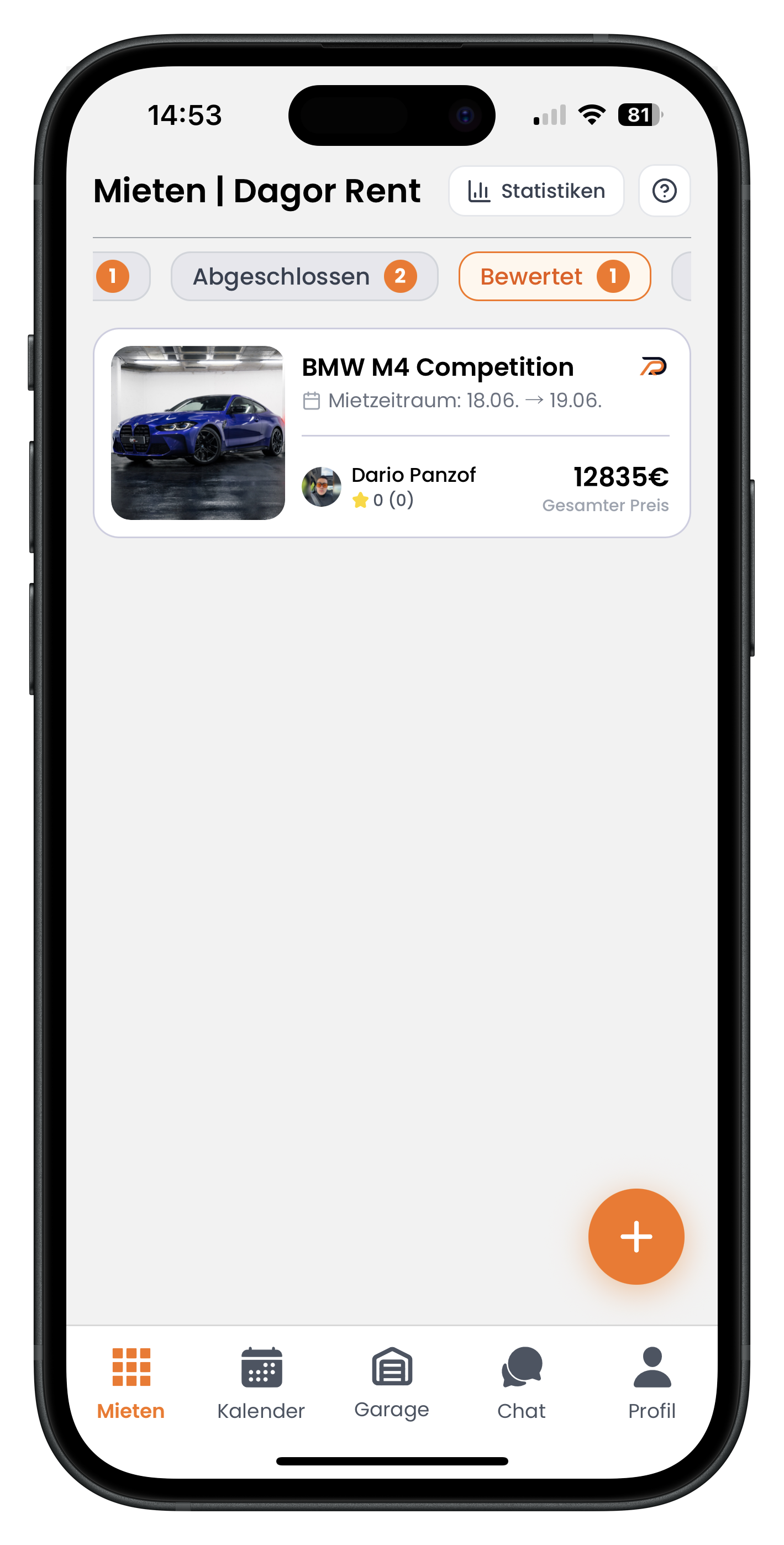
The Reviewed tab collects all completed bookings where the renter has since left you a review. In the screenshot, that's a BMW M4 Competition booking from 18/06 to 19/06 by Dario Panzof for 12,835€. Reviews are your most important calling card: they build trust with new renters and influence how often people request your car. This tab lets you keep track of which of your bookings have already been reviewed.
- The number on the tab shows how many of your bookings have already been reviewed
- Reviews are left by the renter after the booking has ended
- Good reviews build trust and noticeably increase the number of requests you receive
4
Cancelled: all cancelled bookings, regardless of who cancelled
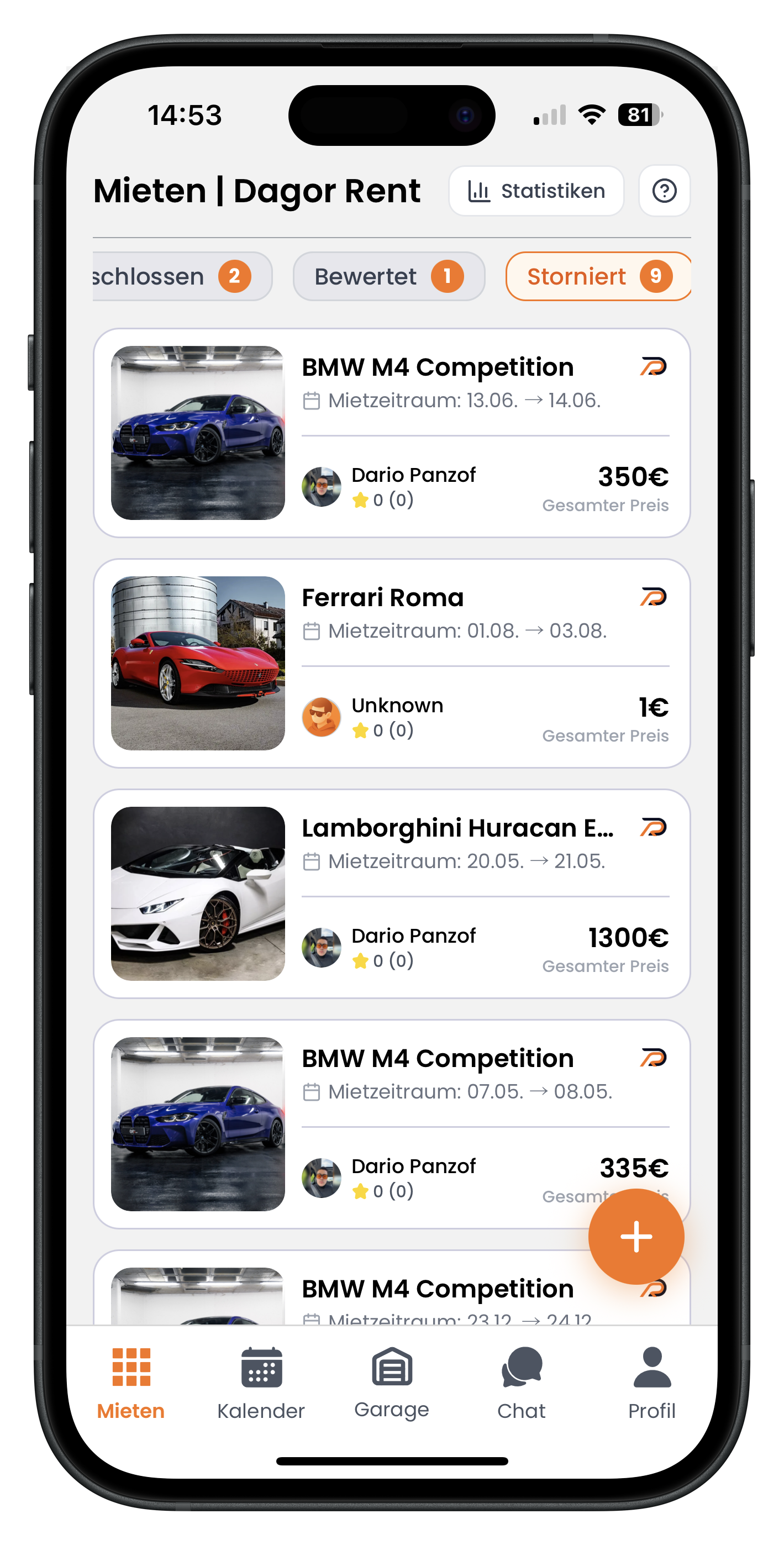
The Cancelled tab lists all bookings that were cancelled, regardless of whether you or the renter did so. In the screenshot you can see several entries, including a Ferrari Roma booking with the customer name "Unknown" and a price of 1€. Entries like this typically come from test bookings or abandoned transactions. This tab lets you keep track of which bookings never went ahead.
- Includes cancellations by both you and the renter
- The number on the tab shows the total number of your cancelled bookings
- Tap an entry to see why it was cancelled and who cancelled it
5
Declined: requests you have declined yourself
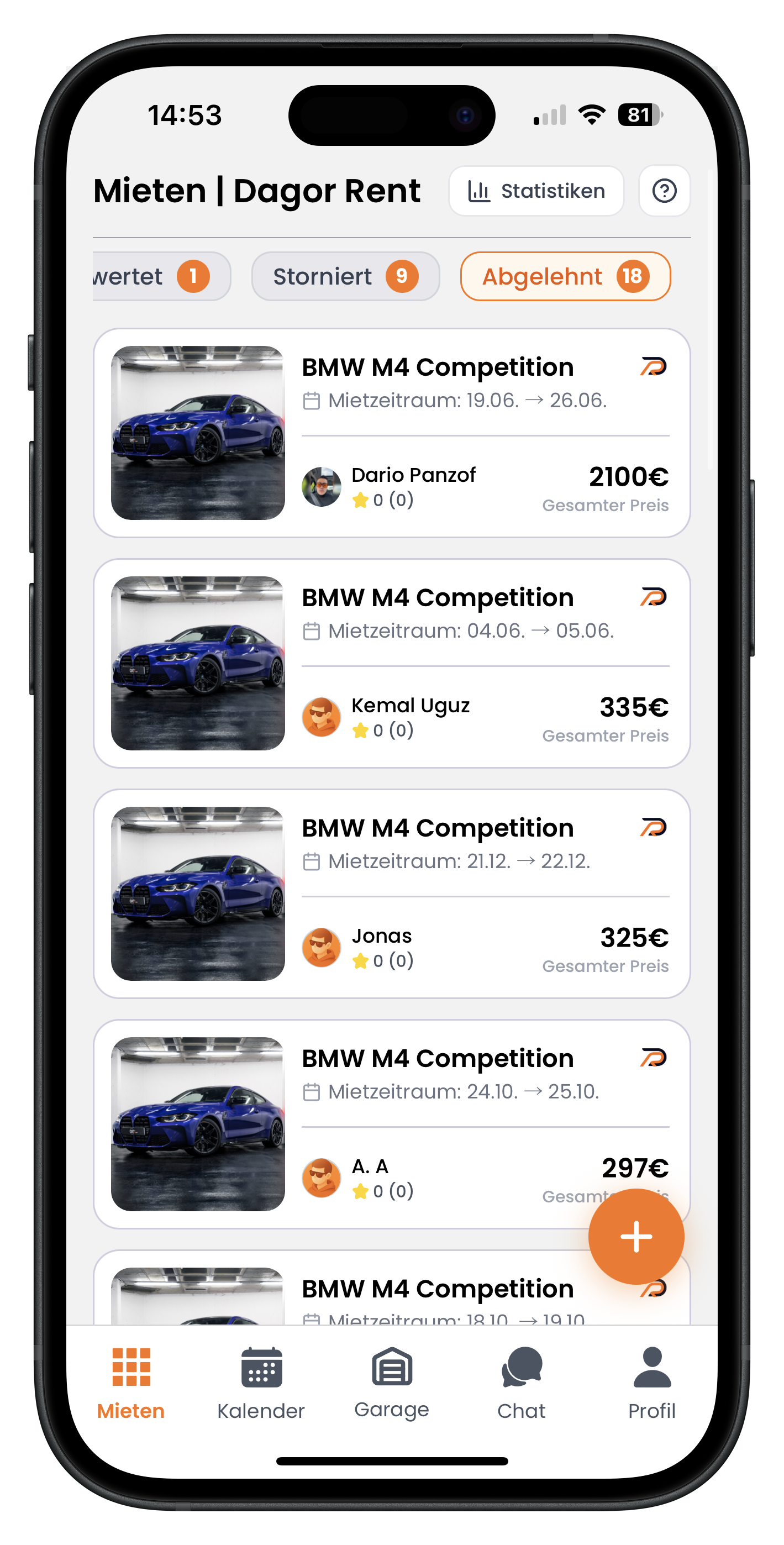
The Declined tab shows all the requests you've actively turned down. In the screenshot, the number is quite high at 18, and you can see a long list of BMW M4 Competition requests from various renters with different dates and prices. Declining a request is perfectly normal — for example, if the car isn't available that day or the renter doesn't meet your requirements. This tab helps you keep an eye on which requests you've turned down in the past.
- Contains only requests that you yourself have declined
- The number on the tab shows how many requests you've declined in total
- A high number of declines can be a sign to review your calendar or your pricing
Before declining a request, it's often worth taking a quick look at the chat. With a custom rental offer, you may still be able to put together a deal that works for the renter. Read more in the article Chat & Rental Offers as a Host.
6
Statistics: your key numbers at a glance
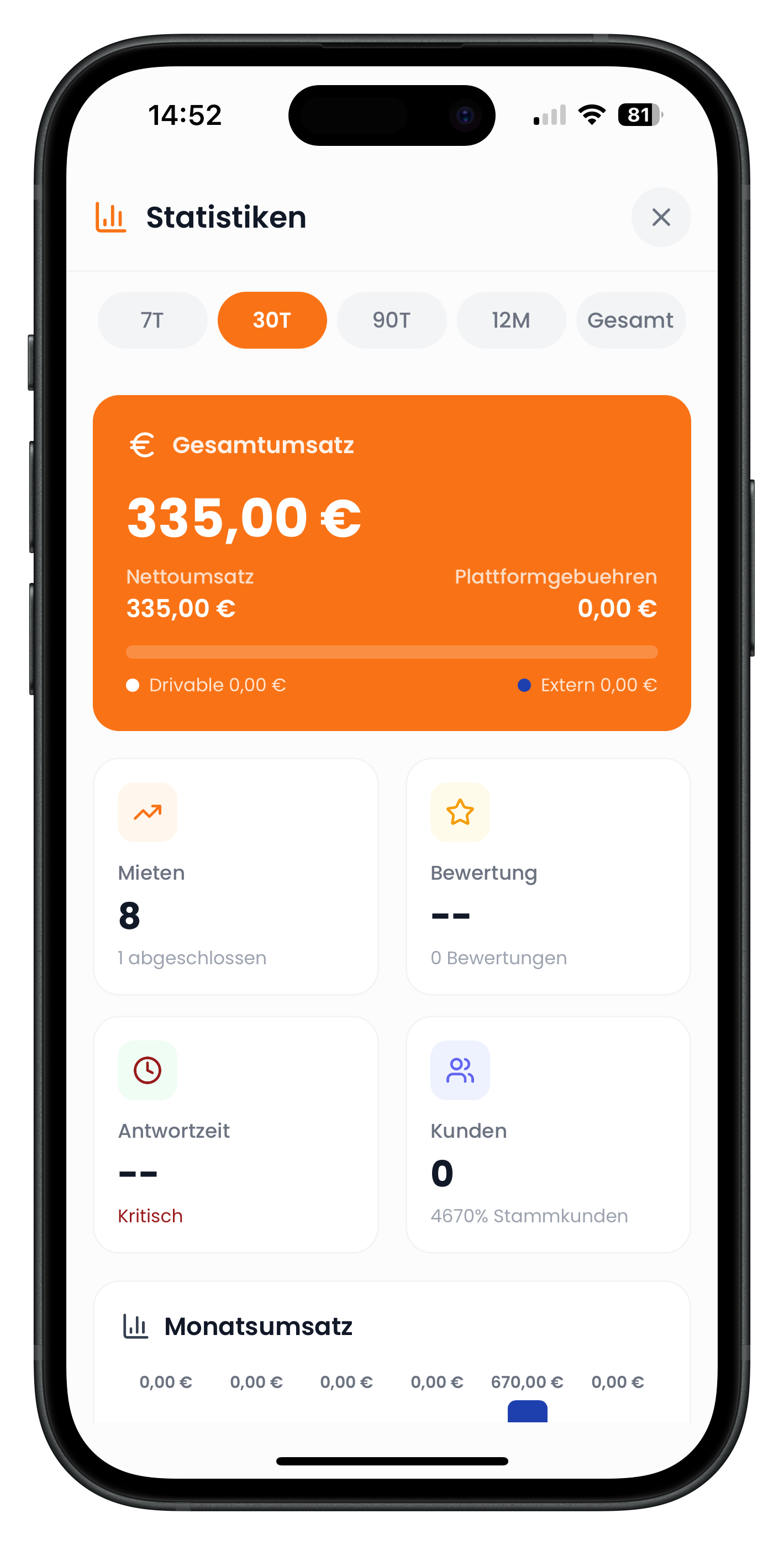
In the top right of the dashboard you'll find the Statistics button. Tap it to open an overview of your performance. At the top, choose your time period (7D, 30D, 90D, 12M, or All time). The orange box shows your total revenue, broken down into net revenue and platform fees. Below that, you'll find tiles for your number of bookings, your rating, your average response time, and your number of renters. At the very bottom, a chart shows your monthly revenue.
- Switch the time period at the top: from the last 7 days to an all-time overview
- Total revenue is broken down into net revenue and platform fees
- The response time tile will warn you with a "Critical" label if you're responding too slowly
- The renters tile also shows you what share of your bookings come from returning renters
Response time is more than just a number. If you reply quickly to requests and messages, renters are more likely to book with you and your utilisation rate goes up. If your response time shows "Critical", you should turn on notifications and make sure you're getting back to requests more promptly.
Next steps
Now you know your way around the dashboard and where to find your bookings, reviews, and numbers. The next step is handling incoming requests correctly: learn how to accept them, decline them, or put together a custom offer under Processing Renter Requests. If you want to know how your earnings are collected and paid out, take a look at the Host Wallet article.
Frequently asked questions

Drivable Team
Help & Support
Das Drivable Team erklärt dir Schritt für Schritt, wie du die Plattform und App nutzen kannst.
21. Juni 2026
War dieser Artikel hilfreich?