Chat & Custom Rental Offers as a Host
In the host chat you coordinate with your customers and send them custom rental offers they can book and pay for directly. Here you'll learn how to configure an offer, withdraw it if needed, and why all communication must stay within the app.
The chat is your central connection to the customer. Here you answer questions, send custom rental offers, and keep the complete history with every customer in view. A custom rental offer is your most important tool: you set the vehicle, dates, mileage and price, send it off, and the customer can book and pay with a single tap. To learn how to handle enquiries in the chat, see the article Handling Customer Enquiries as a Host.
- Why all communication must stay in the chat
- How to read the enquiry history with a customer
- How to create and send a custom rental offer
- How the customer books and pays for your offer
- How to withdraw an offer
- Why phone numbers are blocked in the chat
Everything runs through the chat
1
Opening the Chat tab and keeping communication in the app
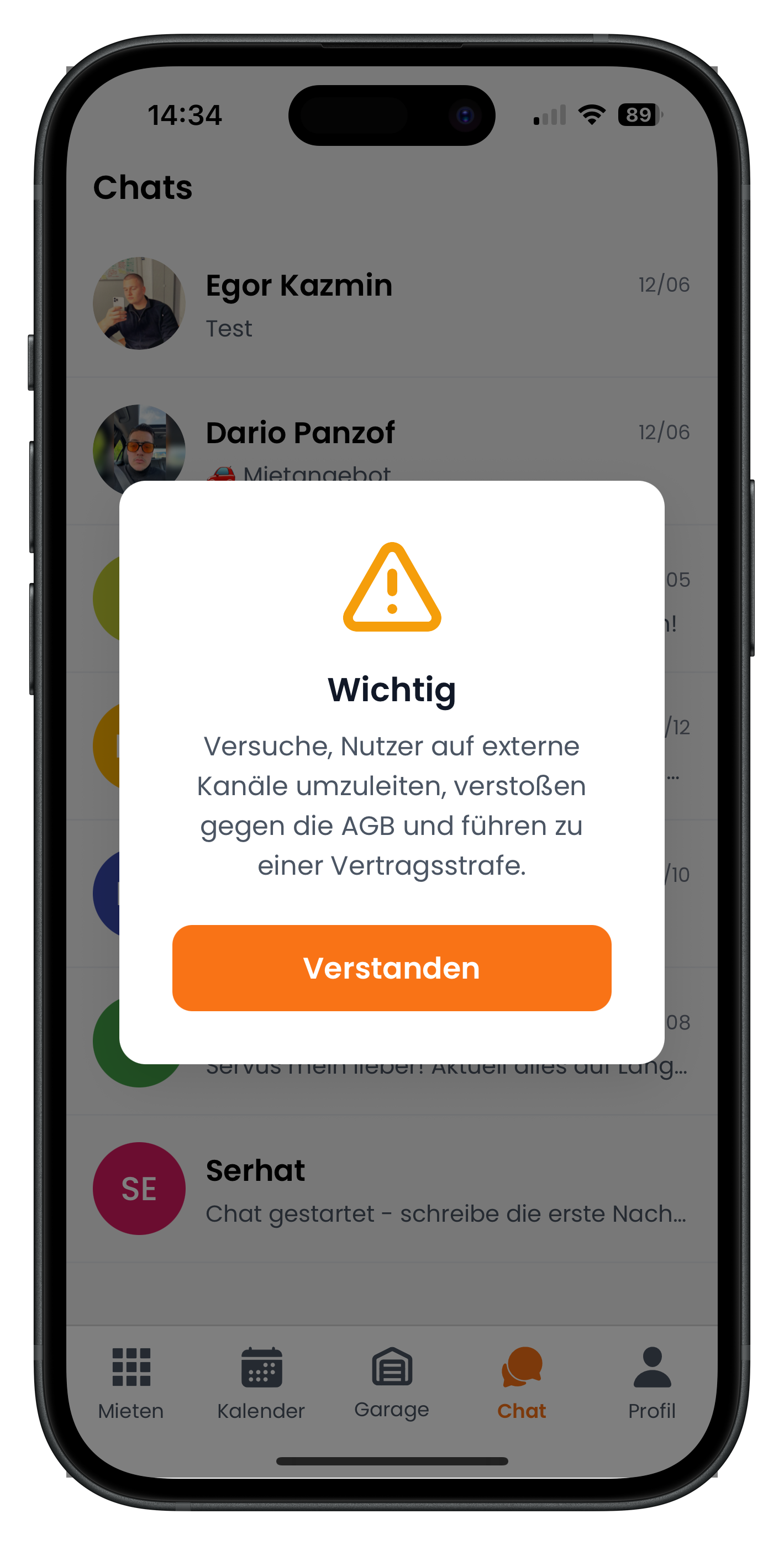
Tap Chat in the bottom navigation (the orange speech-bubble icon, fourth from the left). You'll land in your chat overview showing all your customers, from Egor Kazmin to Dario Panzof and Serhat. The first time you open it, the app displays an Important box reminding you: attempting to move users to external channels violates the terms and conditions and may result in a contractual penalty. Tap the orange Got it button to continue.
- The Chat tab is the speech-bubble icon towards the centre-right of the bottom bar
- Each chat shows the name, latest message and date at a glance
- Always keep price agreements, terms and bookings inside the Drivable chat
Why so strict? As long as everything runs through the chat, every agreement is documented. That protects you as a host just as much as it protects the customer if any disputes arise later. Off-platform deals over WhatsApp or phone fall outside that protection.
2
Viewing the enquiry history with a customer in the chat
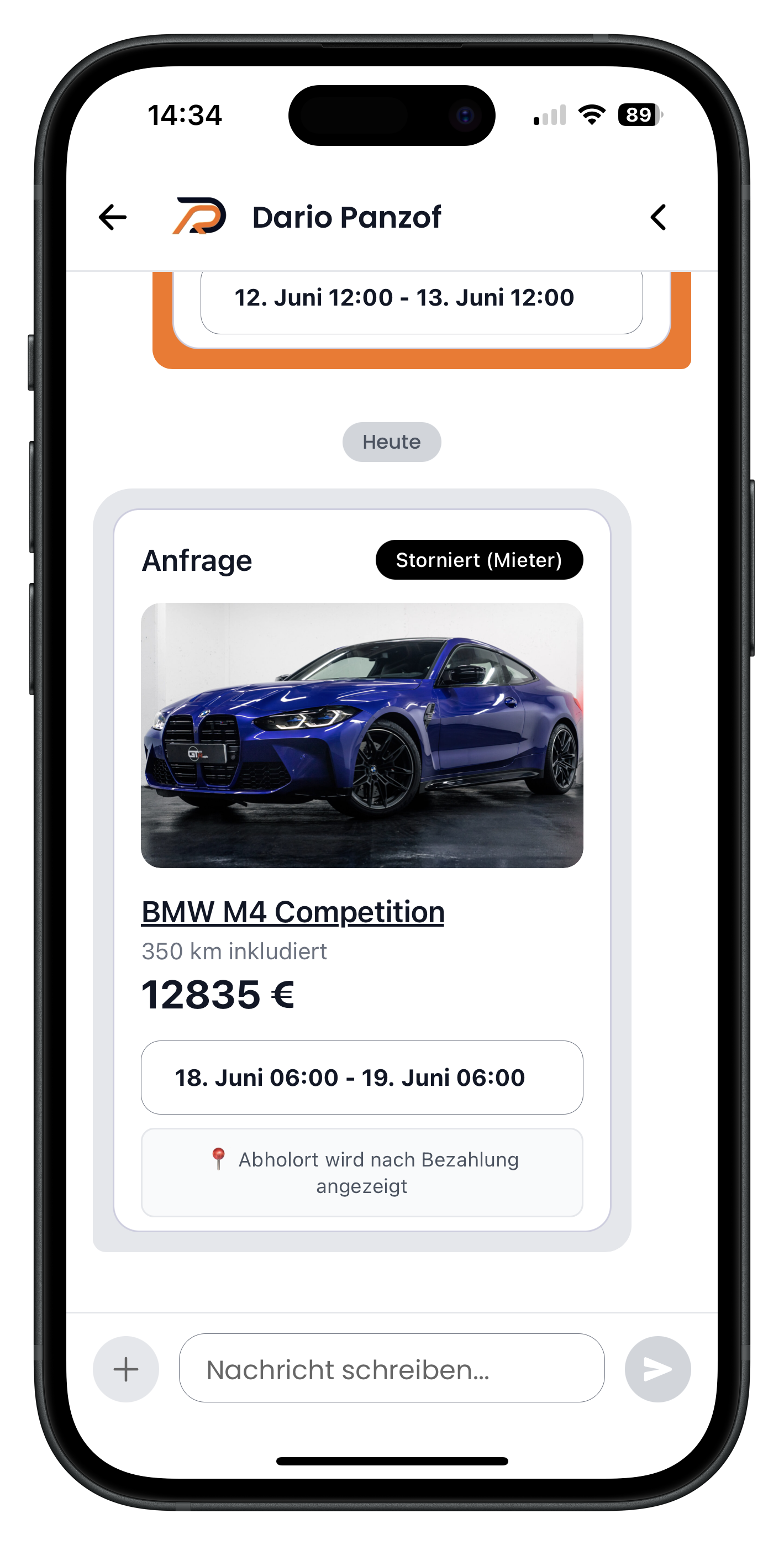
When you open a chat — for example with Dario Panzof — you see not just messages but also the related enquiries displayed as cards in the conversation. In this example, an Enquiry card shows the BMW M4 Competition with the status Cancelled (renter), 350 km included, a price of 12,835 € and the dates 18 June to 19 June. This gives you the complete history with the customer right in front of you so you always know what's already been discussed.
- Enquiries appear as cards directly in the message thread
- The status (e.g. Cancelled) is shown in the top right of the card
- The note "Pick-up location shown after payment" means the address is only revealed once payment is made
- Tap the plus icon at the bottom left to start a new rental offer
Creating a custom rental offer
A custom rental offer is handy when a customer needs special terms, or when a vehicle becomes unavailable at short notice and you want to offer a different one. You put the offer together entirely yourself and the customer simply has to accept it.
3
Creating a rental offer and setting all the terms
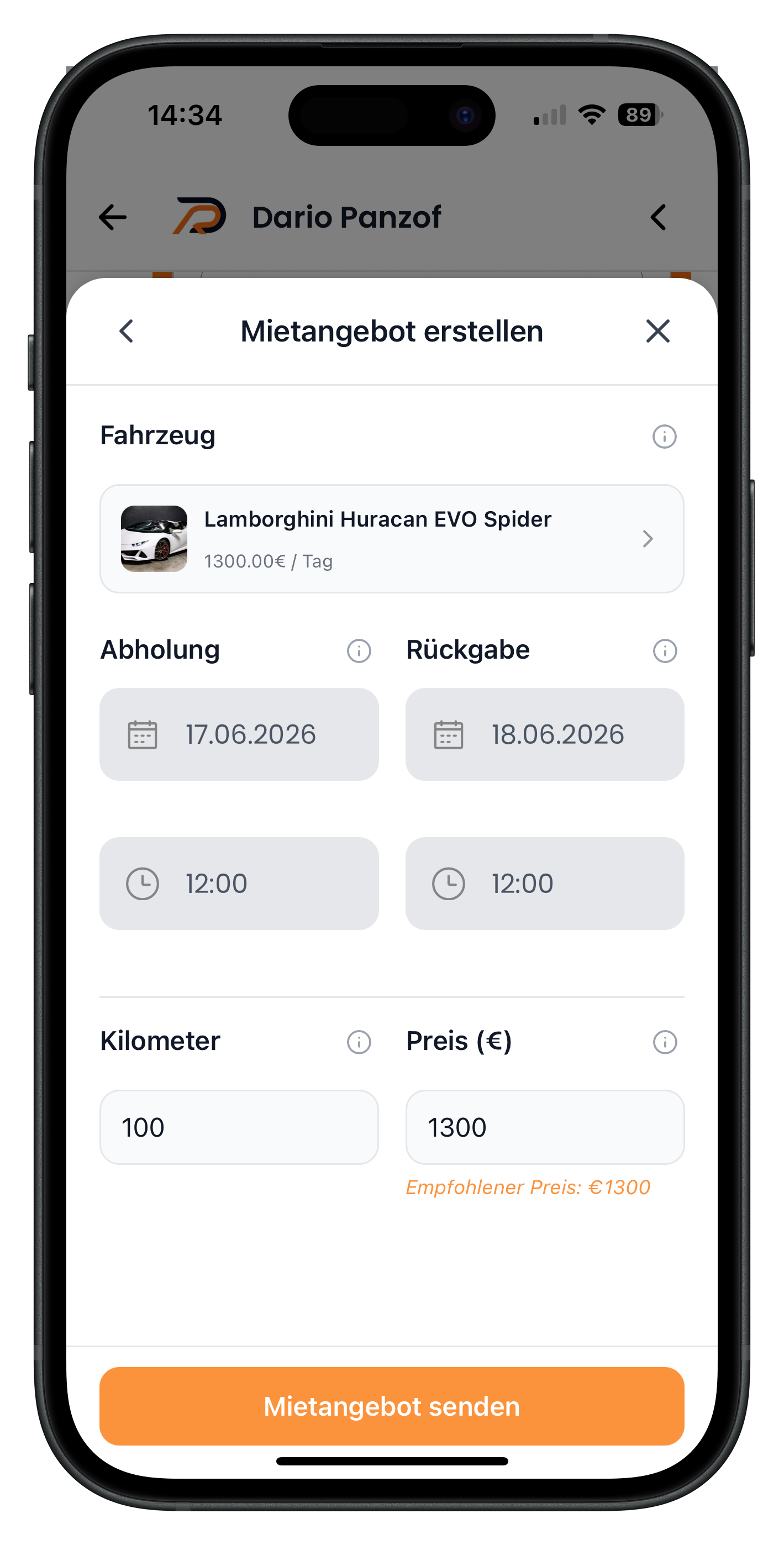
Tap the plus icon at the bottom left of the chat. The Create rental offer window opens. Here you set everything: the vehicle (in this example the Lamborghini Huracan EVO Spider at 1,300.00 € / day), the pick-up and return dates (17/06/2026 to 18/06/2026) along with the time (12:00 for each), the included mileage (100) and the price in euros. Below the price field, the app displays a Recommended price in orange that you can use as a reference. To send the offer, tap the orange Send rental offer button.
- Vehicle, dates, times, mileage and price are all freely adjustable
- The orange "Recommended price" helps you calculate a competitive rate
- Double-check the date and time before sending the offer
- The offer is only sent once you tap "Send rental offer"
4
Selecting the right vehicle from your fleet
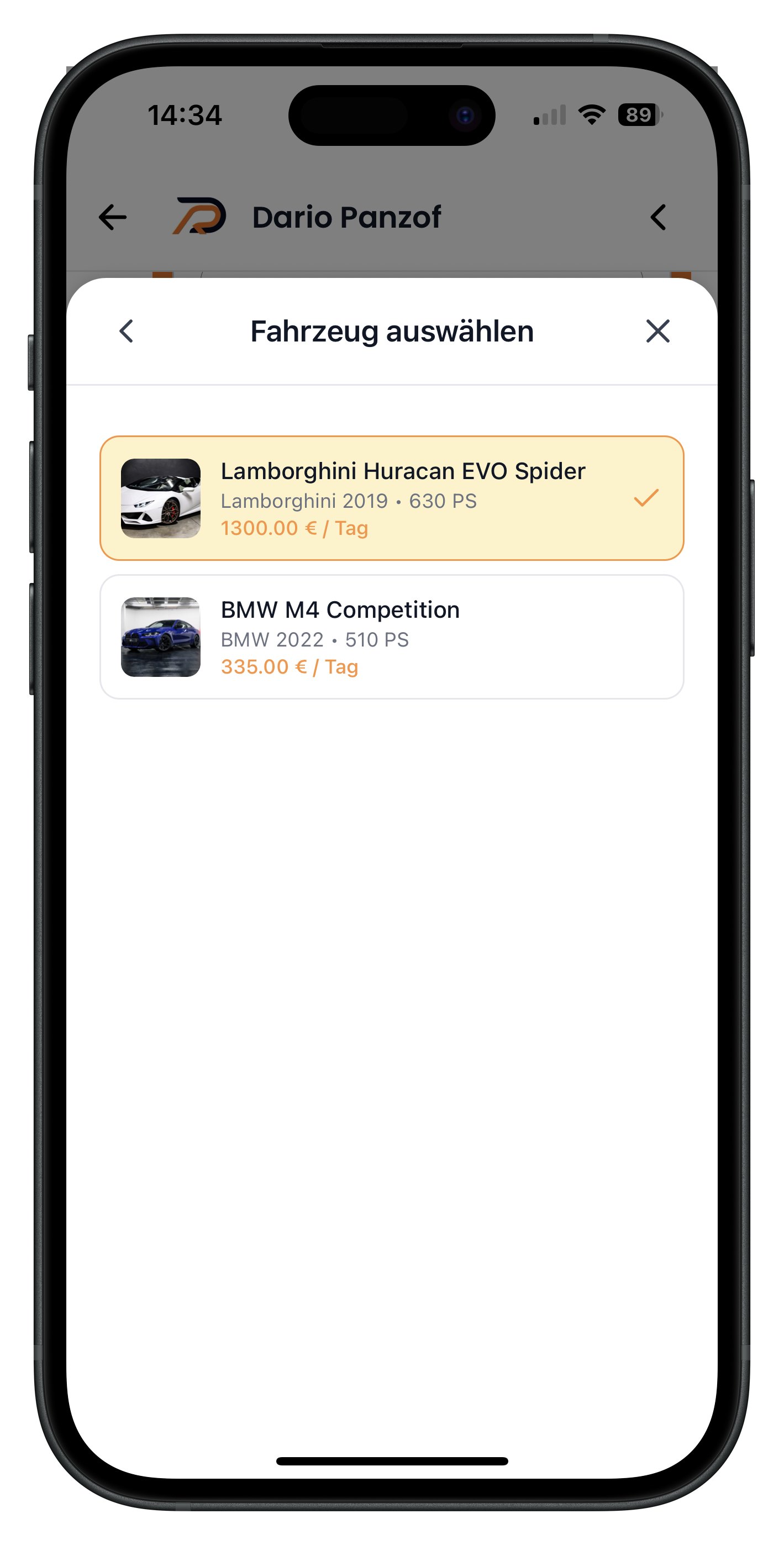
Tapping the vehicle field in the rental offer window opens Select vehicle. Here you see your listed cars one below the other, each with year, power output and daily rate — for example the Lamborghini Huracan EVO Spider (2019, 630 hp, 1,300.00 € / day) and the BMW M4 Competition (2022, 510 hp, 335.00 € / day). The currently selected vehicle is highlighted in yellow with a tick. Simply tap the car you want to offer.
- Only your own active listings appear as options
- Each row shows the make, year, horsepower and daily rate
- The selected vehicle is highlighted in yellow with a tick
- Useful when one car is unavailable and you want to offer a different one
Use the mileage and price fields to accommodate specific customer requests. Someone who needs more kilometres or a longer period gets a tailored offer rather than a standard one. For seasonal discounts, it's better to set those up via Discount promotions.
How the customer accepts your offer
5
Tracking the sent rental offer in the chat
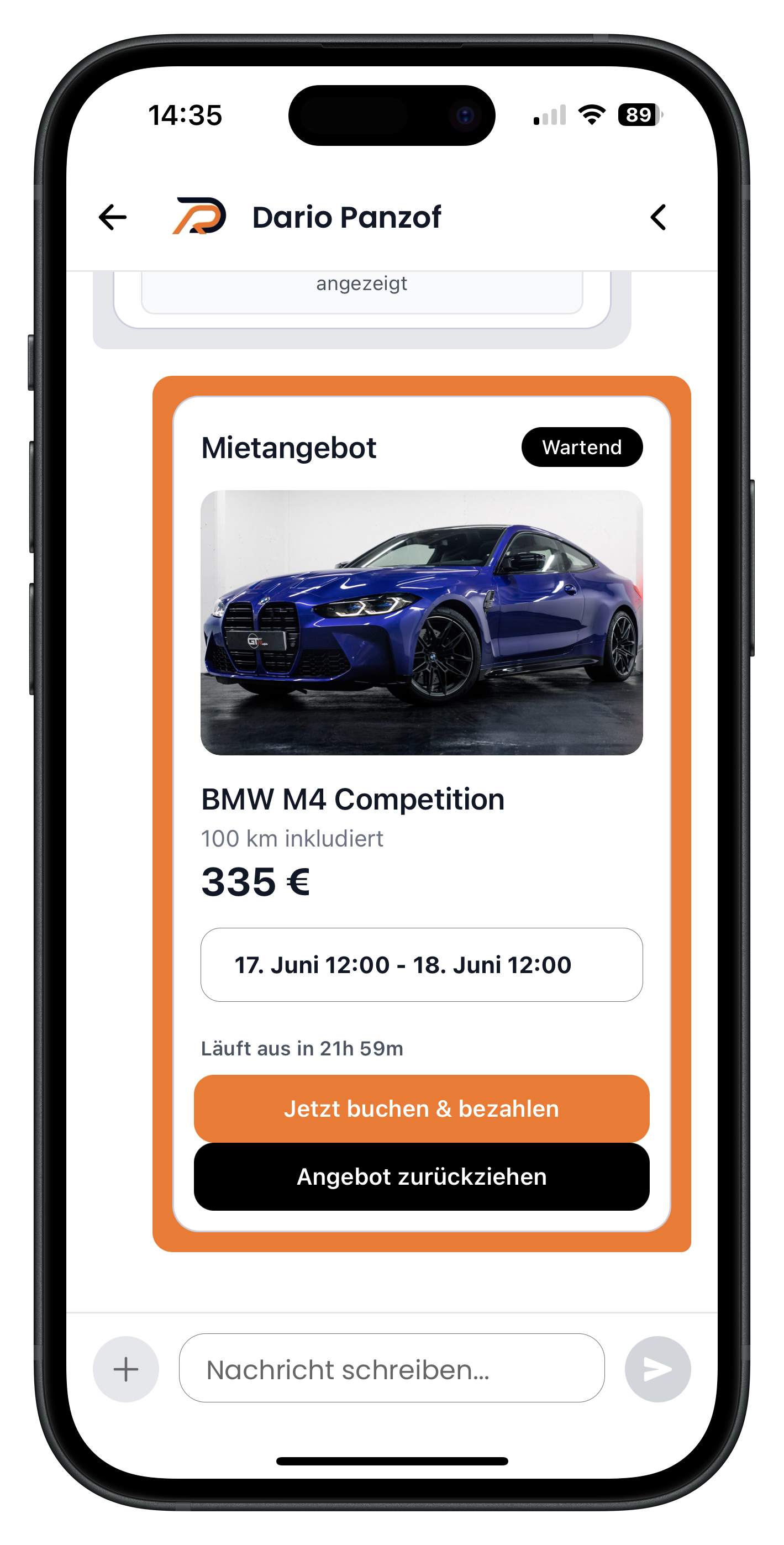
After sending, your rental offer appears as a card in the chat, with the status Pending in the top right. The card shows the vehicle (here the BMW M4 Competition), the included mileage (100 km), the price (335 €) and the dates (17 June 12:00 to 18 June 12:00). Below that is a countdown such as Expires in 21h 59min. The customer sees the same view and can accept the offer directly via Book & pay now. Once they pay, everything is booked according to the terms of your offer.
- The "Pending" status means the customer hasn't responded yet
- The countdown shows how long the offer remains valid
- With "Book & pay now" the customer accepts and pays
- The deposit is handled as usual in person at handover
The customer pays the rental price using the standard payment methods directly in the app — for example by credit card, Apple Pay, Google Pay or Klarna. The booking is only confirmed once payment has been successfully completed, at which point the exact pick-up location is revealed.
6
Withdrawing a rental offer
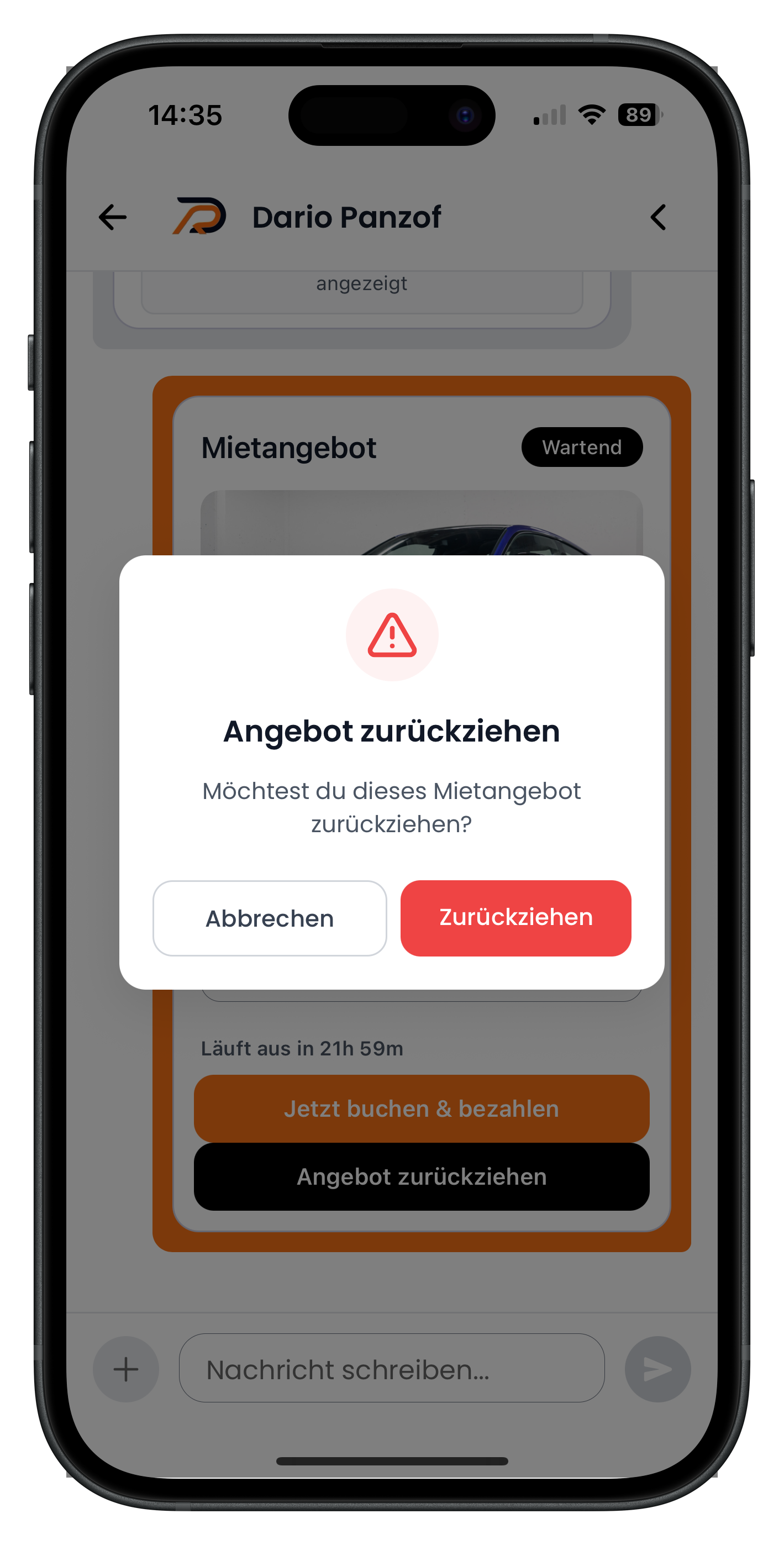
Made a mistake, or is the car suddenly no longer available? As long as the offer shows Pending, you can withdraw it. Tap the black Withdraw offer button. A confirmation prompt appears asking Do you want to withdraw this rental offer?. Tap Cancel to leave it as is, or tap the red Withdraw button to remove the offer permanently. After that, the customer can no longer book it.
- You can only withdraw an offer while the customer hasn't paid yet
- The confirmation prompt prevents accidental removal
- Useful if you entered the wrong price or the car becomes unavailable at short notice
- After withdrawing, you can send the customer a new offer
Security in the chat: no phone numbers
7
Why phone numbers are blocked in the chat
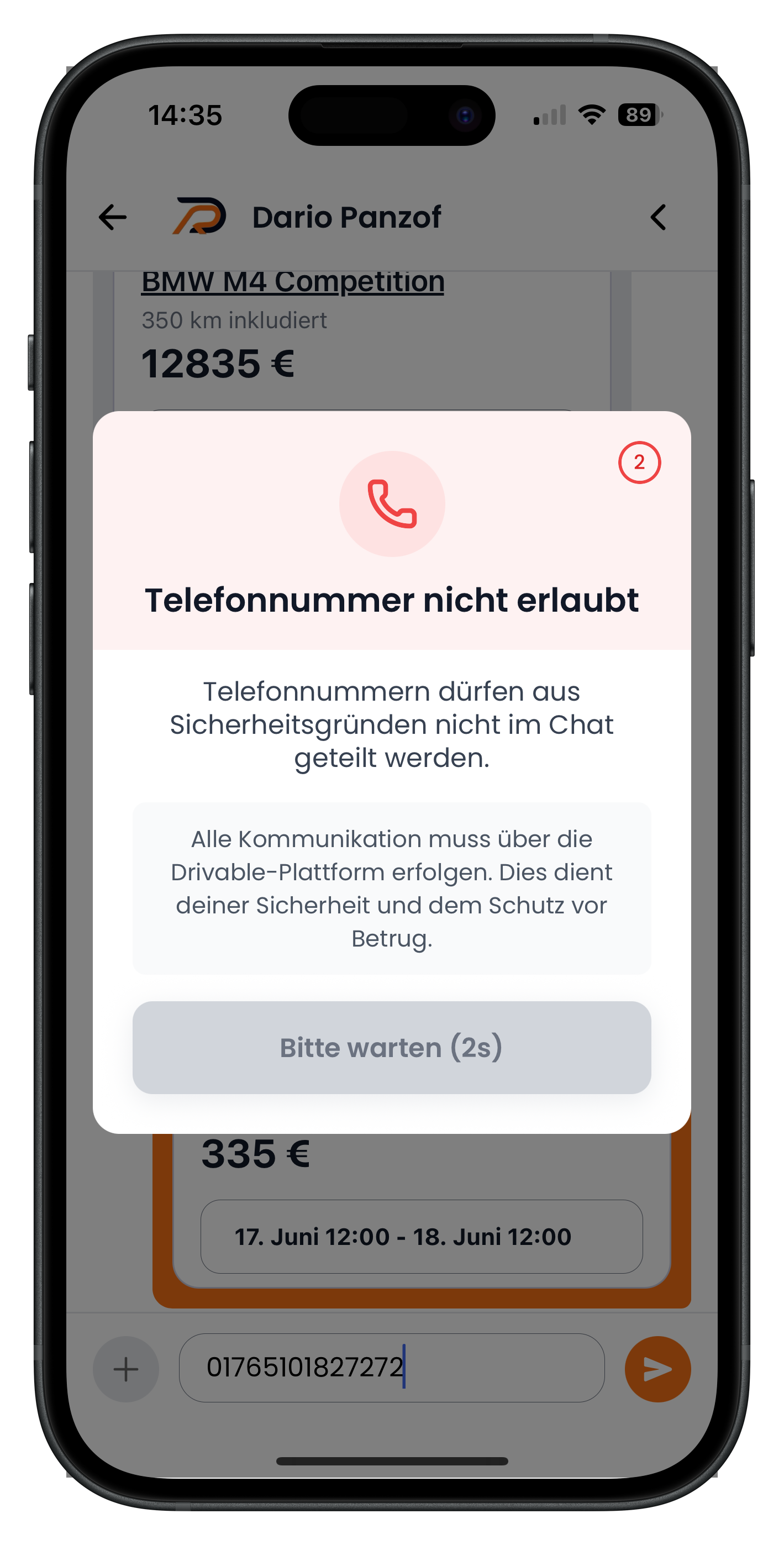
If you try to type a phone number into the chat, the system blocks the message and displays the Phone number not allowed window with a red telephone icon. The text explains that phone numbers may not be shared in the chat for security reasons. A grey box adds that all communication must go through the Drivable platform, as this protects your security and guards against fraud. The Please wait button shows a brief two-second countdown, after which you can close the window again.
- Phone numbers are detected and blocked automatically
- The restriction applies to both sides — customer and host alike
- This keeps all agreements documented, even before payment
- Simply keep appointments, terms and questions in the chat
The complete history with a customer
8
Opening enquiries & offers in the side panel
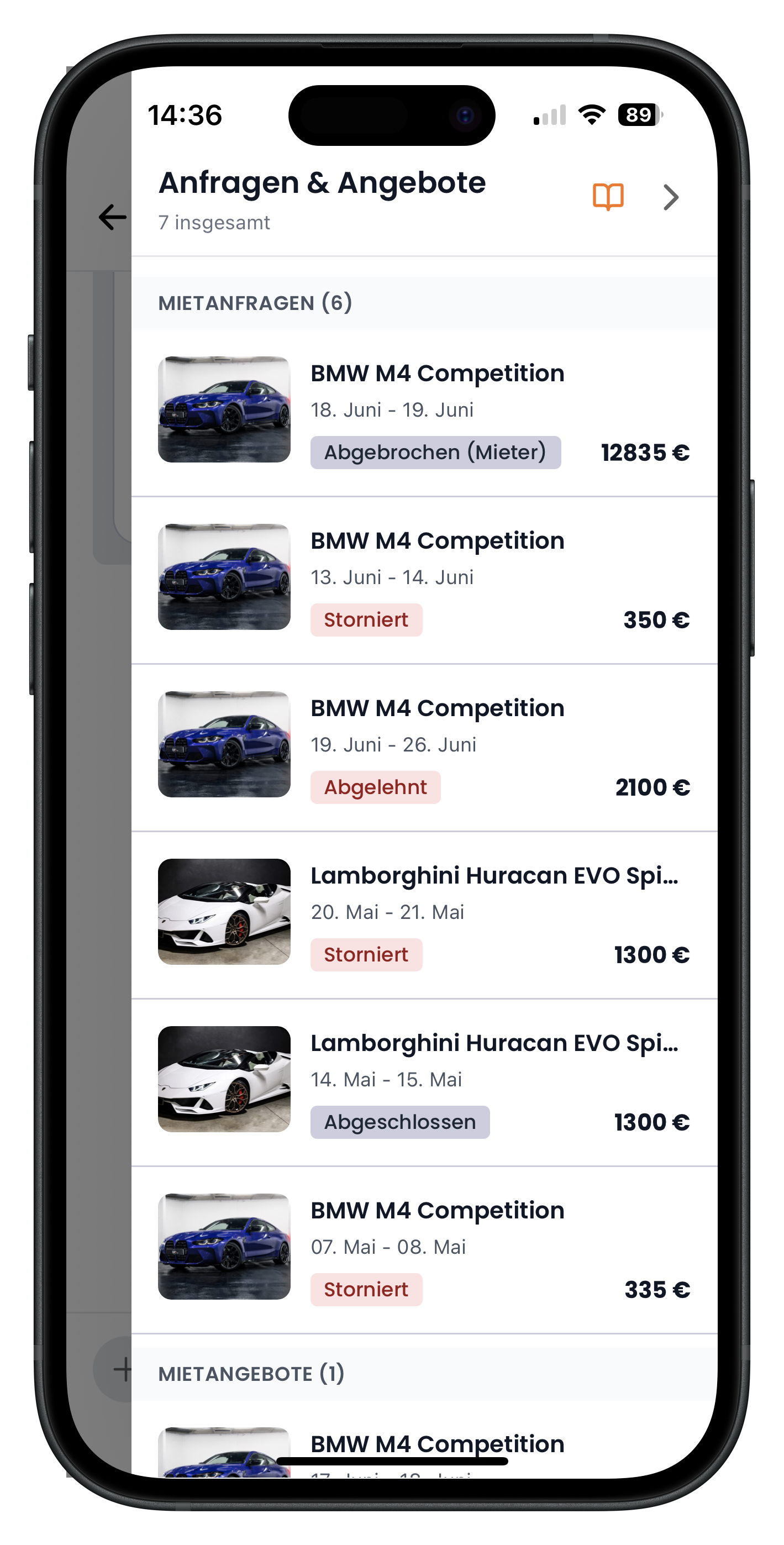
Tapping the arrow in the top right of the chat opens the Enquiries & Offers side panel. At the top it shows the total number of transactions with this customer — for example 7 in total. Below that everything is neatly separated: under RENTAL ENQUIRIES you'll find every enquiry with vehicle, dates, price and a status such as Abandoned, Cancelled, Declined or Completed. Further down are the RENTAL OFFERS. This gives you the entire shared history with the customer at a glance.
- The arrow in the top right opens the history side panel
- At the top you can see the total number of transactions with the customer
- Rental enquiries and rental offers are sorted into separate sections
- Colour-coded status labels instantly show which stage each transaction is at
Next steps
You now know how to create custom rental offers in the chat, withdraw them if needed, and keep the complete history with every customer in view. To learn how to accept or decline incoming enquiries in general, see the article Handling Customer Enquiries as a Host. For a full overview of your host features, visit The Host Dashboard at a Glance.
Frequently asked questions

Drivable Team
Help & Support
Das Drivable Team erklärt dir Schritt für Schritt, wie du die Plattform und App nutzen kannst.
21. Juni 2026
War dieser Artikel hilfreich?