Rate a booking – leaving a review for your host
Once a booking is complete, you can give your host a star rating and a short description of your experience. Here we walk you through how to leave a review in the app, step by step. Your honest feedback helps other renters and gives hosts the chance to improve.
Returned the car and your booking is all wrapped up? Great – you can now leave a review. It takes less than a minute and happens right inside the Drivable app. You give a star rating and write a quick note about how everything went. In this guide we'll walk through every step together.
- When you can rate a booking
- Where to find the "Rate booking" button
- How to give stars and write a description
- What happens after you submit
You can only rate bookings that are already complete. While your booking is still active or the car hasn't been returned yet, the rate button won't appear. Only once the booking has the status "Completed" can you go ahead and leave a review.
1
Open the completed booking
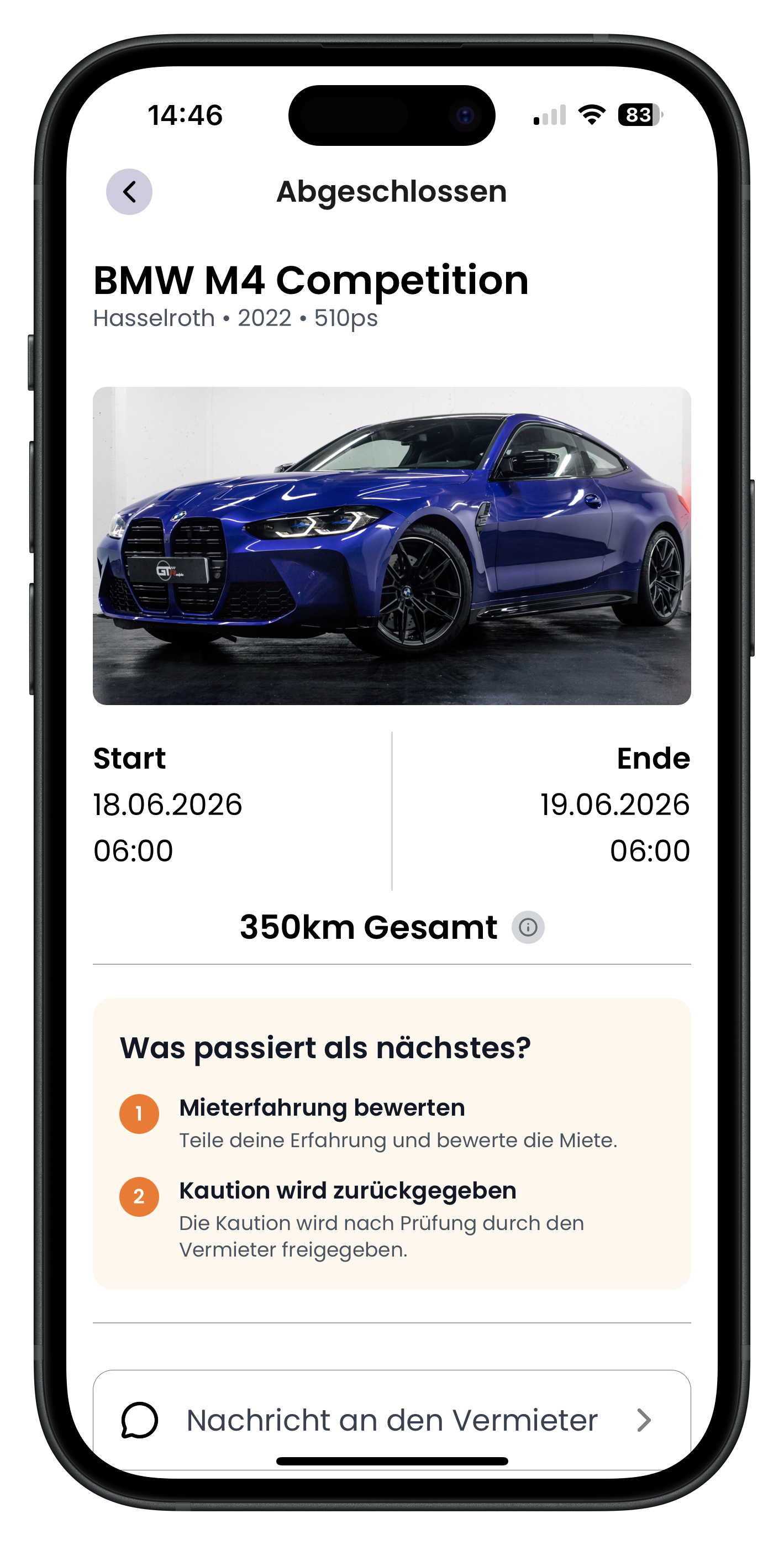
In the app, tap the booking you'd like to review. At the top you'll see the status "Completed" and the vehicle you drove – for example the BMW M4 Competition – along with the rental period, start and end dates, and the total kilometres driven. Further down you'll find a box labelled "What happens next?" listing Rate your rental experience and Deposit will be returned. That first item is exactly what we're here for.
- The booking status (here: Completed) is shown at the top centre
- You can see the vehicle, rental period, and kilometres driven at a glance
- The "What happens next?" box shows you the outstanding steps
2
Scroll down and find the "Rate booking" button
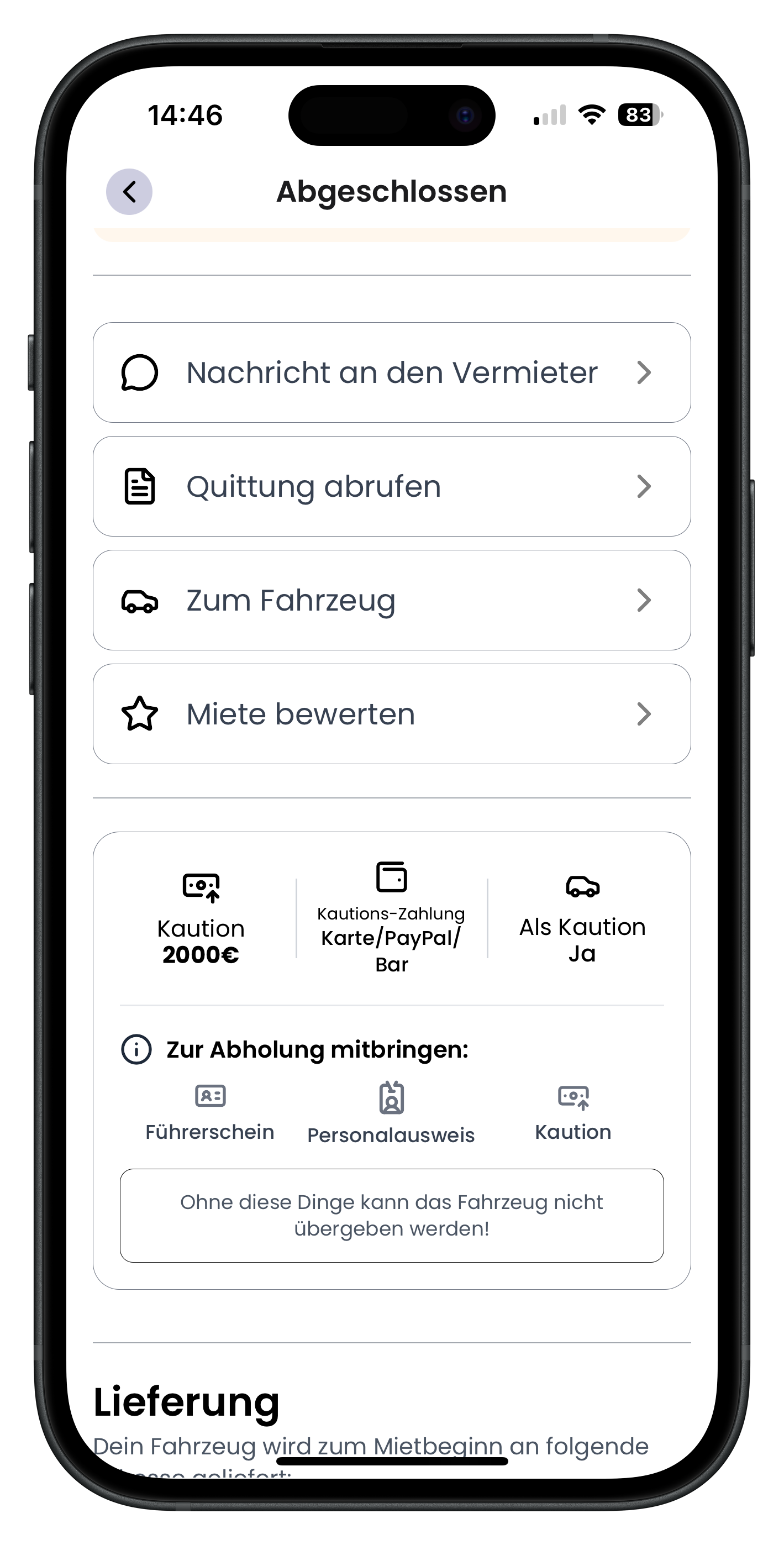
Scroll down a little on the details page. You'll now see several action buttons listed one below the other: Message host, Get receipt, View vehicle, and – most importantly – Rate booking with a small star icon next to it. Below that you'll also find information about the deposit and what you needed to bring to the handover. To leave your review, tap Rate booking.
- The rate button has a star icon and sits in the list of actions
- Use Get receipt to access your payment confirmation
- If you want to send the host a message first, use the Message host option
If you have any questions about charges or your returned deposit, take a look at the Chat & rental offers page first. You can reach your host directly via the chat.
3
Give your star rating and describe your experience
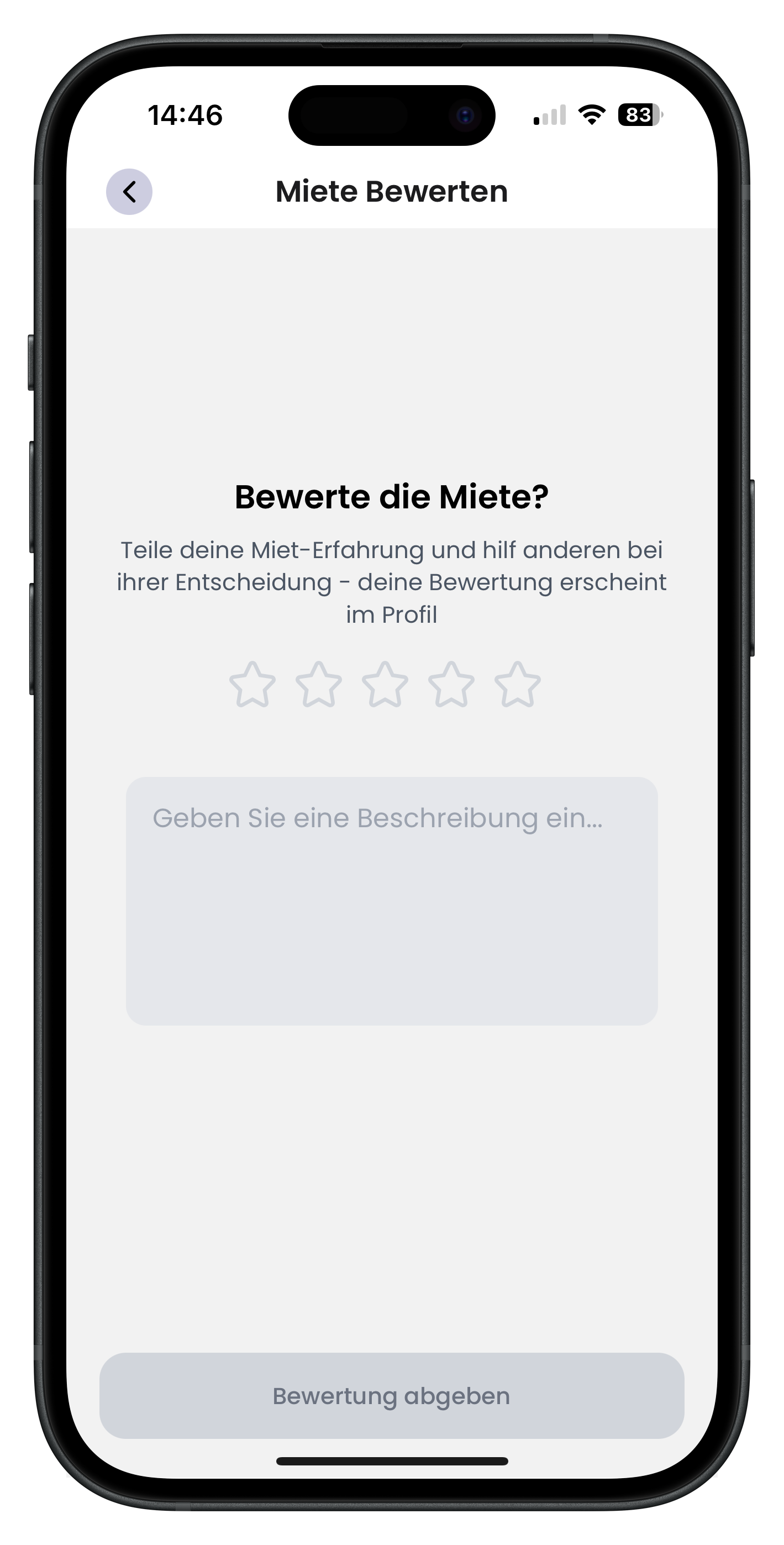
You'll now land on the "Rate Booking" page. At the top you'll see the prompt "Rate the booking" and a note that your review will appear on the host's profile and help others make their decision. Tap the five stars to set your rating – one star for a poor experience, five stars for a really great one. In the text field "Enter a description", write in your own words how the booking went. When you're done, tap Submit review at the bottom.
- Tap the star on the far right to give the full 5-star rating
- Be honest and specific – that's the most helpful thing you can do for other renters
- A short description says far more than stars alone
Why bother leaving a review? Your feedback makes the platform better for everyone. Other renters can see what to expect from a host, and the host gets honest input they can act on. If your host did a great job, a fair review is a nice way to show your appreciation.
4
Wait for the confirmation and finish your review
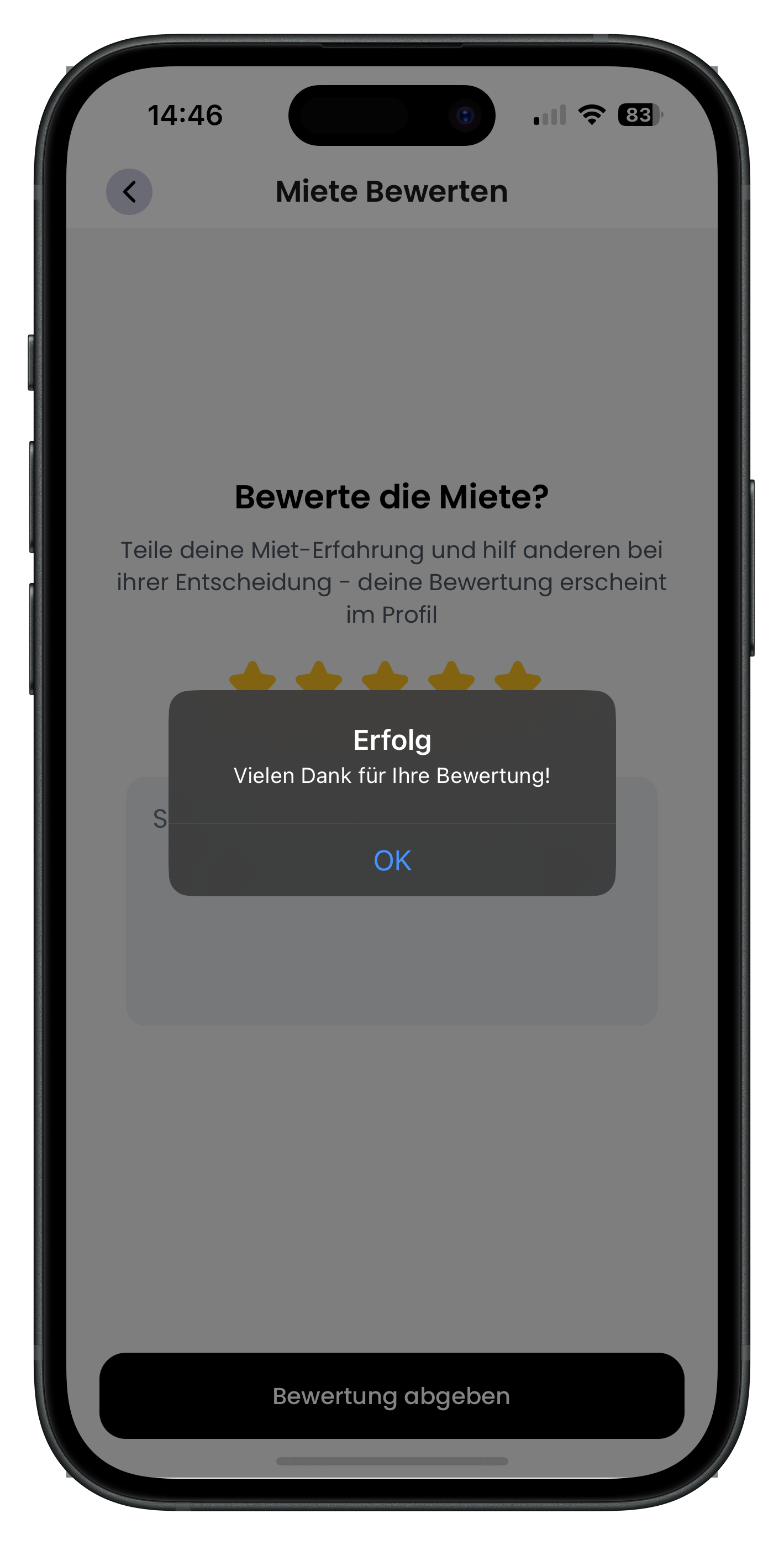
As soon as you tap Submit review, your stars light up golden and a small pop-up appears with the heading "Success" and the message "Thank you for your review!". Your review is now saved and visible on the host's profile. Just tap OK to close the pop-up. That's it – you've successfully reviewed your booking.
- The filled golden stars show the rating you've submitted
- The Success pop-up confirms that everything has been saved
- Tapping OK takes you back to your booking overview
Did something go wrong during the booking – for example damage to the vehicle or a problem at the handover? Make sure to report it via Report a problem & Support as well, so our team can look into it directly.
Next steps
You've left your review? Brilliant. When you're ready for the next drive, the process is the same as always: send a request, wait for the host to confirm, and pay. Stay in touch with your host via Chat & individual rental offers – regular renters often get better deals. And if anything ever goes wrong, Report a problem & Support is your first port of call.
Frequently asked questions

Drivable Team
Help & Support
Das Drivable Team erklärt dir Schritt für Schritt, wie du die Plattform und App nutzen kannst.
21. Juni 2026
War dieser Artikel hilfreich?