Chat & Booking Offers – How to Communicate with Your Host
In the chat, you can sort out all the details of your booking directly with the host, nice and easy. Find out how to receive custom booking offers, accept them, and pay – and why all communication must stay on Drivable.
As soon as you've requested a vehicle, a chat with the host opens up. This is where you can take your time to sort out any questions: price, included mileage, your plans for the weekend. The host can put together a custom booking offer for you right there in the chat, which you can then accept and pay for in just a few steps. In this article, we'll walk you through how it all works.
- How the chat with your host works
- How to receive and accept a custom booking offer
- Which payment options are available when you accept
- Why all communication must stay on Drivable, and what gets blocked in the chat
Chatting with your host
The chat is your direct line to the host. Tell them openly what you've got planned – whether it's a birthday, a photo shoot, or simply a weekend in your dream car. The clearer you are, the better they can tailor an offer for you. Feel free to ask for more mileage, discuss the price, or find out how the handover works.
Exact handover details – like the vehicle's address and the host's direct contact information – are only shared once you've paid. Until then, everything goes through the chat. That way, the whole process stays protected for both sides.
1
Receiving and reviewing a booking offer in the chat
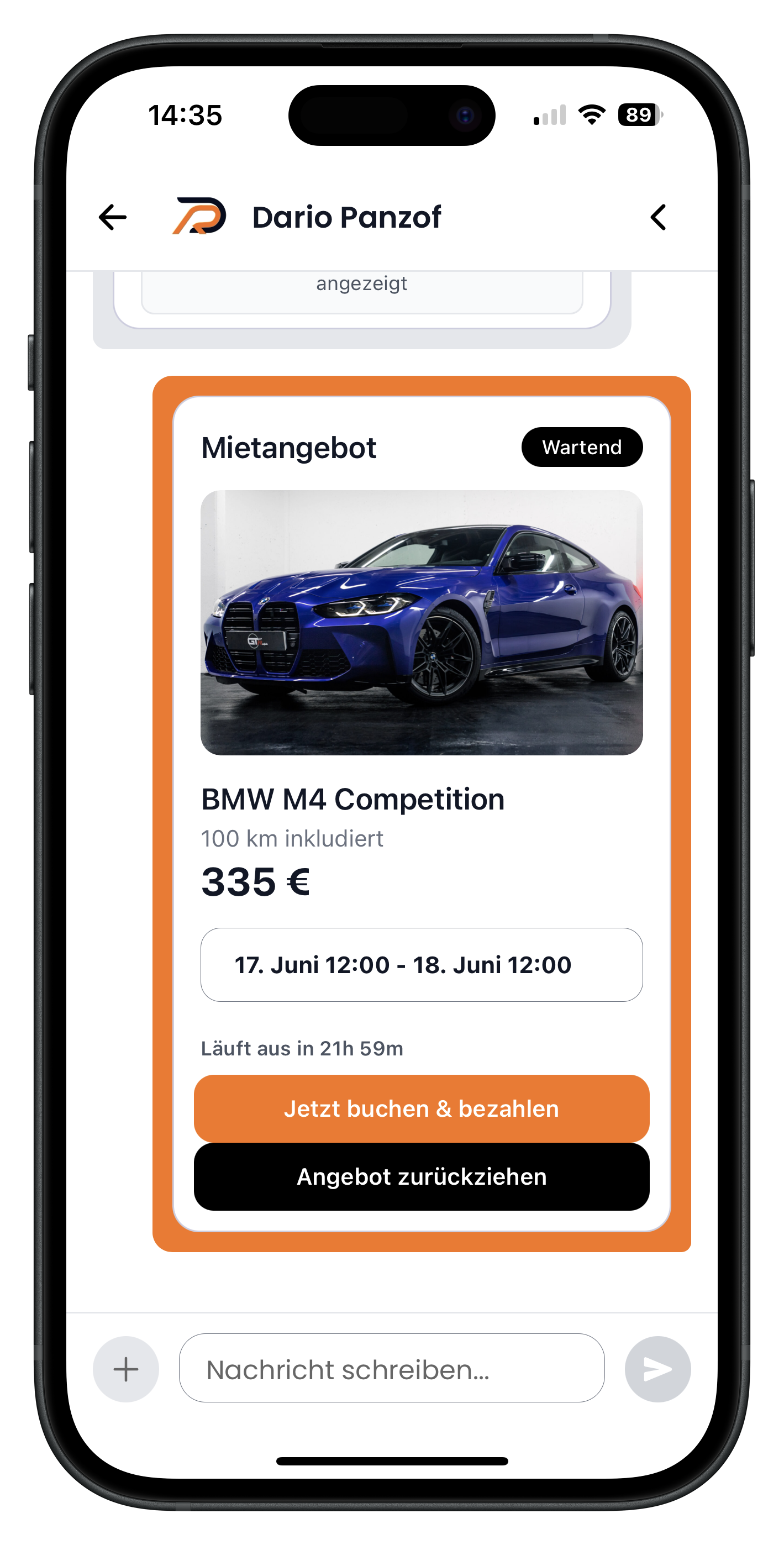
When the host sends you a custom offer, a booking offer card appears in the chat. The status in the top right shows Pending until you respond. The card gives you all the key details at a glance: the vehicle (in this example, a BMW M4 Competition), the included mileage (100 km), the total price (335 €), and the period with date and time. Below that, a timer shows how long the offer is still valid (here Expires in 21h 59m).
- Check the price, included mileage, and booking period carefully before you confirm
- The offer is only valid for a limited time – the timer tells you exactly how long you have left
- Tap the black "Withdraw offer" button to decline the offer
- Something not quite right? Just message the host in the chat and ask for a revised offer
You don't have to accept the first offer. Feel free to ask for more mileage or a different price. The host can send you a new, revised booking offer in the chat at any time, until you're both happy with the terms.
2
Accepting a booking offer and choosing your payment method
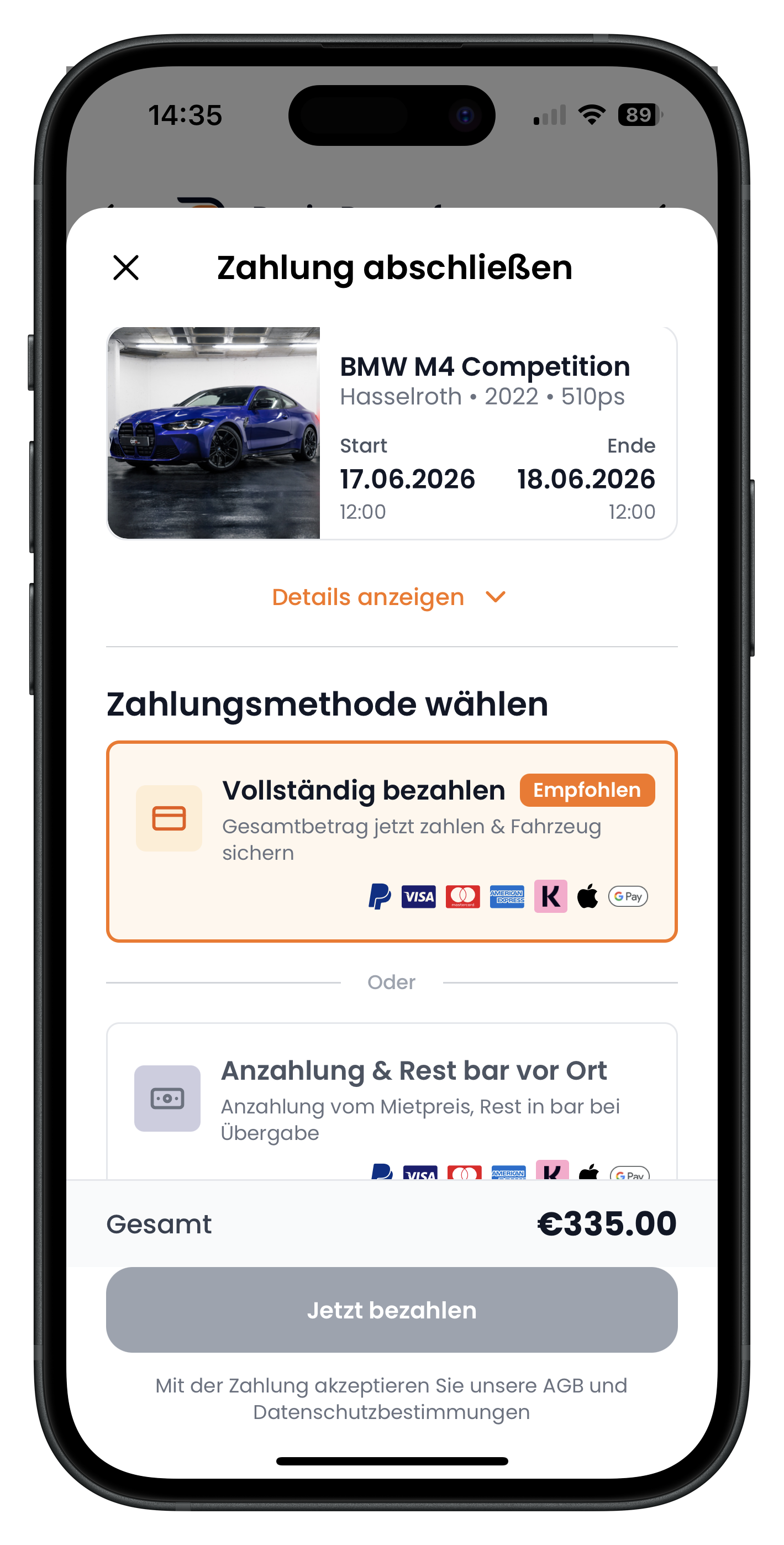
Tap the orange Book & pay now button and you'll land on the Complete payment page. At the top, you'll see the vehicle again with its location and your booking period. Under Choose payment method you have two options: Pay in full (marked as Recommended), where you pay the total amount online, or Deposit & pay the rest in cash on the day, where you pay part of it online and settle the remainder in cash at the handover. The total amount is shown at the bottom (here 335,00 €).
- "Pay in full": you pay the entire booking price online straight away
- "Deposit & pay the rest in cash on the day": you pay a deposit online, and the remainder is due in cash at the handover
- The total amount is always shown at the bottom of the page before you tap "Pay now"
3
Choosing a deposit and completing payment
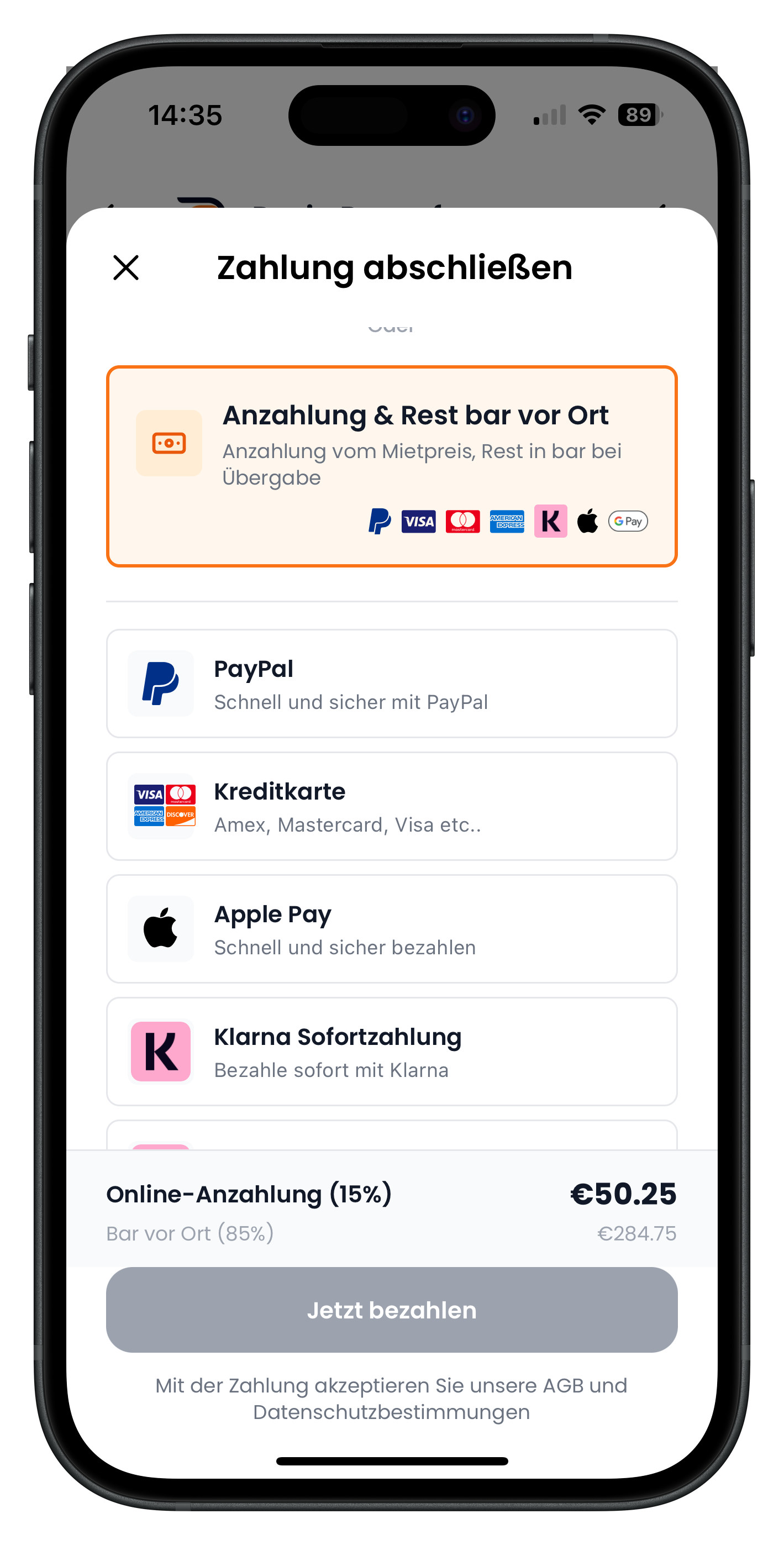
If you choose Deposit & pay the rest in cash on the day, the exact breakdown expands. You can see which portion is due immediately as the online deposit (in this example 15 %, i.e. 50,25 €) and which amount you'll pay in cash on the day (85 %, i.e. 284,75 €). Below that, you choose your payment method for the online portion. All major credit cards, Apple Pay, Google Pay, and Klarna are available – and with Klarna you can also pay in instalments. Pick your method and tap Pay now.
- The split between deposit and remaining balance is shown to you clearly and upfront
- For the online portion: all major credit cards, Apple Pay, Google Pay, and Klarna
- With Klarna you can also pay the booking price in instalments
- By tapping "Pay now" you agree to the terms and conditions and privacy policy
Once payment goes through, your booking is confirmed. Only then will the vehicle's exact location and the host's contact details be revealed. From that point, you can sort out all the final handover details between you. By the way, the security deposit isn't handled through the app – it's settled in person with the host on the day.
Why all communication must stay on Drivable
You might be thinking: wouldn't it be simpler to just share your mobile number with the host and message them on WhatsApp? That's not possible on Drivable – and there's a good reason for it. All communication before the booking must go through the chat, so that everything is properly documented and kept safe for both parties.
4
Phone numbers are blocked in the chat
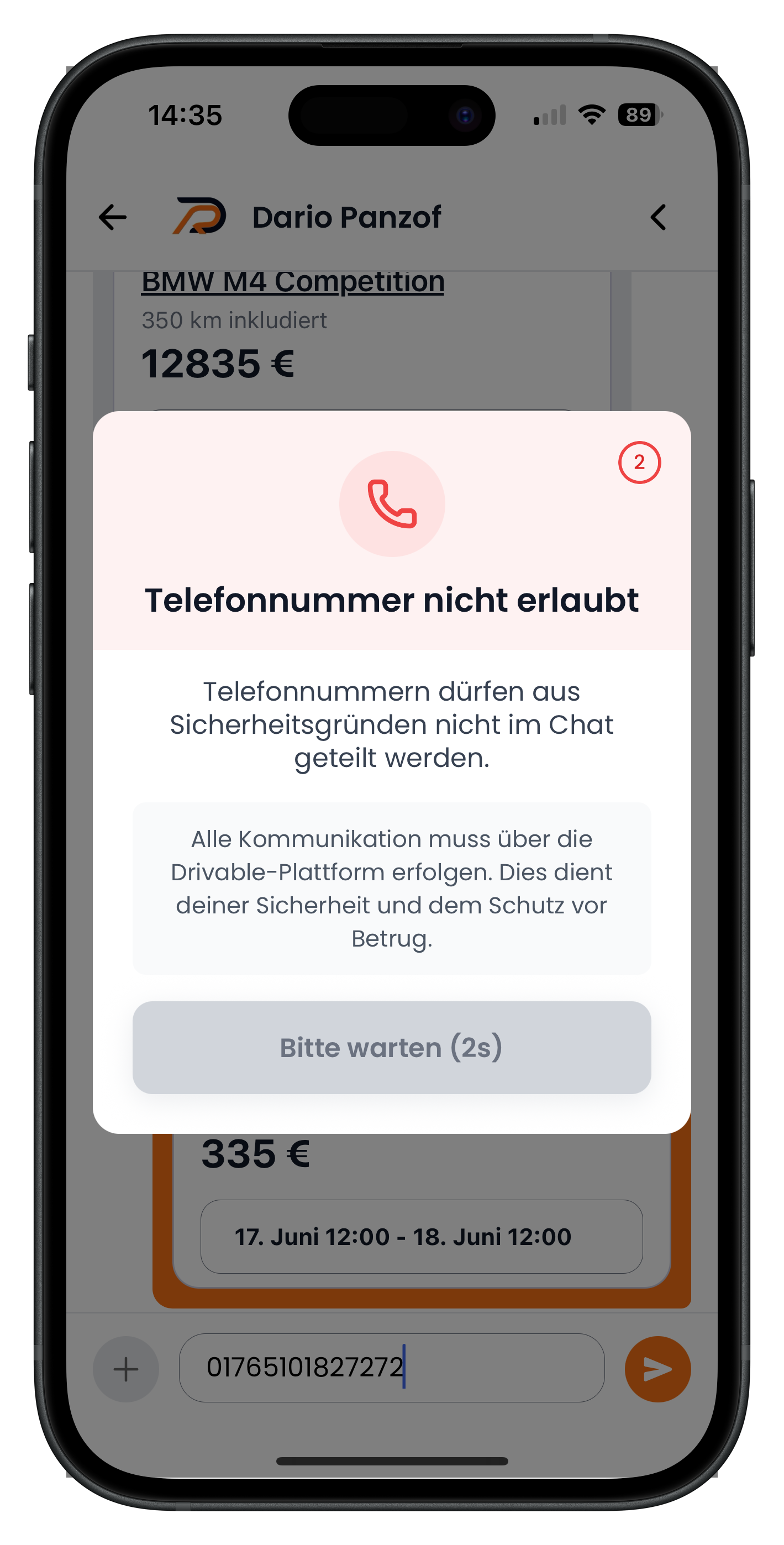
If you try to send your phone number to the host in the chat, a notice appears: Phone number not allowed. The red alert box states Phone numbers cannot be shared in the chat for security reasons. Below that, it explains that all communication must take place via the Drivable platform – this is to keep you safe and protect against fraud. You'll be briefly paused (Please wait with a short countdown) before you can continue writing.
- Phone numbers and other contact details are automatically detected and blocked in the chat
- This protects you as a renter and ensures all communication is legally documented
- You'll receive the host's location and contact details directly after payment anyway
- If you have a real issue with the chat or your booking, you can contact support at any time
Don't worry, you won't miss out on anything: once you've paid, you'll get the host's direct contact details and can coordinate the handover as normal. Until then, the chat is your safe space for all arrangements.
Next steps
Accepted a booking offer and want to know exactly how payment works? Check out the article Pay for your booking and confirm it. If you're just getting started, Request a vehicle – sending a booking request will point you in the right direction. And if something goes wrong in the chat or with your booking, you'll find quick help at Report a problem and contact support.
Frequently asked questions

Drivable Team
Help & Support
Das Drivable Team erklärt dir Schritt für Schritt, wie du die Plattform und App nutzen kannst.
21. Juni 2026
War dieser Artikel hilfreich?